Block email tracking pixels and load images only when you choose
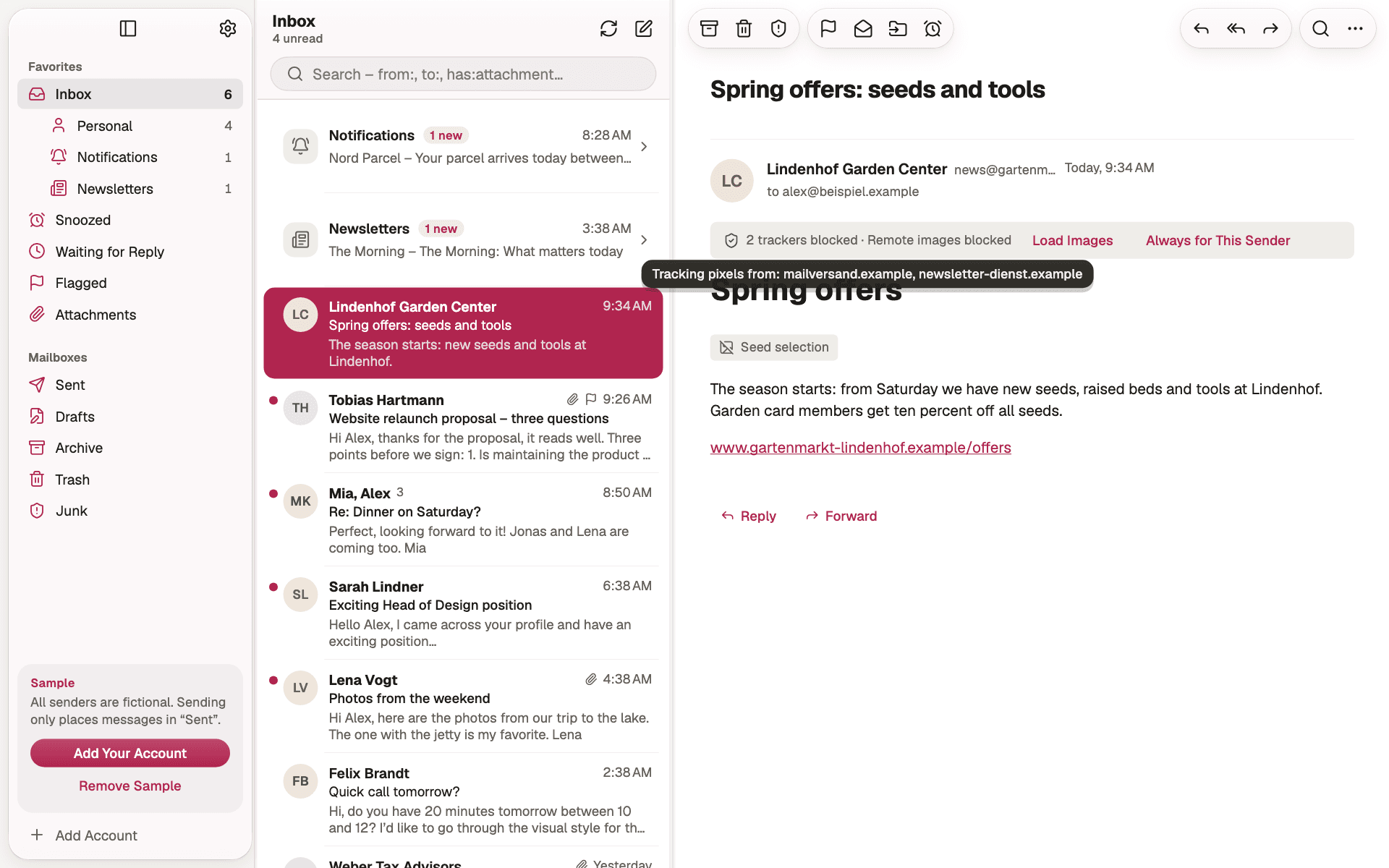
Many newsletters and sales emails tell their sender when you open them. They do it with invisible images that load when the message is displayed. Mail loads remote images only when you allow it, always removes tracking pixels it detects, and shows above the message how many trackers were blocked and which services they came from.
What it does
- Remote images only on request
- Remote images are blocked until you allow them: once for this message, or always for this sender.
- Tracking pixels always removed
- Mail removes detected tracking pixels even if you load remote images by default.
- A visible notice
- “2 trackers blocked” appears above the message; hovering shows “Tracking pixels from: …” with the services’ domains.
- Detection by size, visibility and address
- Images of 2 pixels or less, images made invisible, and addresses of known mailing services count as tracking pixels.
- HTML without scripts
- Mail renders email without a browser component and without JavaScript. Scripts, forms, embedded objects and stylesheets are removed, and CSS can’t load anything.
- Links with a check
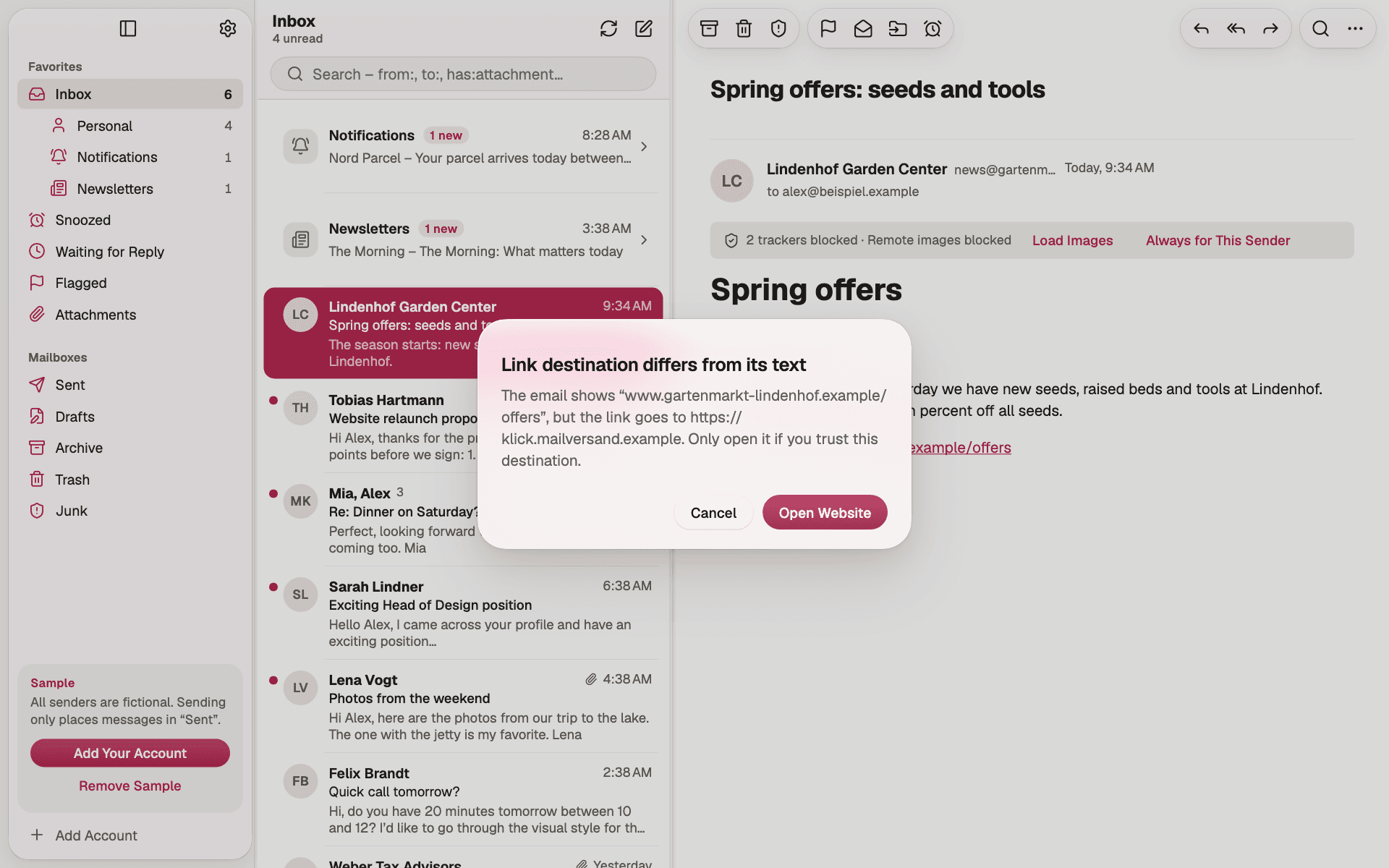
- Before opening a website, Mail shows the real destination and warns you if the link text claims something else.
How tracking pixels work
A tracking pixel is a tiny, usually invisible image in an HTML email, often 1 × 1 pixel or hidden with a style rule. Its address contains an ID for exactly this recipient and this mailing. When you open the message and your mail app loads the image, the sender’s server learns that and when it was opened, plus your IP address, and with it your rough location and details about your app.
Newsletter services use this to measure open rates, sales tools report when an offer was read, and some count every reopening. Ordinary remote images such as logos work the same way technically: loading them also reveals when and from where you read. That’s why removing only obvious pixels isn’t enough.
What other mail apps do
According to Microsoft, classic Outlook for Windows blocks automatic picture downloads from the internet by default; the setting is under File, Options, Trust Center, “Automatic Download”. Thunderbird doesn’t load remote content by default and shows a bar instead, where you allow it once, for a sender or for a website.
Apple Mail takes a different route with Mail Privacy Protection: it downloads remote content in the background as soon as a message arrives and hides your IP address. The sender then sees a fetch that doesn’t match when you actually read. Gmail serves images in messages through its own proxy servers. Both approaches load the images, just not directly from your device as you read.
Mail follows the Outlook and Thunderbird approach and goes further with tracking pixels: detected pixels are never loaded, not even after you allow images.
Common mistakes when blocking tracking
The most common one: allowing images for all messages because newsletters look empty without them. That reactivates every tracking pixel. A permanent allowance for a newsletter whose service reports every open has a similar effect. If you allow individual senders, do it for personal contacts, not for bulk mail.
Another misconception: blocking images protects you from all tracking. It does nothing for clicks. Many links first go through a counting service and then redirect. The reading pane preview also counts as an open as soon as images load.
What Mail does when you open a message
Mail cleans every HTML message before showing it. Tracking pixels are removed and counted, remote images get a placeholder with their alt text, and images embedded in the message itself are shown normally. Permitted CSS can’t load addresses; Mail drops anything containing url().
“Load Images” fetches the remote images for this one message, and “Always for This Sender” does so for all their messages. For senders you’ve blocked, images stay off no matter what and both buttons are missing.
How Mail recognises a tracking pixel
Three signs are enough: width or height of 2 pixels or less, whether set as an attribute or a style; an image made invisible with display:none, visibility:hidden or opacity:0; or an address that matches the open counters of known mailing services, such as those of Mailchimp, SendGrid, HubSpot, Mailjet, Campaign Monitor, Brevo, CleverReach or rapidmail.
The tooltip shows the main domain of each service, so “open.mailversand.example” becomes “mailversand.example”. That way you see who tried to count, without reading long addresses full of IDs.
Only removed pixels are counted. Ordinary images that were held back are summed up without a number as “Remote images blocked”. If a message contains only such images and no detected tracker, the tooltip explains instead: “Remote content tells the sender when and where you read this message.”
The default for remote images
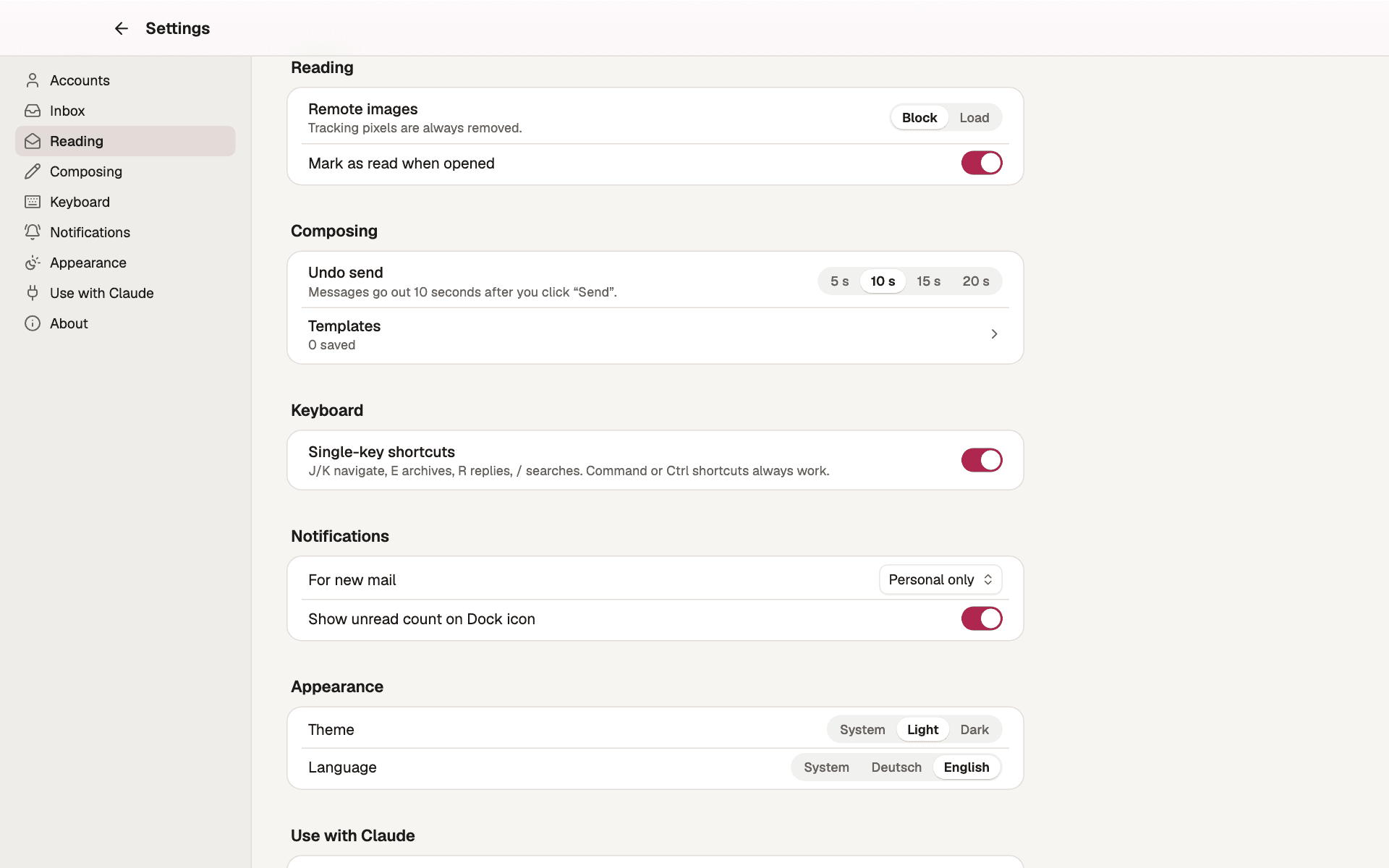
In settings under “Reading”, “Remote images” lets you choose between “Block” and “Load”. The default is “Block”. Below it, the app says plainly: “Tracking pixels are always removed.” Choosing “Load” gives up protection from ordinary images, not from detected pixels.
Links: see the destination before you click
Besides images, many senders also track clicks: a link first goes through a counting service and then redirects. Phishing uses the same structure, just with link text showing a familiar address.
Mail opens links only after asking, and names the real destination. If it differs from an address shown in the link text, or the text promises https while the link goes to http, you see “Link destination differs from its text”. That’s not a check of authenticity, but it shows where a click leads.
How it works
Set up an account or open the sample
Enter your address and password; Mail detects the server settings. To try it out, “Try a Sample Mailbox First” is enough. Protection is on from the first message.
Read a message
Above the text, a grey line reads something like “2 trackers blocked · Remote images blocked”. Hovering over it shows “Tracking pixels from: …”.
Allow images if you want
“Load Images” for this message, or “Always for This Sender”. Tracking pixels stay removed either way.
Check links
When you click a link, Mail names its destination. Only “Open Website” launches the browser.
Choose the default
Gear icon at the top of the sidebar, “Reading” section, then choose “Block” or “Load” under “Remote images”.
At a glance
- Remote images
- blocked until you allow them
- Tracking pixels
- always removed
- Detection
- ≤ 2 px, invisible, known services
- Scripts
- never run
- Accounts
- IMAP and SMTP, as many as you like
Limits
What the feature can’t do yet, or what hasn’t been tested.
- Detection relies on size, visibility and known addresses. A tracker disguised as an ordinary image isn’t recognised as a pixel, but it only loads once you allow images.
- Mail doesn’t strip click tracking from redirected links. It shows the destination before opening.
- Mail doesn’t verify whether a sender is genuine. Phishing through the content of a message remains possible.
- Sign-in with Google and Microsoft (OAuth) is still missing; those providers need an app password.
- The screenshots come from the current development build; individual labels may differ in the released version.
Frequently asked questions
Will the sender know I opened the email?
Not through detected tracking pixels, since Mail never loads them. If you load remote images, an undetected tracker could be among them. Clicking a redirected link is still visible to the sender.
Why does it say “Remote images blocked” when no tracker was found?
Because every remote image contacts the sender’s server when it loads, even a logo. So Mail holds back all remote images until you allow them.
Can I always load images from certain senders?
Yes, with “Always for This Sender”. Tracking pixels are still removed.
Does it help to view emails as plain text only?
A plain-text view loads no images and therefore no tracking pixels, but you lose layout and tables. Mail shows cleaned-up HTML and holds back remote images, so the text stays readable without anything being loaded.
How can I tell whether an email contains tracking pixels?
In Mail, look at the grey line above the text, such as “1 tracker blocked”. In other apps, view the message source: images with width="1" and height="1" or display:none whose address contains a long ID are suspicious.
Does it work with my provider?
Mail works with any IMAP and SMTP account and has presets for iCloud, Gmail, Outlook.com, GMX, WEB.DE, IONOS, Telekom, Posteo, mailbox.org, Yahoo and Fastmail. Protection applies to every account because it works on the device when a message is shown.
Are tracking pixels removed when images are set to “Load”?
Yes. “Load” only affects ordinary remote images. Mail removes detected tracking pixels with every setting.
Do I need a Balane account, and what does it cost?
No, and nothing. Mail runs no server of its own; it only connects to your mail servers. The app is free.
Balane Office is a long-running experiment: nine office apps, mostly built with AI. The apps are free and save to your own device. About the experiment →