A social media content calendar stored in your own folder
The Content Planner schedules posts for Instagram, TikTok, LinkedIn and other channels in week, month, board and profile grid views. A weekly plan with fixed slots sets the rhythm, and everything is stored as readable files in one folder. This page covers what a content calendar should contain, how to keep one in a spreadsheet without a dedicated tool, and how to get from weekly plan to finished post in the Content Planner.
What it does
- Four views
- Week with a column per day, month with a count per day, a board by status and a channel’s profile grid. Dragging on the board changes the status; in the grid it swaps dates.
- Weekly plan with fixed slots
- Slots with day, time, channel, format, template and rotating content pillars. “Fill Plan” covers free slots for several weeks.
- One post, several channels
- Versions for other channels and languages remember their original and are flagged as outdated when it changes.
- Style guide with checks
- A style guide per brand, channel and language: banned words, form of address, required notices, ad labelling, hashtags and character limits. Many issues can be fixed with one click.
- Ready to post
- A preview per platform with safe zones. The posting view shows every field ready to copy, the character count and media in order.
- Metrics from the platforms
- Import from the platforms’ CSV exports, metrics per post, channel, pillar and campaign, and best times from your own numbers.
What a content calendar needs to do
A content calendar, also called an editorial calendar or publishing schedule, sets out when which content goes out on which channel: the blog, the newsletter or social media. It also covers who is working on a post and how far along it is, from idea through draft to approval.
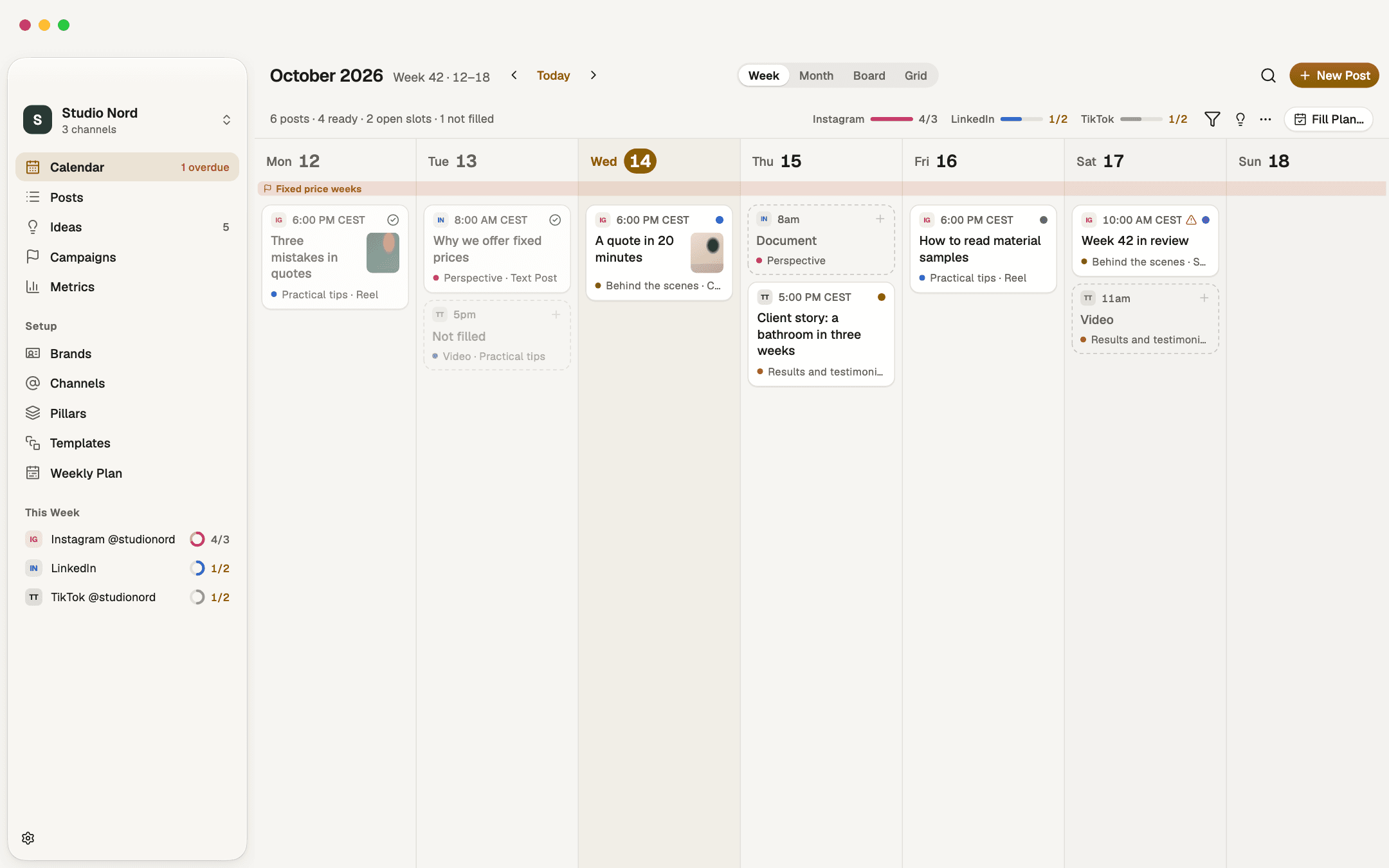
For social media, rhythm matters too. If you post regularly, you plan fixed days and formats instead of starting from scratch every week, and you can see at a glance what’s still missing in the current week. That’s exactly what the Content Planner’s week view shows: a summary of the week at the top, a bar per channel comparing planned with intended posts, and free slots as dashed outlines in each day.
A content calendar in a spreadsheet: the usual columns
Many people start with a spreadsheet in Excel or Google Sheets. Typical columns are date and time, channel, format (image, carousel, video), topic, copy, status, owner and a link to the media. That’s enough to begin with, and everyone on the team can open the file.
As things grow, the limits show: a row knows nothing about versions for other channels, media sit somewhere else, a recurring rhythm has to be copied by hand every week, and nobody works out whether a topic is falling short. This is where a planner that knows weekly plans, pillars and post folders comes in, without giving up the readability of plain files.
A weekly plan instead of an empty calendar
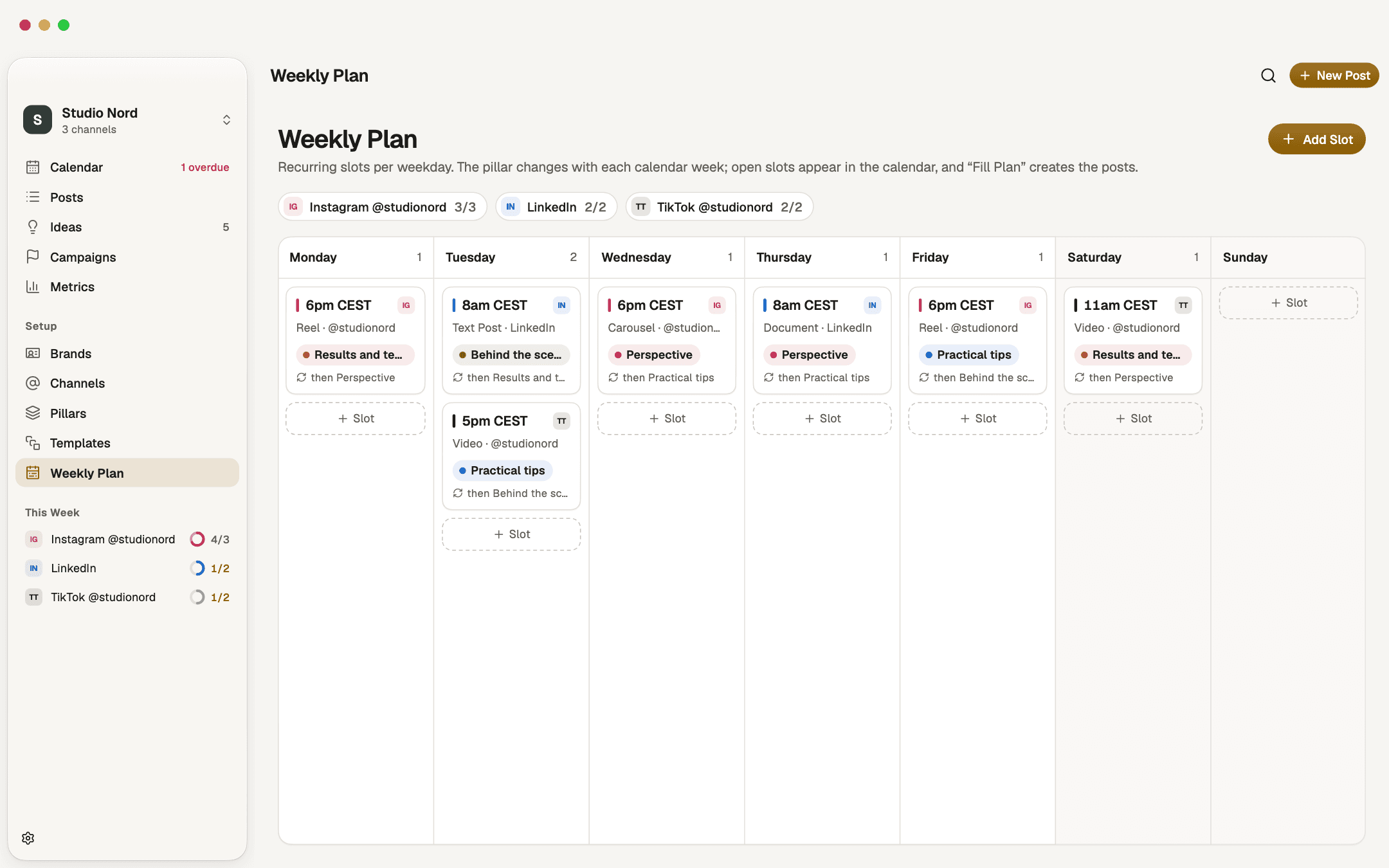
The weekly plan defines recurring slots, for example a LinkedIn text post on Tuesdays at 8 am. Each slot has a day, time, channel, format, template and a sequence of pillars that moves on with every calendar week. Above the day columns, each channel shows how many slots the plan has and how many the channel’s goal calls for.
In the week view, free slots show as dashed outlines, and a post can go into the next free slot. “Fill Plan…” creates posts in free slots for several weeks. Ideas without a date sit in their own tray and can be dragged onto days and slots.
Evergreen posts can be repeated after a pause, with an interval, a maximum count and an end date. “Fill Plan” picks the best ones due, and the metrics of the original and its repeats are shown side by side.
Content pillars with a target share
Many teams use content pillars so a channel isn’t only offers or only behind-the-scenes posts. In the Content Planner, each pillar has a goal, a description, a colour, allowed channels and a target share. Next to it is the actual share, calculated from the last 90 and the next 30 days.
Pillars show up in several places: in the weekly plan they rotate per slot, in the calendar and lists they appear as a coloured dot, and the metrics show views by pillar. For new ideas, copy a pillar’s idea prompt and paste the answer back in; each line becomes an idea.
Month, board and profile grid
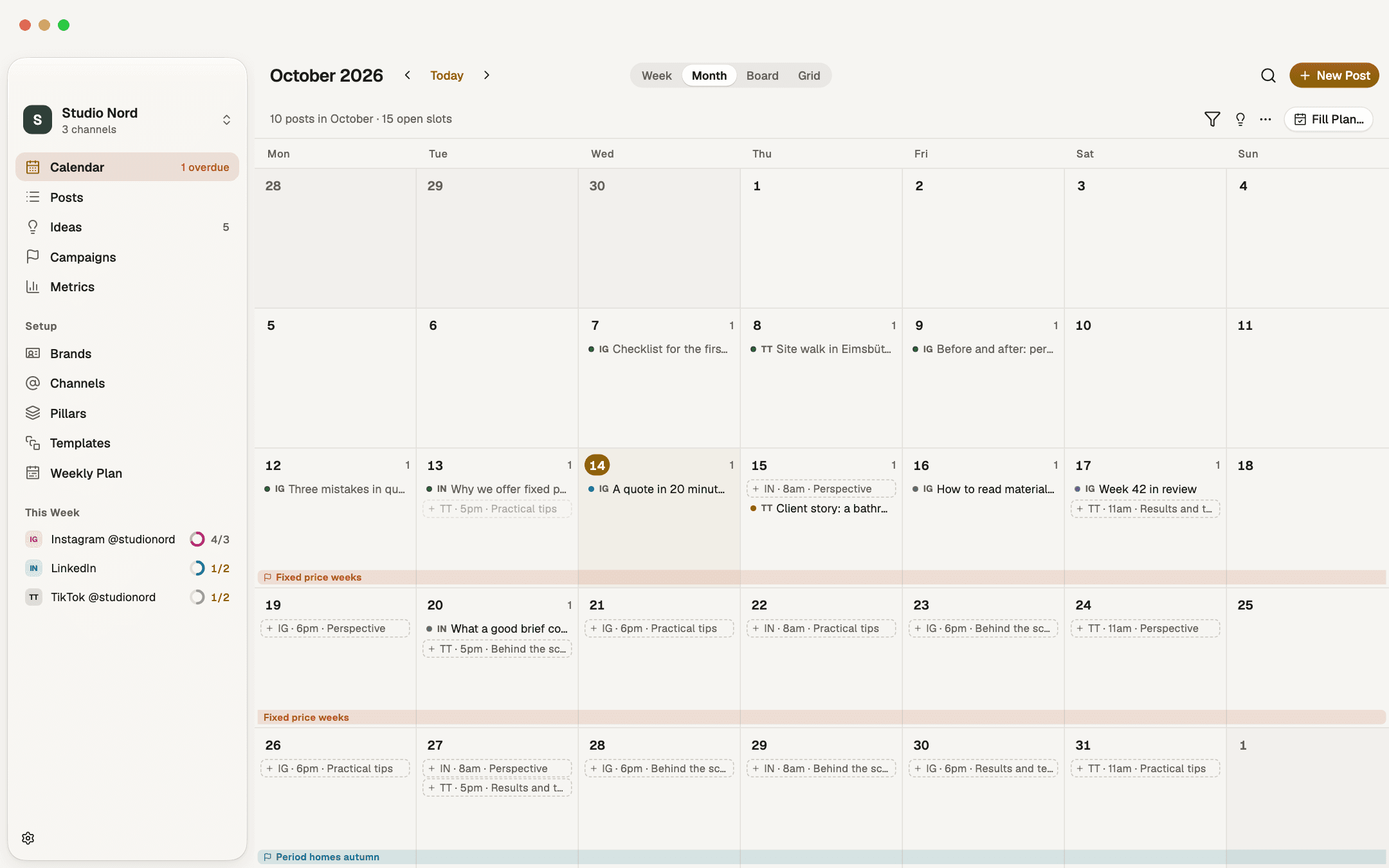
The month view shows the number of posts per day and short entries with channel code and title, with free slots listed below by channel, time and pillar. Campaigns run across the weeks as a coloured band. That way you can see whether a month is balanced before writing individual posts.
The board sorts posts by status, from Idea through Planned, In Progress and Ready to Published; dragging changes the status. The profile grid shows a channel’s posts the way they’d sit side by side on the profile, and dragging there swaps dates. Filters for status, channel and pillar apply in every view.
From plan to post
A post starts from a template with sections such as hook, copy and hashtags. While you write, the planner checks the brand’s style guide: banned words, form of address, required notices, ad labelling and the channel’s character limit. The readiness check asks before a post with open issues is set to “Ready”.
Posting happens on the platform itself. The posting view shows every field with a copy button, the character count, a preview up to “more” and the media in order. Dates can be exported with “Export to Calendar File…” as an ICS file, the iCalendar format that Calendar, Outlook and Google Calendar read; the reminder follows the channel’s lead time.
Files instead of a platform account
A workspace is an ordinary folder. Brands, channels, pillars and templates live in YAML files, and each post has its own folder with its text in Markdown. The planner also writes a readable style guide per brand and the finished post for each entry, for designers, editors or freelancers.
If the folder is in iCloud Drive, iCloud keeps it in sync between devices, and changes from other devices appear without a restart. Through the MCP server, Claude can read, schedule and edit posts; every change is backed up and logged first.
How it works
Create a workspace
On the start screen, choose “Create New Workspace”, pick a folder and set up channels, a brand, sample pillars and a first weekly plan.
Set the weekly plan
Under “Weekly Plan”, use “Add Slot” to create fixed slots per day: time, channel, format, template and rotating pillars.
Set up pillars
Under “Pillars”, set the goal, colour, allowed channels and target share for each pillar; the actual share appears next to it.
Collect and schedule ideas
Note ideas and drag them from the tray onto days or free slots; “New Post…” (⌘N) creates a post, and “Fill Plan…” covers free slots for several weeks.
Write and check
Fill in the sections, review the style guide and readiness checks, and look at the preview per platform.
Post and measure
In the posting view, copy the fields and share the media, then publish on the platform. Later, import the platform’s CSV metrics.
At a glance
- Channels
- Instagram, TikTok, LinkedIn, YouTube, Facebook, Threads, X and more
- Views
- Week, month, board, profile grid
- Storage
- Folder with YAML and Markdown
- Dates
- as a calendar file (ICS)
- Actual pillar share
- last 90 and next 30 days
Limits
What the feature can’t do yet, or what hasn’t been tested.
- The planner doesn’t publish by itself. Posting still happens on the platforms; it prepares text, media and hashtags for copying.
- Metrics only come in through the platforms’ CSV exports. There is no connection to platform accounts.
- Syncing between devices goes through iCloud Drive, not a service of its own. The app reports conflict copies and files that haven’t downloaded yet.
- In the browser, folder selection, iCloud, reminder notifications and AI aren’t available; workspaces are kept in browser storage.
- Working together requires a shared folder. Simultaneous edits to the same file can produce iCloud conflict copies that have to be resolved by hand.
Frequently asked questions
What does it cost?
Nothing. Balane Office is free, with no account and no in-app purchases. Without AI, the planner makes no outside connections.
Can the Content Planner post automatically?
No. It prepares each post for publishing, with copy buttons per field and media in the right order. Publishing happens on the platform itself.
Can I plan together with my team?
Yes, through a shared folder in iCloud Drive. Posts have approval, an owner and comments.
Can I see the plan in my calendar?
Yes. “Export to Calendar File…” exports a period’s posts as an ICS file for Calendar, Outlook or Google Calendar, with a reminder based on the channel’s lead time.
How often should I post?
It depends on the channel, the audience and your time; there’s no universal number. A rhythm you can keep up matters more than a high count. In the Content Planner you set a weekly goal per channel, and the week view shows whether the plan meets it.
Can I plan for several brands or clients?
Yes. A workspace can hold several brands with their own channels and style guides, and the calendar, lists and metrics can be filtered by brand. For separate clients, create a separate folder as a workspace for each one.
Can I bring over my existing plan from Excel?
The planner doesn’t import content calendars from Excel or CSV. You can paste ideas as a list, though; each line becomes an idea that you can then drag onto days and slots.
Balane Office is a long-running experiment: nine office apps, mostly built with AI. The apps are free and save to your own device. About the experiment →