Make a link in bio page as a file, without a third-party service
A link in bio page gathers a profile’s current links on a single page. This page explains what belongs on a good link page, how link services differ from a file of your own, and how to count visits without tracking on the page itself. In the Content Planner, such a page will soon come out of your post links as a single HTML file: built and tested, but not in a released version yet.
What it does
- From the link register
- You choose from links you’ve explicitly entered in posts: destination links, sections with the link role and published post links.
- Up to 32 links
- The page takes the title and destination of each selected link. Only HTTP(S) addresses are accepted.
- No scripts, no outside content
- Embedded CSS, no script, no images, no network resources, a strict Content Security Policy and no referrer.
- Checked on phone and desktop sizes
- Rendered in Chrome at 390 × 844 and 1280 × 800 pixels without horizontal scrolling.
- A check before export
- Before saving, the app compares the state of every post involved. If something changed, you need to choose again.
- UTM suggestions in the register
- The link register suggests an address with UTM parameters for source, medium, campaign and content for each destination.
What a link in bio page is for
Social networks are built for conversation, not for lists of links. On Instagram you add a website to your profile via Edit Profile; if you have several destinations, such as the new article, an event sign-up and the offer from your last video, you need a page that gathers them. The one link in your profile then points to that page.
A page like this is only useful when it’s current. An outdated link to an expired offer costs trust. That’s why the link page belongs in the same workflow as the posts: when a post with a link goes out, the link goes on the page, and when the offer ends, it comes off again.
Link service or your own file
The well-known link services offer an account, design templates, click statistics and hosting in one package. The page lives under the service’s address, and the visitor data sits with the provider. That’s convenient for many people; if you don’t want to hand visitor data to yet another service, or want the page under your own domain, you look for an alternative.
At its core, a link page is a list of links. A single HTML file that any web space can serve is enough for that. It loads quickly, sets no cookies and pulls in no third parties. The price: there’s no built-in click counting, and after a change you have to upload the file again.
What belongs on a good link page
A few links with clear titles beat a long list. The title should say what’s behind the link, not just “click here”. The most important link goes at the top, because on a phone visitors only see the first few entries at first.
If you want to know how many visits come through the link page, add UTM parameters to the destinations. Google Analytics reads utm_source, utm_medium, utm_campaign and utm_content, among others; the numbers then show up in the destination site’s analytics, not on the link page itself. The Content Planner’s link register suggests such addresses for each post.
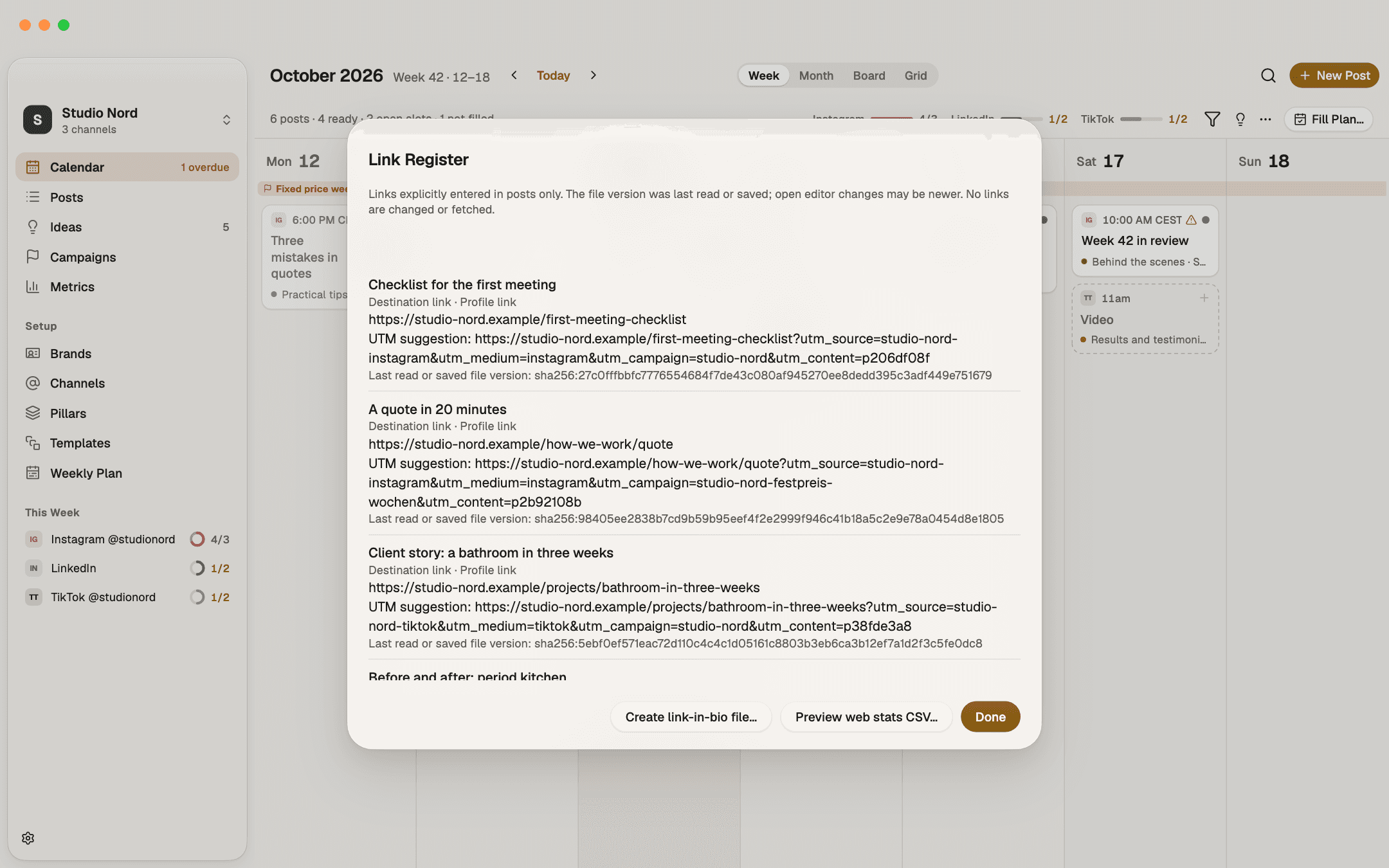
From post to link page: the link register
In the Content Planner you enter a post’s destination link anyway, so it lands in the right place when posting. “View link register…” in the calendar menu collects these entries from all posts: title, origin (destination link, section or published post link), link placement, the address, a UTM suggestion and the last read file version.
The register doesn’t change or fetch any links. It only shows what’s in the posts. From here, “Create link-in-bio file…” leads to the selection for the link page, and “Preview web stats CSV…” to a preview of imported web statistics.
Select and export
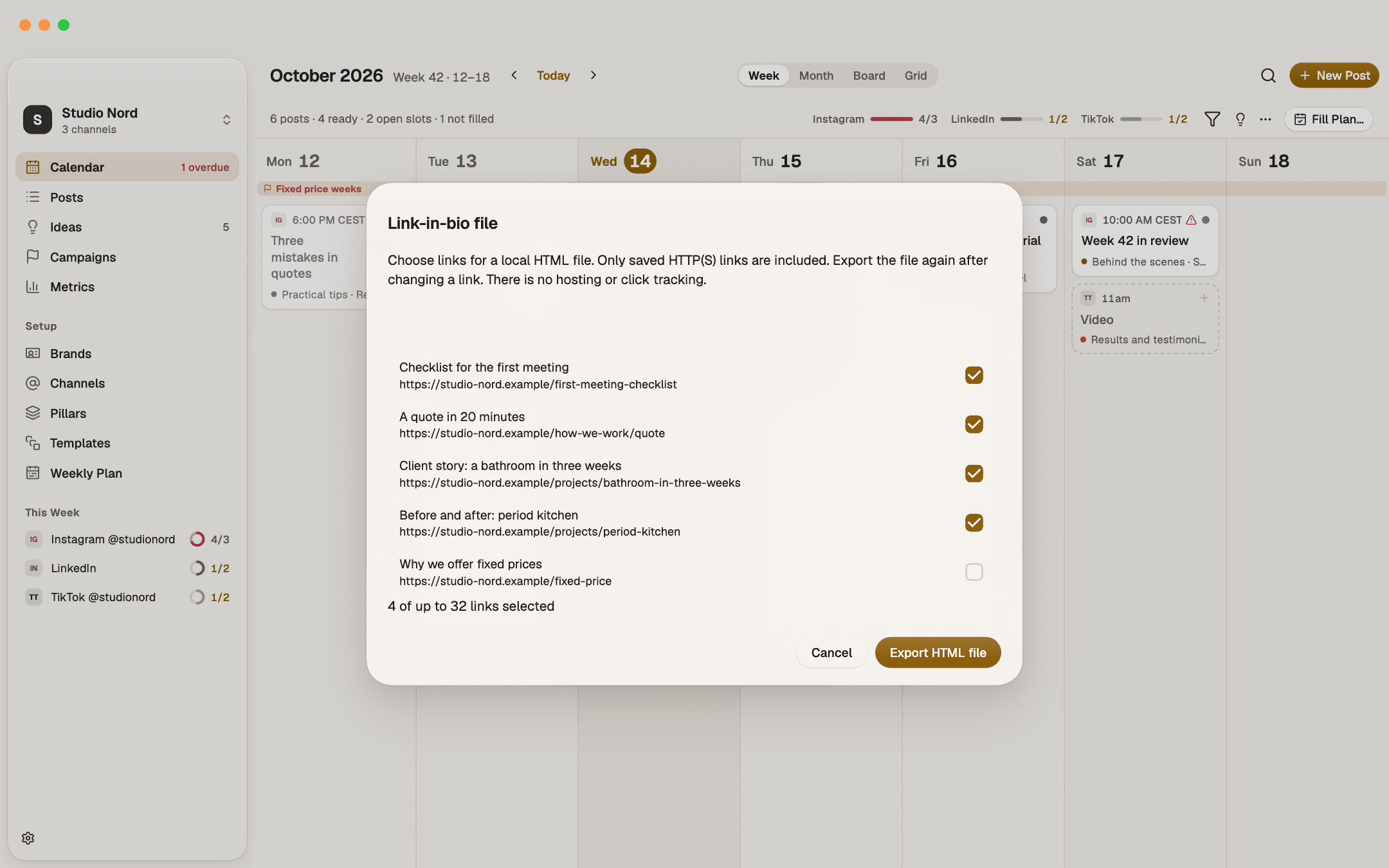
In the “Link-in-bio file” dialog, you tick up to 32 links. Invalid entries, such as addresses without HTTP(S), with credentials or without a title, can’t be selected. At the bottom, the dialog counts how many links are selected.
“Export HTML file” checks every post involved once more before saving: if one has changed in the meantime or isn’t saved, the app stops and asks you to choose again. It doesn’t overwrite any post and doesn’t create an extra file in the workspace.
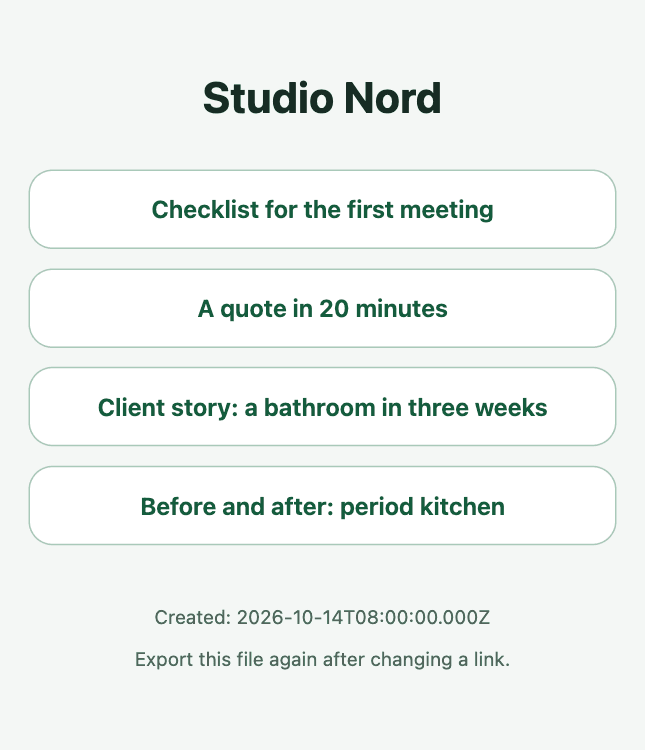
The finished file: plain and script-free
The file has the workspace name as its heading, the selected links as buttons, and below them the creation time and a note to export the file again after changing a link. It carries its own CSS and loads no script, images or fonts from the web.
A Content Security Policy tells the browser which resources a page may load; the link page only allows its embedded CSS. Links open in a new tab with rel=“noopener noreferrer”: the destination gets no access to the link page and isn’t told which address the visit came from.
Keeping the link page current
A link page goes stale as soon as an offer ends. A fixed routine helps: when a post with a destination link goes out, export the file again; once a month, go through the list and remove expired destinations. Since the selection comes from your posts, a look at the link register is enough.
If you upload the new file under the same name to the same place, the address in your profile stays valid and you don’t need to change anything there. The Content Planner suggests “Links” plus the workspace name as the file name. After uploading, a quick test on your phone is worth it: does every link open, and is the order right?
How it works
Enter links in posts
Fill in the “Destination Link” or a section with the link role in a post, and save.
Open the link register
Choose “View link register…” in the calendar’s “…” menu.
Select links
Open “Create link-in-bio file…” and tick up to 32 links.
Export the file
Choose “Export HTML file” and save the file. If the app reports a change, make the selection again.
Upload and link
Upload the file to your own web space and put its address in your profile, on Instagram via Edit Profile. After changing a link, export and upload the file again.
At a glance
- Format
- a single HTML file, UTF-8
- Links
- up to 32
- Scripts, tracking
- none
- Checked in
- Chrome, 390 × 844 and 1280 × 800
- Status
- Soon: built, not released yet
Limits
What the feature can’t do yet, or what hasn’t been tested.
- Built and tested, but not in a released version yet. A hands-on check in the finished app is still pending.
- No hosting: you upload the file yourself, and it doesn’t update on its own.
- No images, no profile photo, no custom design and no click counting in the file. The heading is the workspace name.
- Testing was done in headless Chrome with sample links; real mobile browsers, the system save dialog and an upload by a person haven’t been checked yet.
Frequently asked questions
What does it cost?
The Content Planner is free, with no account and no in-app purchases. For the link page you need somewhere on the web to put a file.
Where do I upload the file?
To any web space that serves HTML files, for example under your website’s domain. Balane doesn’t offer hosting.
Can I see how often links were clicked?
Not in the file; it counts nothing. With UTM parameters on the destinations, you’ll see visits in your own site’s analytics.
Can I add colours, a logo or a profile photo?
No. The file has a fixed, plain design without images. That keeps it free of network resources; if you need your own design, build the page on your website yourself.
How many links should go on the page?
Technically up to 32. For visitors on a phone, a few clearly named links are easier to scan; anything no longer current comes off with the next export.
What happens when a link changes?
The uploaded file stays as it is. You change the link in the post, export the file again and upload it again.
When will the feature be available?
It’s built and tested and ships with the next released version of the Content Planner. There’s no fixed date yet.
Balane Office is a long-running experiment: nine office apps, mostly built with AI. The apps are free and save to your own device. About the experiment →