Kiosk mode forms: many people, one device
At a front desk, a trade fair or a sign-up table, people fill in the same form one after another. A blank form starts after each submission, and you can require a PIN to leave the kiosk. This page covers how to prepare a kiosk form, how to lock the device further with Android, iPadOS or Windows features, and how responses from several tablets come together.
What it does
- A fresh start after each submission
- The next person sees a blank form, not the previous person’s answers.
- Exit with a PIN
- You set the exit PIN in the form settings. The back gesture asks for it as well.
- A check after a pause
- After 90 seconds without a touch, the kiosk asks “Still there?”. With no reply, a new form starts after 20 seconds; the unfinished one is kept as a draft.
- One question per page
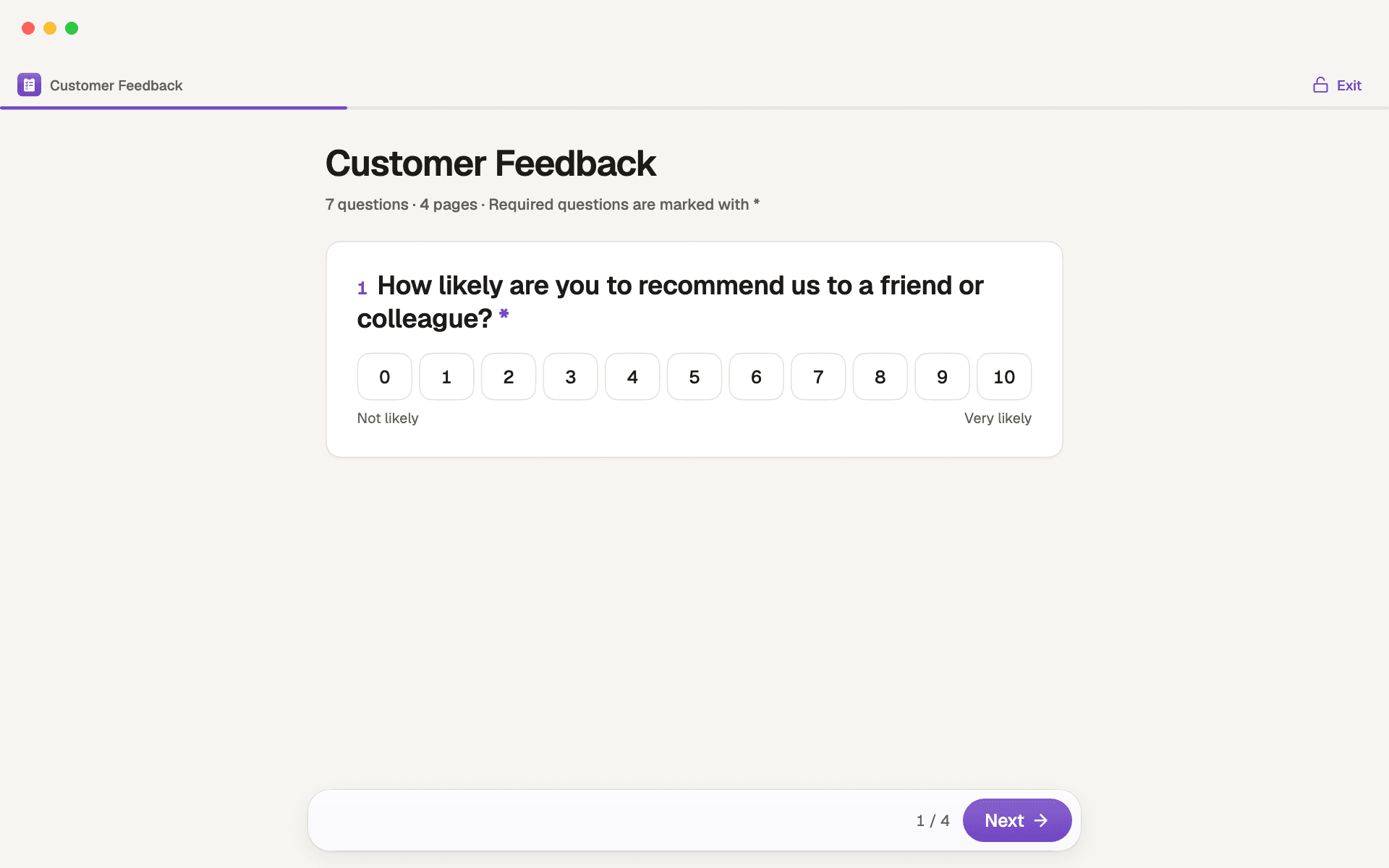
- The “One question per page” layout suits kiosks and phones: swipe to move on, or pick options with letter keys. On tablets the kiosk text is slightly larger.
- Response limits apply here too
- Time windows and maximum response counts apply in the kiosk too, for example when places are limited.
- Nothing gets lost
- If the file changes from outside while the kiosk is running, the app merges without asking and tells you once the kiosk ends.
What a kiosk form is for
A kiosk form runs on a tablet or computer where people enter something on their own: visitor sign-in at reception, feedback at the exit of an event, contact details at a trade fair stand, satisfaction after an appointment. Two things matter: the device must be ready again after each person, and nobody should see what the previous person entered.
Forms handles both in kiosk mode. After submitting, a blank form starts, and anyone who walks away mid-way doesn’t leave an open form behind after a pause. Editing, analysis and settings are out of reach in the kiosk until someone leaves it with “Exit” and, if set, the PIN.
Preparing the form for the kiosk
Short forms work best at a kiosk. People passing a stand usually have little time; a handful of questions is enough for a sign-up or feedback. One question per page keeps the screen calm, required fields prevent half-finished answers, and “Confirm before submitting” catches accidental taps.
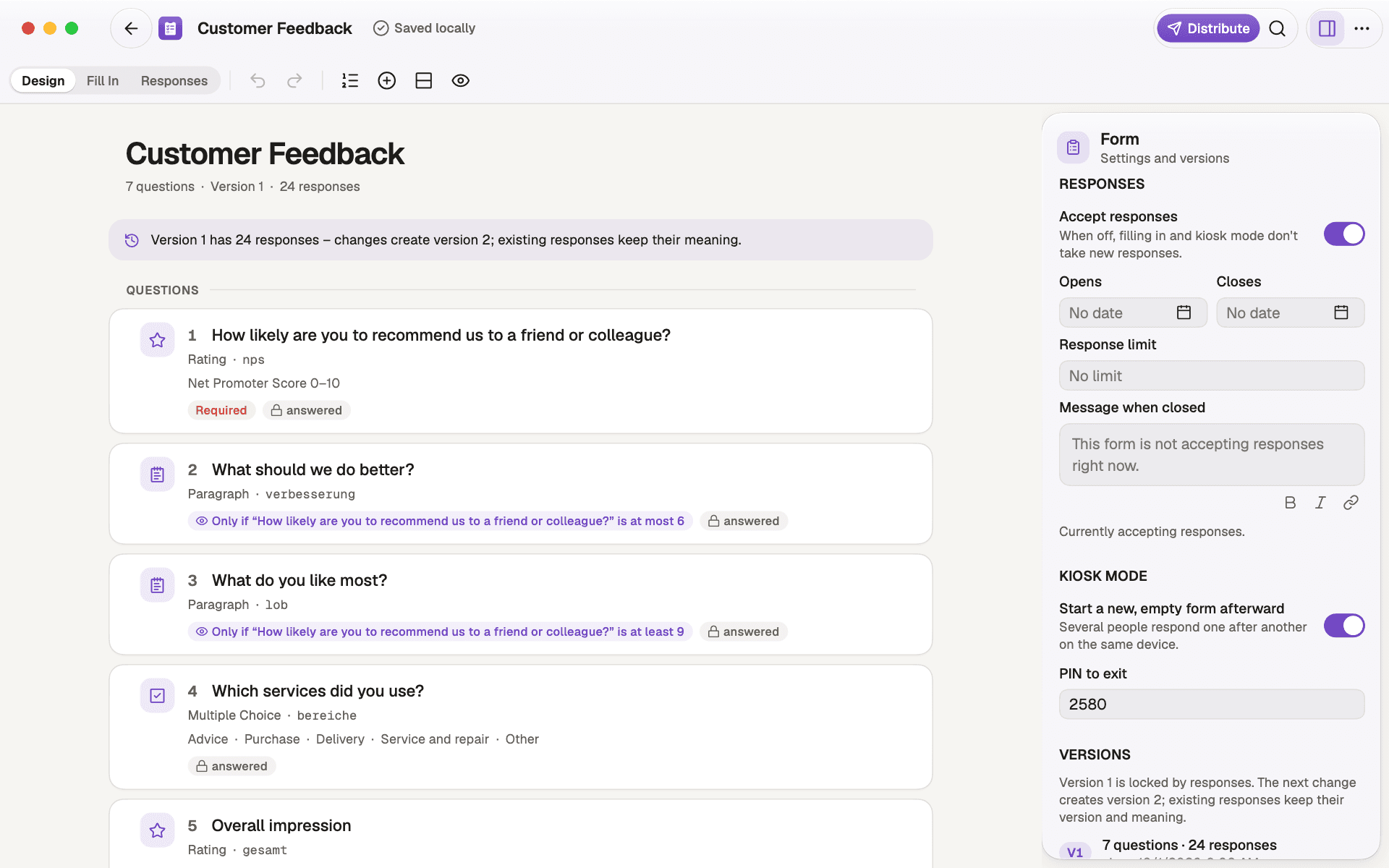
The settings live in the inspector when no question is selected. In the “Kiosk Mode” section, turn on “Start a new, empty form afterward” and enter a “PIN to exit”. Above it, “Responses” controls whether and until when responses are accepted; with a limit, the kiosk closes once all places are taken.
Accent colour, logo and header image appear in the kiosk too. Photos, files and signatures can be captured as attachments; on the Mac, attachments come in through the file picker since there is no camera capture there. Links in hint texts don’t open in the kiosk.
When someone walks away halfway
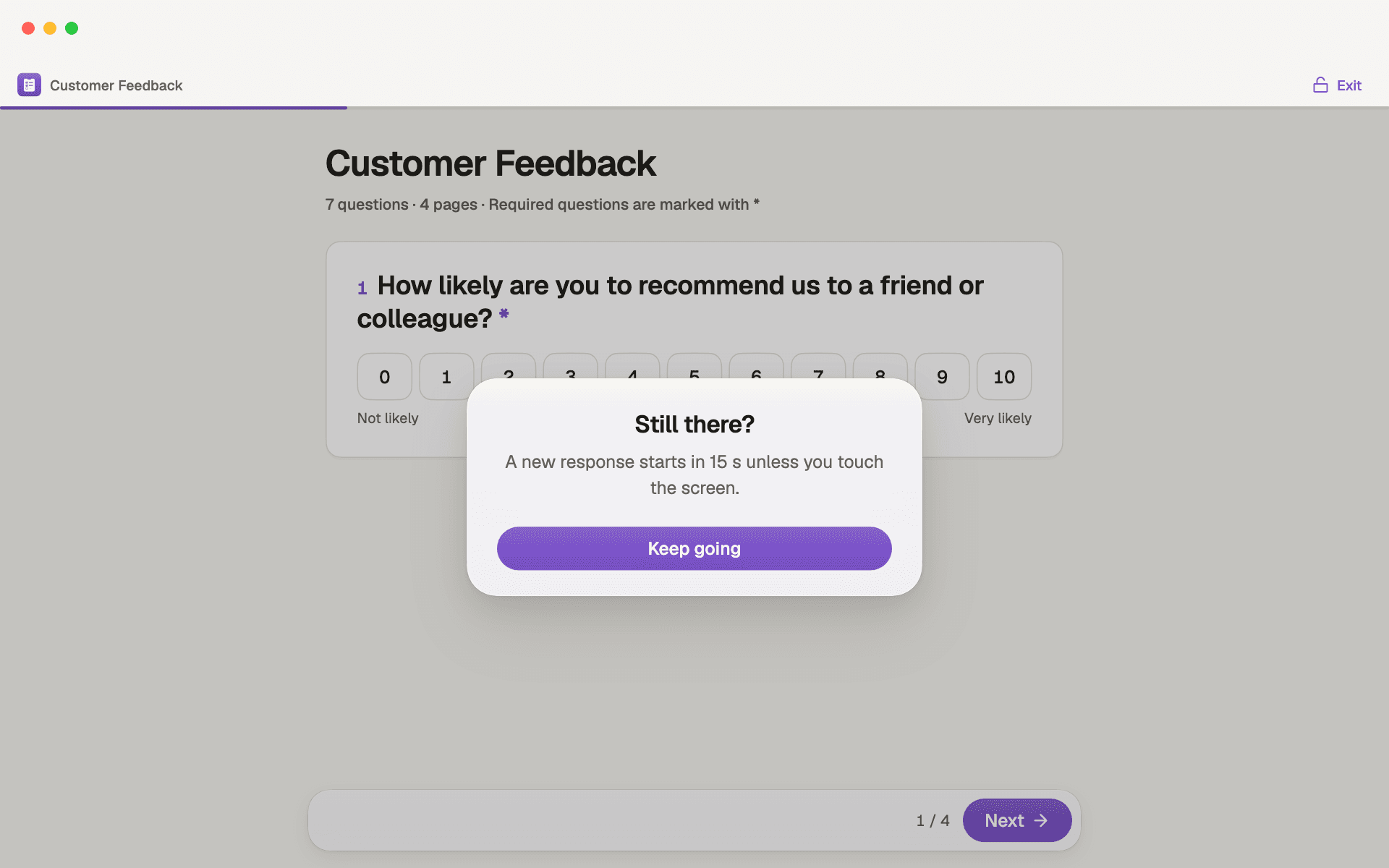
It happens a lot at kiosks: someone starts, gets distracted and leaves. Without protection, the next person would see the half-filled details. That’s why Forms asks “Still there?” after 90 seconds without a touch and shows a countdown. “Keep going” continues; with no reaction, a new form starts after 20 seconds.
The unfinished response doesn’t vanish; it stays in the app as a draft. Under “Responses” you see open drafts separately from submitted responses and decide what happens to them.
Three typical kiosk forms
Visitor sign-in at reception: name, company, host and time. The “Event Registration” template already has name, email, phone and organization; delete the fields you don’t need before the first response comes in. A required consent question records that the person agreed to their details being stored.
Feedback at the exit: the “Customer Feedback” template starts with the 0 to 10 recommendation question and, depending on the score, asks what should improve or what went well. With “One question per page”, each person only sees the questions that apply to them, and the summary then shows the NPS.
Leads at a trade fair stand: name, email, areas of interest as multiple choice and a notes field. A limit under “Responses” lets you run, say, a prize draw with a capped number of entries.
Privacy on a shared device
At a kiosk, many people type their details into the same device. What matters is what the next person can see: after submitting the form is empty, after a pause too, and responses, analysis and settings are only reachable after “Exit”.
Only ask for what you really need, and record the purpose of each question in the designer. For the notice at the start, Forms drafts a text with placeholders for the controller, contact and retention, which you complete and check before using it.
Locking the device as well
Forms’ kiosk mode secures the view inside the app. If you also want to stop people leaving the app in a public place, use the operating system’s features. On Android this is called app pinning: a pinned screen stays in view until it’s unpinned.
iPhone and iPad have Guided Access in the Accessibility settings. It limits the device to one app, optionally with a passcode and a time limit. Windows offers Assigned Access, a kiosk setup in which only one app runs; Microsoft lists the Pro, Enterprise and Education editions for it. Both layers together make a solid setup: the operating system keeps the app in front, and Forms clears the form after each person.
Merging responses from several devices
If you use several tablets, each one collects its own responses and needs no connection to do so. After the event, pass on the form with its responses as a file from each device, attachments included.
On your main device, “Import Responses…” brings those files in. The app merges responses by their ID, so nothing is counted twice and deleted responses don’t come back. After that, all responses appear together in the summary, table and export.
How it works
Choose the page layout
With no question selected, choose “One question per page” under “Pages” in the inspector, and turn on “Confirm before submitting” if needed.
Set up the kiosk
In the “Kiosk Mode” section, turn on “Start a new, empty form afterward” and enter a “PIN to exit”. Under “Responses”, set a time window and limit if needed.
Start the kiosk
Go to “Distribute” → “Kiosk on This Device”, or choose “Start Kiosk Mode” in the “Fill In” area.
Lock the device (optional)
For public places, keep the app in front with app pinning (Android), Guided Access (iPhone, iPad) or Assigned Access (Windows).
Let people fill it in
Each person fills in and taps “Submit”; then a blank form is ready for the next one.
Exit and analyse
Tap “Exit” at the top and enter the PIN. The responses are under “Responses”; those from other devices are added with “Import Responses…”.
At a glance
- Idle check
- after 90 s, restart 20 s later
- Exit
- with a PIN, or without
- Attachments
- Photo, file, signature
- Several devices
- Merge via form file
- Connection
- not needed
Limits
What the feature can’t do yet, or what hasn’t been tested.
- Kiosk mode secures the view inside the app. It doesn’t lock the device at system level, for example against switching apps; the operating system’s own features cover that.
- Running alongside app pinning, Guided Access and Assigned Access hasn’t been specifically tested.
- In the kiosk, people can’t get a PDF copy of their own answers, and links in hint texts don’t open.
- Responses from several kiosk devices don’t merge on their own. The form file is passed on and imported by hand.
Frequently asked questions
What does it cost?
Nothing. Balane Office is free, with no account and no in-app purchases.
Does the kiosk work without internet?
Yes. Responses are stored on the device, so the kiosk doesn’t need a connection.
What happens if someone walks away halfway?
After 90 seconds without a touch, the kiosk asks. With no reply, a new form starts after 20 seconds; the unfinished one is kept as a draft.
Can I use several tablets at once?
Yes. Each device collects its own responses. Afterwards you pass on the form with its responses as a file and import it on one device; the app merges them.
What if I forget the PIN?
The PIN is part of the form settings and only applies to that form. Set it before the event and note it down for the stand staff; without a PIN, “Exit” leaves the kiosk directly.
Which devices does the kiosk run on?
Forms runs on macOS, Windows, iOS and Android. On tablets the kiosk text is slightly larger; on the Mac, attachments come in through the file picker instead of the camera.
Can I limit the number of sign-ups?
Yes. Under “Responses” you set a maximum count and a time window. Both apply in the kiosk too; after that, your text for a closed form appears.
Balane Office is a long-running experiment: nine office apps, mostly built with AI. The apps are free and save to your own device. About the experiment →