A free survey maker that needs no account
Forms builds surveys with 21 question types, conditions and quizzes, and analyses the responses on your device. No server collects the answers: they come from your device, from kiosk mode or from an HTML file, and the app merges them. This page covers what makes a survey work, how the common online services handle it, and how to get from the first question to the export in Forms.
What it does
- 21 question types
- Short and long text, numbers, date and time, star, scale or NPS ratings, single and multiple choice, Likert matrix, ranking, file or photo, signature and calculated field.
- Conditions and branching
- Conditions decide which questions and sections appear. “Go to section based on answer” sends people to another section, or to the end, right from the question.
- Quizzes with points
- Answers, points and feedback per question. The score appears after submitting, and the summary shows the share of correct answers per question.
- Control when responses are accepted
- A time window, a maximum count and your own text once the form is closed. Plus closing pages that depend on answers, and questions in random order.
- Analysis and export
- A summary with charts, NPS and statistics, a response table with filters, and edits with a change note. Export to CSV, XLSX and PDF.
- Purpose and personal data per question
- For each question you can record its purpose and whether it collects personal data. Questions marked as personal are left out of the optional AI’s context.
What makes a good survey
A survey starts with the decision you want to make afterwards. Every question should feed into that decision; anything else just makes filling in longer. Splitting the survey into a few clearly named sections shows people how far along they are.
Pew Research Center’s guide to writing survey questions lists some typical mistakes: asking about two things at once (double-barrelled questions), loaded words that push answers one way, and answer lists that overlap or miss reasonable options. Order matters too, since earlier questions colour later ones. Randomising the order spreads that effect evenly.
With agree–disagree scales, respondents tend to agree more often. Pew therefore recommends offering a choice between two written-out statements where possible. The classic five-point Likert scale with a neutral midpoint still makes sense when you want to compare several statements on the same scale.
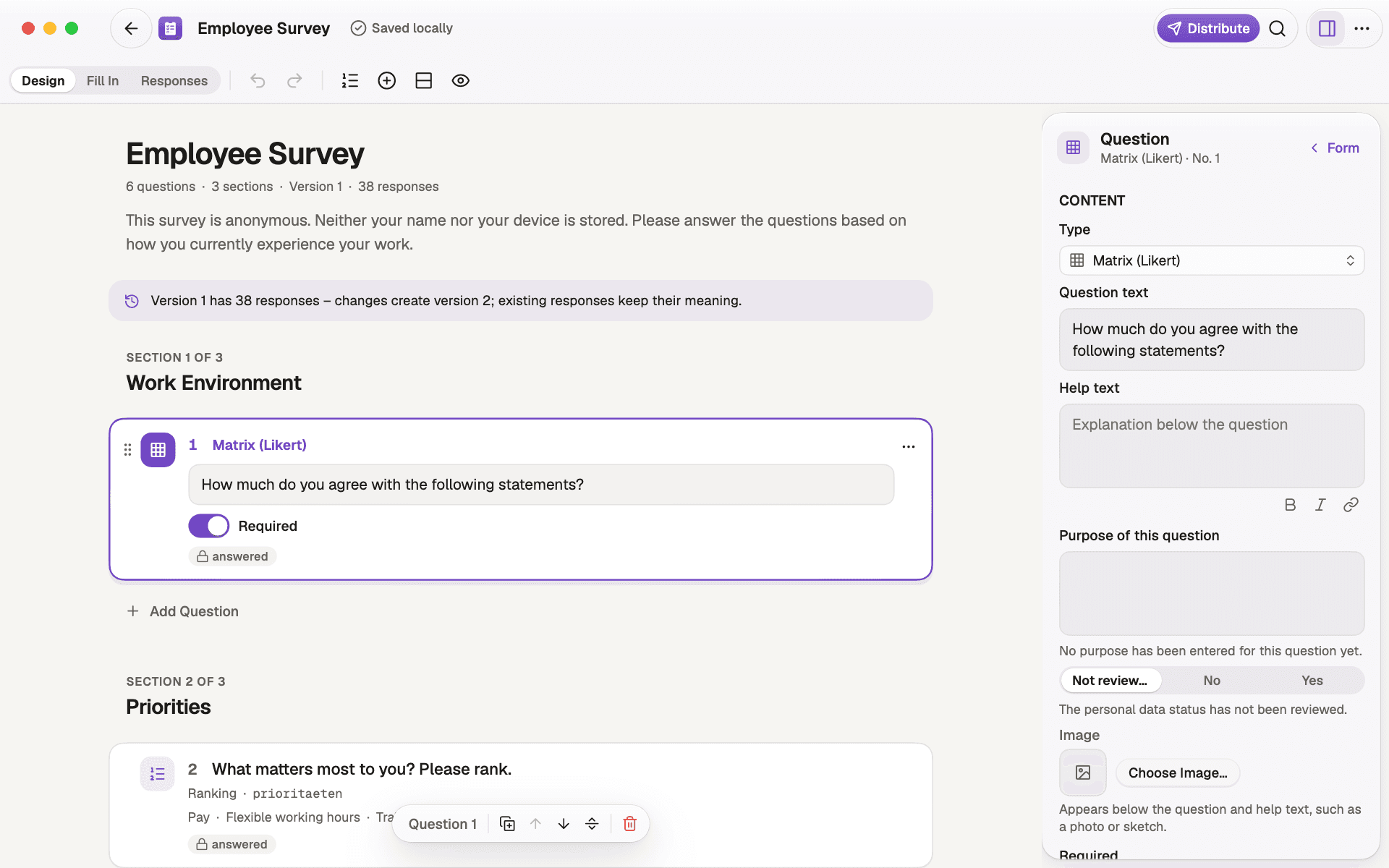
Design: questions in sections, settings in the inspector
In the “Design” area, questions sit as cards inside sections. You edit the text, the required switch and the options right in the card; type, help text, image, conditions and validation live in the inspector on the right. With nothing selected, the inspector shows the settings for the whole form: welcome text, closing text, page layout, response acceptance and kiosk mode.
Once a version has responses, it is locked. The next change creates a new version, and existing responses keep their meaning. A notice above the questions says so, and “answered” on a card shows which fields are affected.
Choosing the right question type
Closed questions such as single or multiple choice are quick to answer and easy to count. Open questions give you reasons, but take time to read. A matrix groups several statements on the same scale, from “agree” to “disagree”, and a ranking shows what matters most to people.
The Net Promoter Score asks, on a scale from 0 to 10, how likely someone is to recommend you. According to Bain & Company, 9 and 10 are promoters, 7 and 8 passives and 0 to 6 detractors; the score is the share of promoters minus the share of detractors. In Forms, NPS is one style of rating question, next to 2 to 10 stars and a number scale starting at 0 or 1.
Calculated fields work with earlier answers, for example to add up a total. Earlier answers can also be inserted into later question texts with the field ID in curly braces, so the survey can refer back to what someone said. Validation rules catch typos, for example in postcodes or IBANs.
How the common survey services work
With Google Forms you create a form at forms.google.com, add questions, publish it and send the link; Google collects the responses. Microsoft Forms requires you to sign in with a Microsoft 365 school or work account or a personal Microsoft account before you can create a form. Both are convenient when everyone is online and the answers may sit with the provider.
Forms works differently. Responses are created on your device, in kiosk mode or in an HTML file that anyone can fill in with a browser. From a second device you pass on the form with its responses as a file, and the app merges them on import. Photos, files and signatures travel along, and deleted responses don’t come back.
The trade-off: someone has to collect the response files and import them. For an open survey with many participants, a link is more convenient. That route, a survey link or QR code with an encrypted response file, is built but not released yet, because the page people would fill in online isn’t ready.
Distribute: every route to respondents in one place
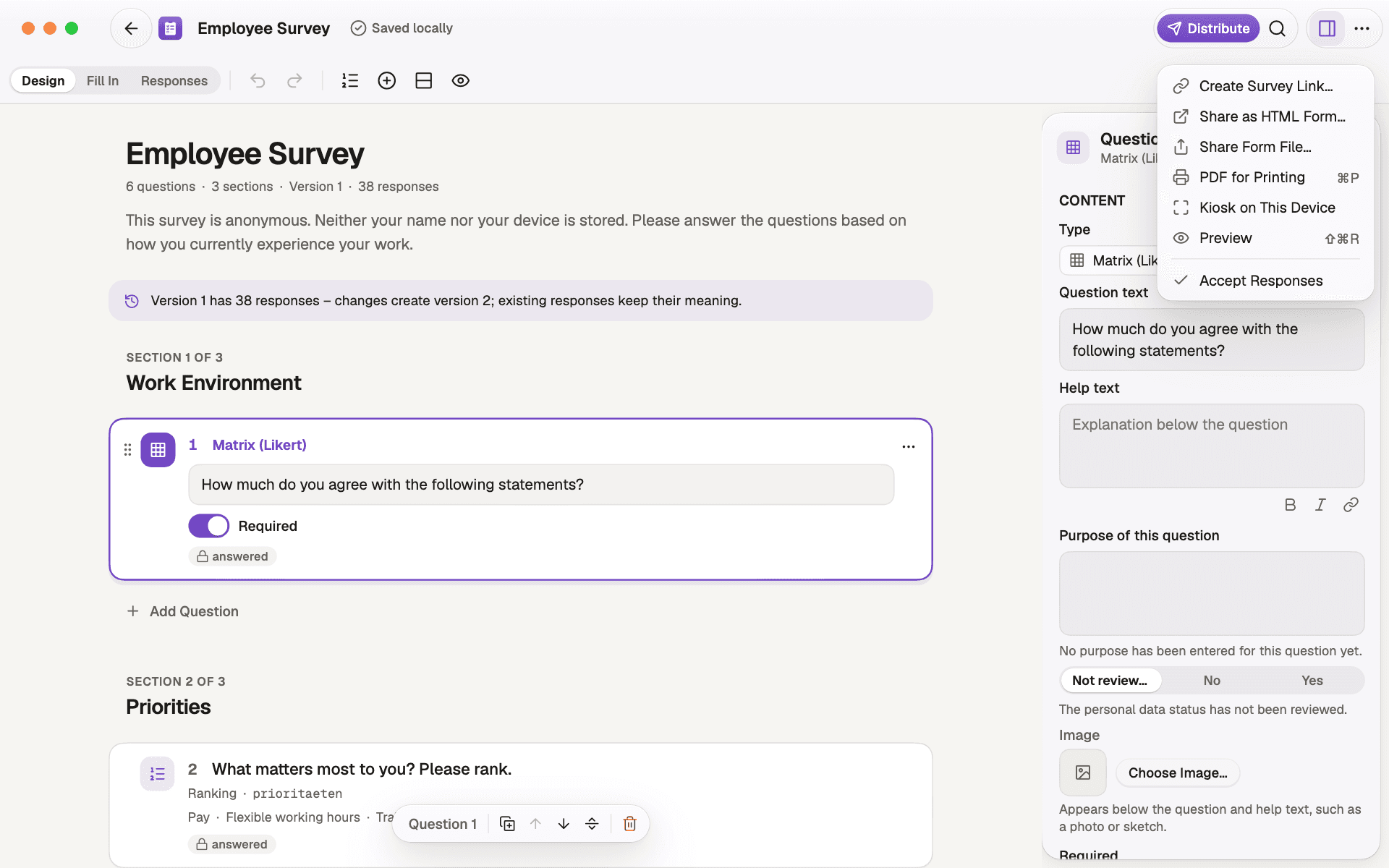
The “Distribute” button at the top right gathers the routes: “Share as HTML Form…” for people without the app, “Share Form File…” for a second device running Forms, “PDF for Printing” for paper, “Kiosk on This Device” for front desks and events, and “Preview”. Below that, “Accept Responses” turns accepting on or off.
The menu also lists “Create Survey Link…”. The link is built, but the page participants would open was not ready at the last check on 13 Nov 2026. Until then, the HTML file is the route for people without the app.
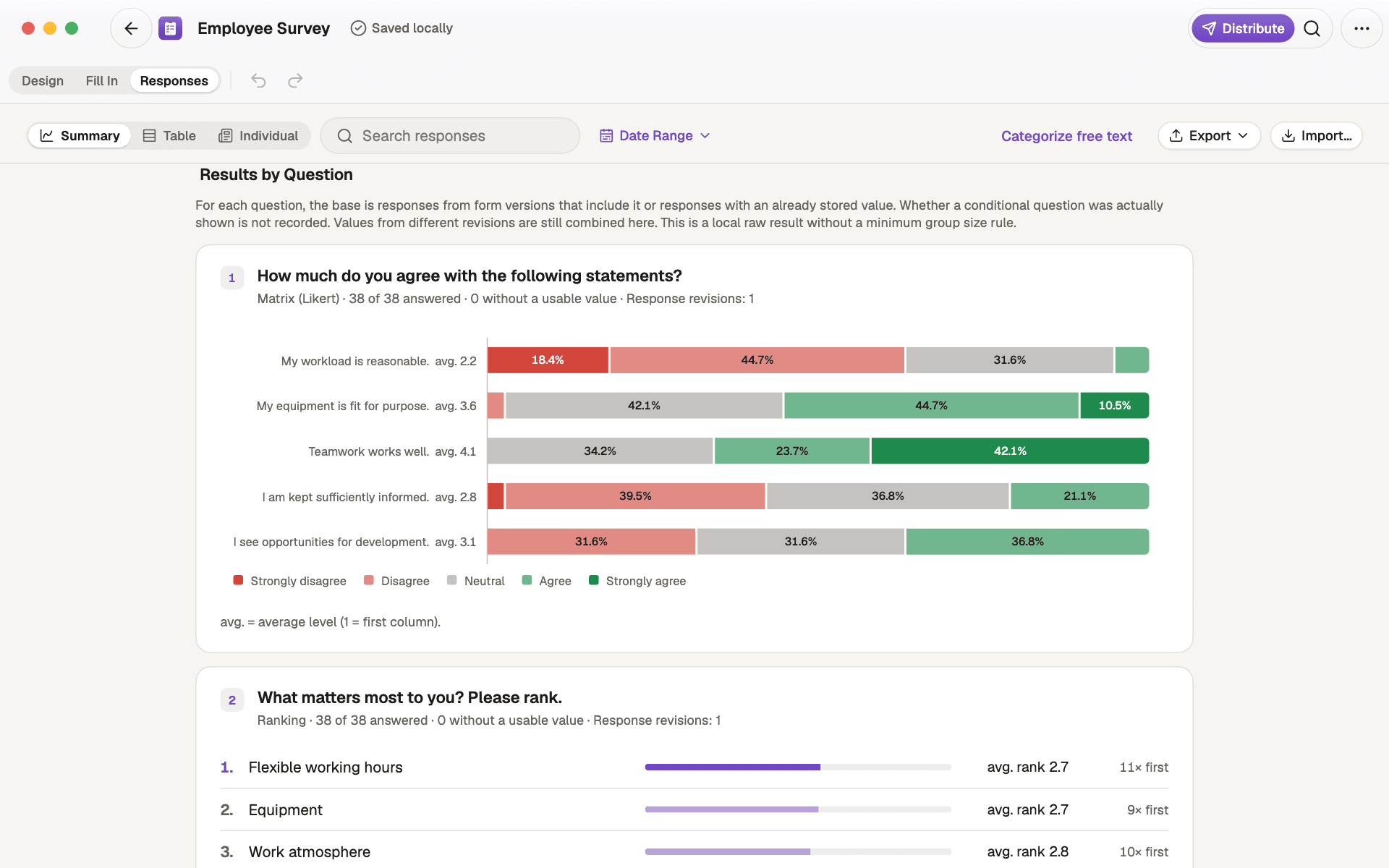
Analyse: summary, table, individual responses
Under “Responses”, the summary starts with the count, date range, open drafts and form version, followed by responses per day. “Results by Question” then shows each question with a suitable chart: a matrix as stacked bars per statement with the average level, a ranking with the average rank and the number of first places. Each question also says how many responses answered it and how many have no usable value.
The summary follows the search and date filter and can be saved as a PDF. For your own analysis, export the responses as CSV or XLSX via “Export”. The table lists all responses with filters; individual responses can be edited with a change note and deleted with undo.
When you publish responses, Forms writes the responses to a shared folder as a dataset every time it saves. Sheets and Reports link to that dataset and refresh it. The browser version doesn’t offer this, since there is no shared folder there.
Privacy in surveys: ask less, record the purpose
The GDPR requires you to collect only the data needed for the purpose. For a survey, that means asking for names and contact details only when you really need them, and knowing beforehand what each answer is for.
Forms supports this with fields rather than promises. For each question you enter a purpose and mark personal data as “Yes”, “No” or “Not reviewed”; the designer shows where details are missing. For the notice at the start, the app drafts a text with placeholders for the controller, contact and retention. That is not a legal review, and the app doesn’t choose a legal basis.
How it works
Create a form
Start a new form on the home screen, or pick one of the six built-in templates, such as “Employee Survey” or “Customer Feedback”.
Design the questions
Under “Design”, use “Add Question” to add questions in sections and edit them right in the card. Set conditions, validation and the question’s purpose in the inspector.
Set up the form
With nothing selected, the inspector shows “Form”: welcome text, closing text, “Pages” (everything on one page, one section or one question per page) and “Responses” with a time window and limit.
Check the preview
The preview shows the form at window, tablet and phone widths. You can try out conditions and branching there before any responses come in; nothing is saved.
Distribute
Through “Distribute”, fill in on this device, start the kiosk, “Share as HTML Form…”, create a “PDF for Printing” or “Share Form File…”.
Analyse and export
Bring in response files with “Import Responses…”. Under “Responses”, read the summary, filter it and save it via “Export” as CSV, XLSX or PDF.
At a glance
- Question types
- 21
- Export
- CSV, XLSX, PDF, Balane dataset
- Filling in
- App, kiosk, HTML file
- Templates
- 6 built in, save your own
- Page layout
- all at once, per section, per question
Limits
What the feature can’t do yet, or what hasn’t been tested.
- Survey links and QR codes are built, but the page people would fill in online isn’t ready yet (as of 13 Nov 2026). Until then, share the form as an HTML file.
- Responses don’t arrive by themselves. Files from other devices or from the HTML form are imported by hand.
- The analysis is a raw local summary: small groups aren’t hidden, and responses from different form versions are counted together. Whether a conditional question was actually shown isn’t recorded.
- A matrix allows one answer per row. Form content is in one language; only the language of buttons and hints can be chosen.
- The privacy notice draft is not a legal review. Questions that haven’t been classified are not automatically treated as personal data.
Frequently asked questions
What does it cost?
Nothing. Balane Office is free, with no account and no in-app purchases. Forms and responses stay on your device.
Does it work without an account or internet?
Yes. There is no account. Filling in on the device, in kiosk mode and in the HTML form also works offline.
Can I keep working on the results in Excel?
Yes. The XLSX or CSV export opens in Excel and other spreadsheet apps. Within Balane Office, Sheets and Reports can link to the responses as a dataset.
Can I send the survey as a link?
Not yet. Survey links are built, but the page behind them isn’t ready online. Until then, send the form as an HTML file that opens in any browser.
Can I run an anonymous survey?
You can leave out questions about names and contact details; the “Employee Survey” template doesn’t ask for names. Keep in mind that the analysis doesn’t hide small groups, so with few participants, answers may be traceable to individuals.
How does Forms calculate NPS?
A rating question in NPS style asks on a scale from 0 to 10. The summary shows the distribution and the score using the usual formula: share of 9s and 10s minus share of 0 to 6.
Can I change a survey after it has started?
Yes. If a version already has responses, the next change creates a new version. Existing responses keep their meaning, and the analysis counts both versions together.
Balane Office is a long-running experiment: nine office apps, mostly built with AI. The apps are free and save to your own device. About the experiment →