A fillable form that needs no app on the other end
Forms saves your form as a single HTML file. Whoever receives it opens it in a browser, fills it in, even offline, and sends back the response file it downloads. This page compares the usual ways of getting a form filled in by email and walks through the Forms round trip from saving to import, with pictures of the actual form in a browser.
What it does
- Runs in any browser
- The file is self-contained and works offline. The person filling it in needs no app and no account.
- The same logic as the app
- Every question type, condition, validation rule, the appearance and quizzes. A dedicated test checks that the logic matches the app.
- Draft kept in the browser
- The page keeps unfinished answers in browser storage, so filling in can continue later.
- Choose the language
- Buttons, hints and validation messages follow the browser language or are fixed to German or English.
- A copy for the respondent
- After submitting, the page shows “Your Responses” and offers “Print Copy”.
- Quizzes without answers in the source
- The correct answers are not in the file. The app calculates the score on import.
Forms by email: the usual options
If you want a form filled in by email, you usually have three options. A Word document or a fillable PDF goes out as an attachment, gets filled in and sent back; the answers then sit in many separate files and have to be retyped or copied together. Conditions, required fields and validation are only partly possible there.
The second option is a link to an online service such as Google Forms or Microsoft Forms. It’s convenient, but you need an account with the provider (Microsoft Forms explicitly requires you to sign in), and the answers are stored there. Neither suits people without an internet connection, say on a building site or in a dead zone.
The third option is an HTML file that contains the whole form, logic included. It arrives as an attachment, opens in a browser and creates a response file on submit. This is the route Forms takes.
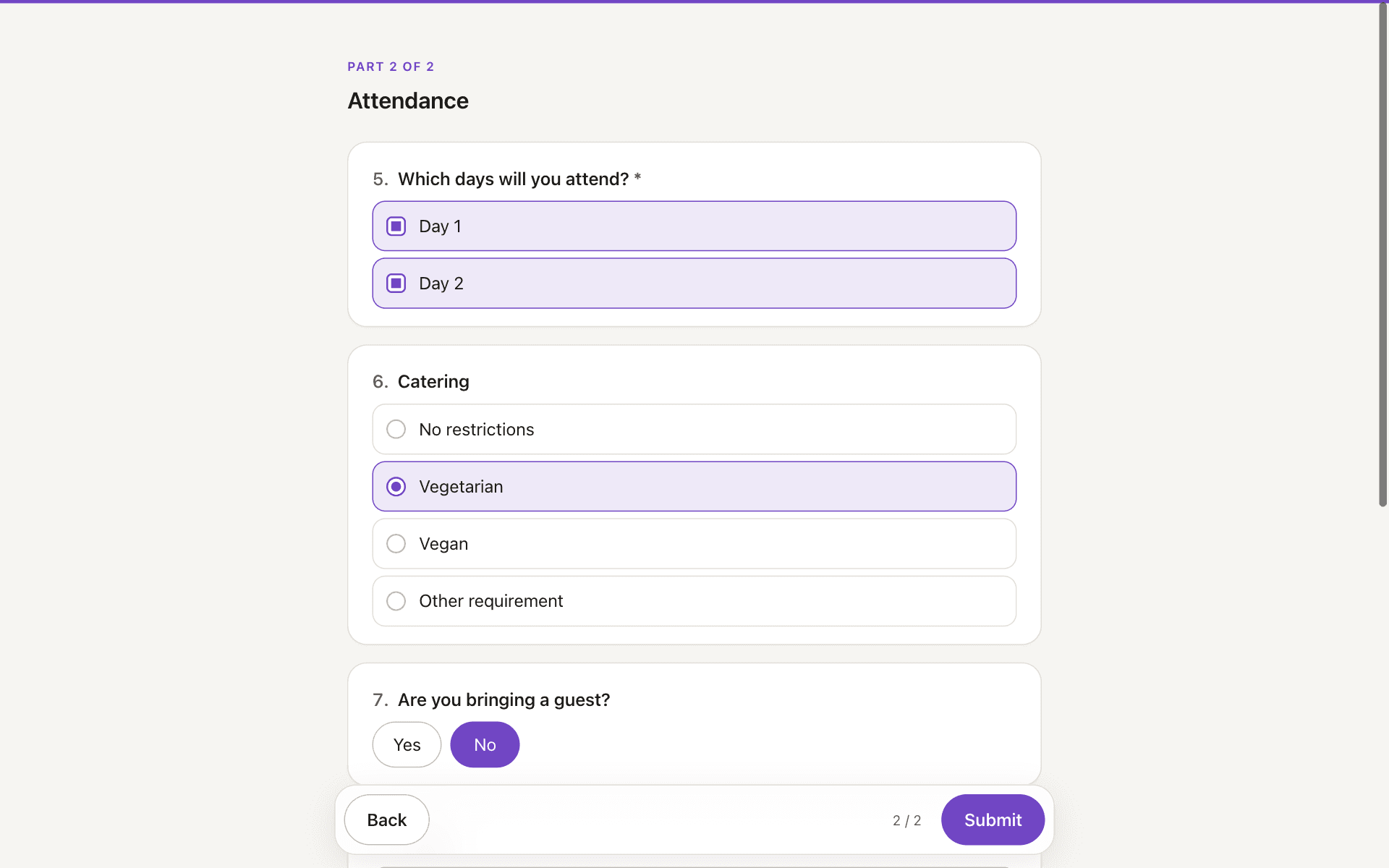
How a form in an HTML file works
An HTML file is the same thing a browser loads from a website: text, styling and a script. If the file sits on your own computer, the browser runs it there, with no server involved. A web form usually sends its input to an address on the internet. Without that address, the input stays in the browser.
The Forms HTML form uses exactly that. The file contains the current version of the form and everything needed to fill it in: sections, conditions, required fields and validation messages. On submit, the browser downloads a response file ending in .bform, named after the form title, the word “Response” and the date and time. The person sends that file back, and you bring it into the app.
Saving: choose the language of the fixed texts
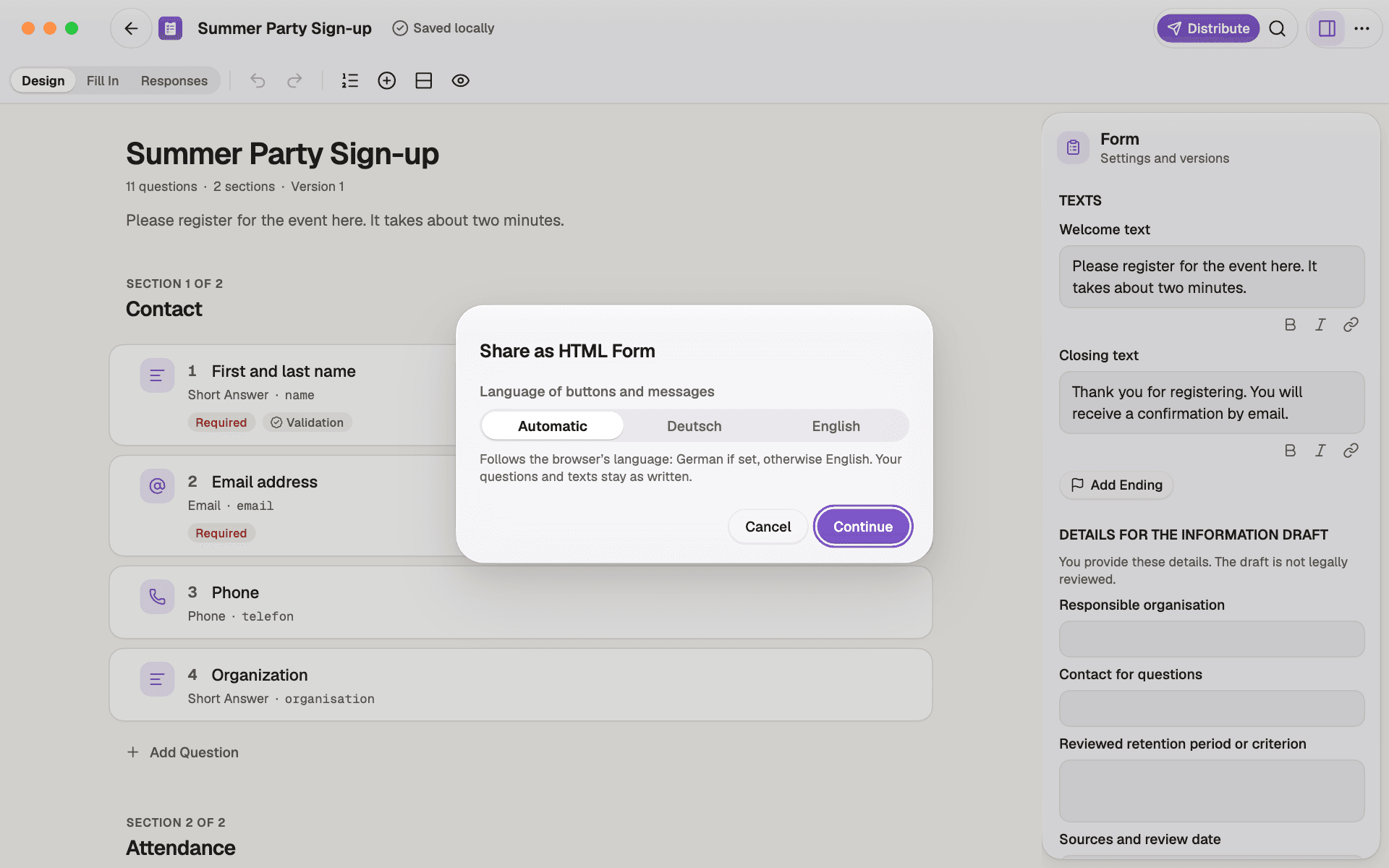
“Share as HTML Form…” opens a small dialog where you set the “Language of buttons and messages”: “Automatic” follows the browser, German if the browser is set to it and English otherwise. “Deutsch” and “English” fix the texts regardless of the browser.
Your form’s questions and texts stay exactly as you wrote them; nothing is translated. So for a form written in English, it’s best to fix the buttons to English as well, so the buttons and questions don’t end up in two languages.
After submitting: response file and copy
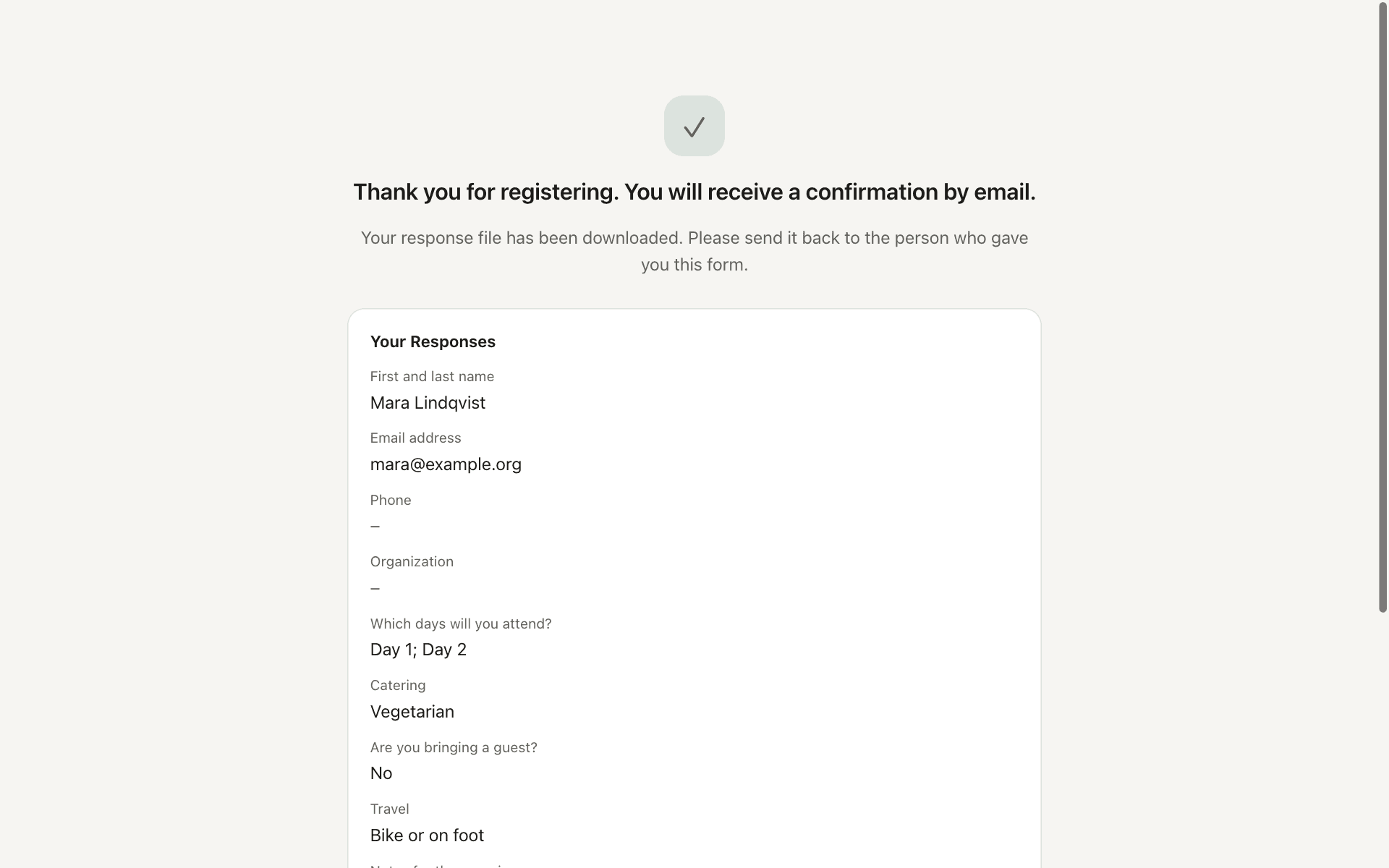
If “Confirm before submitting” is on, the page asks first and says how many questions have been answered. Then the browser downloads the response file and shows the form’s closing text, a note to send the file back to whoever sent the form, and “Your Responses” below for reference.
Below the overview are “Download Again” in case the file got lost, “Print Copy” for your own records, and “New Response”. That way, for example, a family can fill in several sign-ups one after another on one computer.
What matters when sending a form by email
The way back has to be clear to respondents. Say in your message that a file is downloaded after submitting and that this file is what should come back. The page repeats this after submitting, but one sentence in the email saves follow-up questions.
Set a deadline with a time window under “Responses”. The HTML form follows it: once the window has passed, it accepts no more responses and shows your text for a closed form. Required fields and validation, for example for email addresses, prevent incomplete returns; on submit, the page jumps to the first unanswered required question.
If the form changes after you’ve sent the file, the old files still work: each response knows its form version and is matched to it on import. For new questions, send out a new file.
A typical round trip by email
A club collects sign-ups for a summer party. The form is made in the app, saved as an HTML file and sent to members. Each member opens the attachment, fills it in and attaches the downloaded response file to their reply.
You bring the returned files in with “Import Responses…”. The app matches each response to the right form version and merges it by its ID, so importing the same file twice doesn’t create a duplicate. Photos, files and signatures from the form travel inside the response file.
HTML file, survey link or PDF?
Today, the HTML file is the way to give a form to people who don’t use Balane Office. Its response file isn’t encrypted, so only send it through channels you trust.
The survey link encrypts the answer in the browser so only your device can read it. It’s built but not released yet. For paper, there is a blank PDF to print; a fillable PDF that flows back into the app doesn’t exist. Existing PDF forms from elsewhere can be filled in with Paperwork.
How it works
Finish the form
Check questions, required fields and the closing text under “Design”; “Preview” shows how the form looks.
Save the HTML form
Choose “Distribute” → “Share as HTML Form…”, set the “Language of buttons and messages”, click “Continue” and save the file.
Send the file
Pass the file on as an email attachment, through a shared folder or on a USB stick. Mention in your message that the response file should come back to you.
Fill in and submit
The person opens the file in a browser, taps “Start” after the welcome text, fills it in and taps “Submit”. The browser downloads a .bform file, which they send back.
Bring the answer in
Add the response file to the form under “Responses” with “Import…” or “Import Responses…”.
At a glance
- Format
- a single HTML file
- Return path
- Response file (.bform)
- Requires
- a browser, no internet
- Language
- automatic, German, English
- After submitting
- Overview, print copy, download again
Limits
What the feature can’t do yet, or what hasn’t been tested.
- Responses don’t arrive automatically: sending back and importing happen by hand. Double-clicking a response file doesn’t add it; use “Import Responses…” for that.
- The HTML form’s response file isn’t encrypted. The encrypted return path comes with the survey link, which isn’t released yet.
- The draft is kept in browser storage. According to MDN, how browsers handle that storage for locally opened files isn’t consistently defined, so don’t rely on resuming much later.
- Whether email apps and mail servers deliver HTML attachments unchanged hasn’t been tested. If needed, share the file through a shared folder instead.
- The form content stays in one language; only the fixed browser texts can be switched.
Frequently asked questions
What does it cost?
Nothing. Balane Office is free, with no account and no in-app purchases. The person filling in pays nothing either and only needs a browser.
Does the respondent need an app or an account?
No. The HTML file opens in any current browser, even without an internet connection.
Is this a fillable PDF?
No, it’s an HTML file with conditions and validation. To fill in existing PDF forms, use Paperwork.
Can I analyse the responses in Excel?
Yes. After importing, export all responses as XLSX or CSV.
Does it work on a phone?
The form adapts to the screen width. Whether an email attachment opens in a phone browser, and where the downloaded response file ends up, depends on the email app and operating system; we tested filling in with a desktop browser.
What if someone submits twice?
Each submission creates its own response with its own ID. Importing the same file twice doesn’t create a duplicate, but two different submissions from the same person show up as two responses.
Can the respondent see quiz answers?
No. The correct answers aren’t in the HTML file. The app calculates the score only on import.
Balane Office is a long-running experiment: nine office apps, mostly built with AI. The apps are free and save to your own device. About the experiment →