Generate a PDF report for every client
One report, many recipients: the report run filters the report to each client in turn and saves one PDF per client to a folder. The feature is built and tested and ships with the next version of Reports.
What it does
- One column as the client
- You pick a column of the report, such as customer or branch. Every distinct, non-empty value produces one PDF.
- Preview without files
- Before the run starts, the preview lists each client with its file name and status, plus the number of rows without a client value. No PDF is created yet.
- Client in the title
- Each PDF carries the client in its title. The interactive slicer is left out so that no other client’s values show up.
- Stop and resume
- A log in the target folder records progress. An interrupted run can be resumed without duplicate files.
- Nothing is overwritten
- An existing PDF is never silently replaced. An error in one PDF only affects that row; the others carry on.
Why you’d want one report per client
Many reports go out in the same form to several recipients: the monthly figures to each branch, the KPIs to each customer, the cost overview to each department, the club statistics to each local group. Every recipient should see only their own numbers. Accountants call that recipient a client; the principle works for any column a report can be split by.
What matters: the filter has to apply to every chart and table, or someone else’s numbers end up in the PDF. File names must be unique so nothing gets overwritten. And with fifty recipients, you need to know which PDFs are done if something goes wrong.
The usual manual way
Without a batch feature, every reporting tool works the same way: set the filter to the first recipient, export as PDF, rename the file, set the filter to the next recipient, and so on. That’s bearable with three recipients and error-prone with thirty. The most common mistake is a visual that doesn’t pick up the filter, for example because it’s based on a different table; the PDF for the north branch then shows the totals of all branches.
The report run takes over that repetition and checks beforehand whether every visual can apply the client filter. If one can’t, the pre-check stops the whole run before the first PDF.
Client field, file name and preview
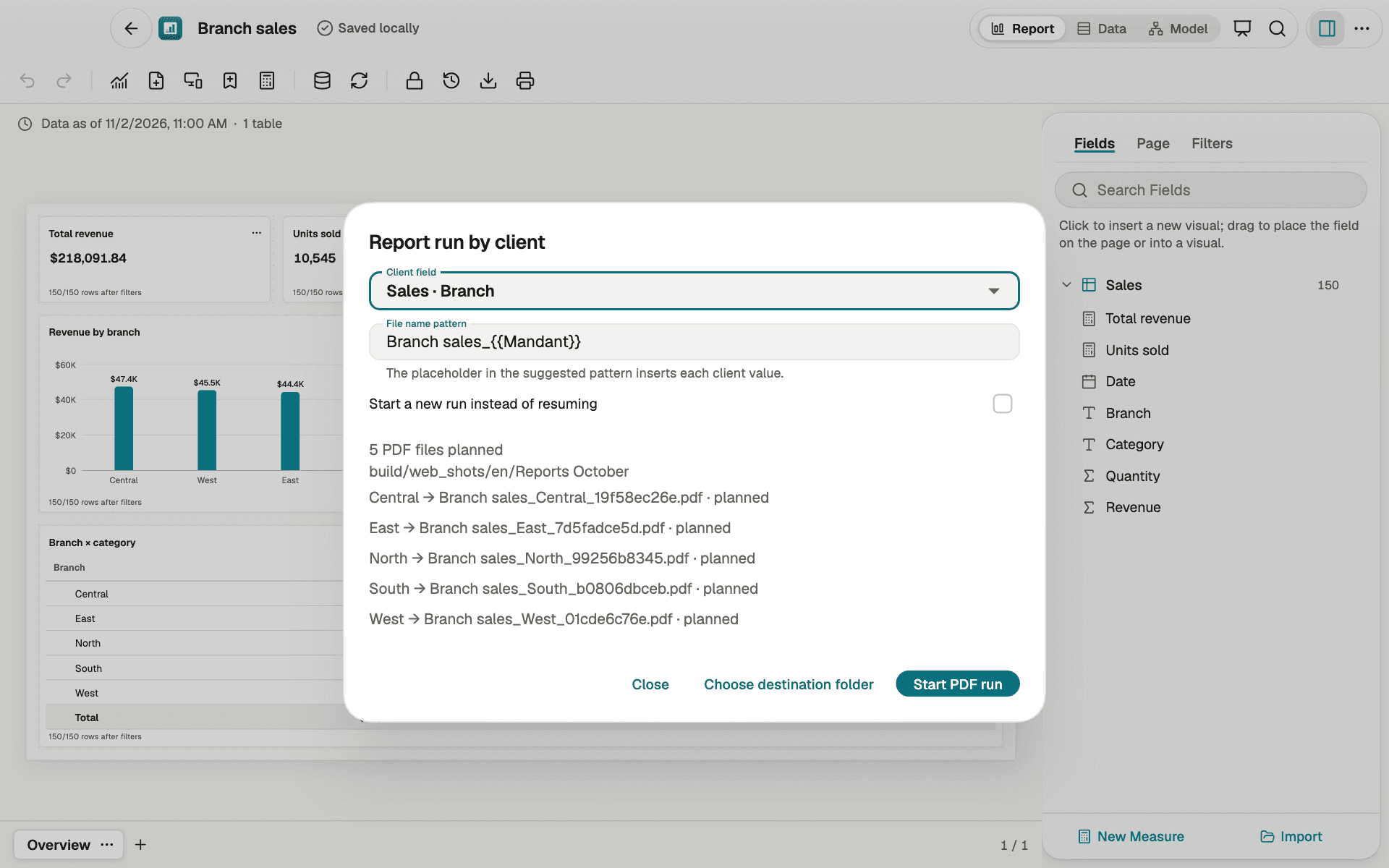
In the Report run by client dialog, pick a column under “Client field”, shown as table and column, such as “Sales · Branch”. The suggested “File name pattern” combines the report title with the placeholder for the client value. The app appends a short ID to every name so that two clients never get the same file; if two rows would still end up with the same name, it reports that up front.
Choose destination folder sets a local folder. The preview then shows how many PDF files are planned and, for each client, the value, file name and status. Rows without a client value are skipped, and the preview tells you how many. No file has been written so far.
The run and its log
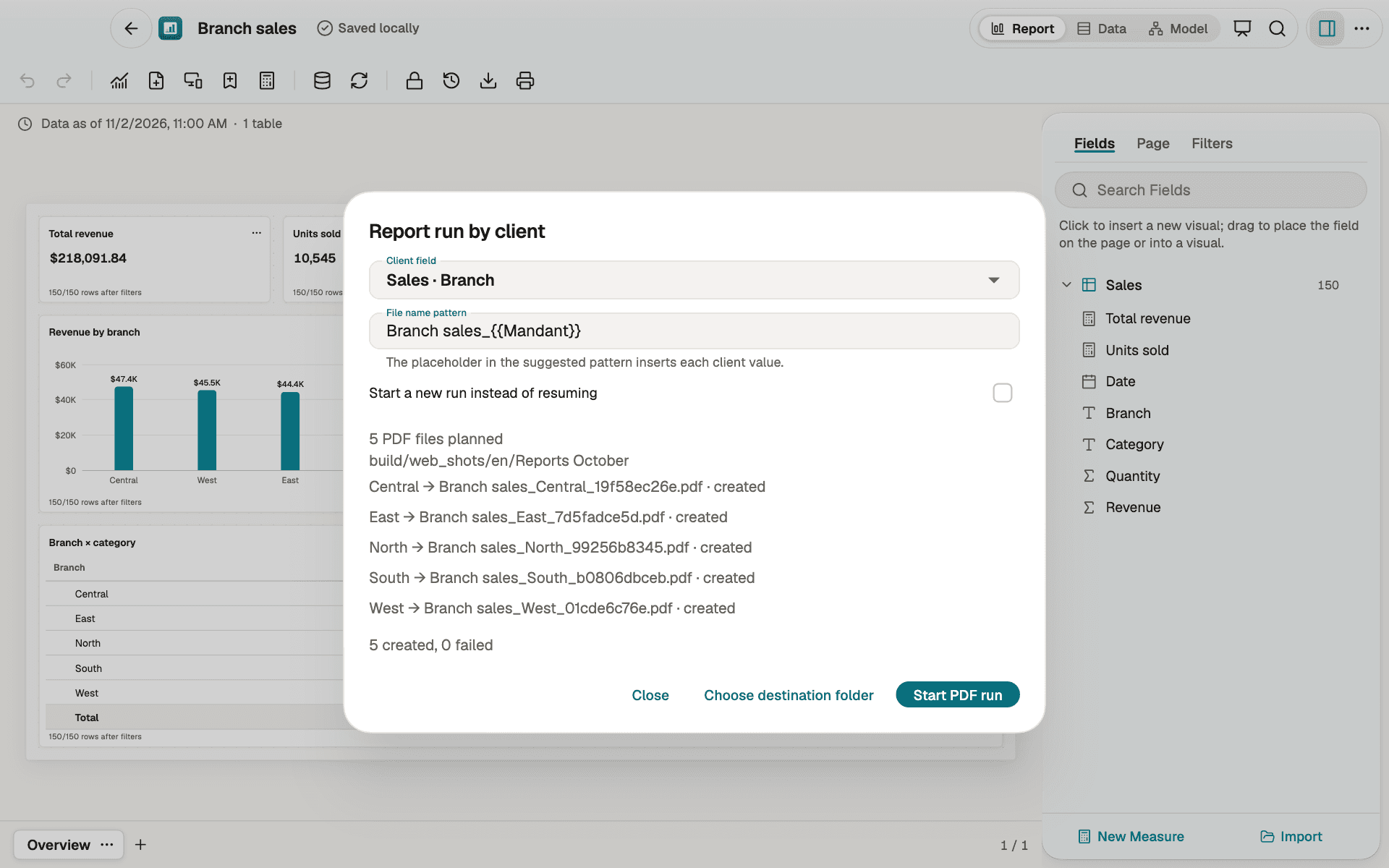
Before the start, the same check applies as for any export: if a source has changed unnoticed, Reports asks first. The app then filters the report to each client in turn, puts the client in the PDF title and writes the file with the Geist fonts embedded. Each row’s status moves from planned to creating to created; at the end you see something like “5 created, 0 failed”.
After every step, the app writes the progress to a log file “berichte-….series.json” in the destination folder. “Stop after this PDF” pauses the run; the next time you open the dialog, it offers to resume the matching run. To start over on purpose, tick “Start a new run instead of resuming”.
What each PDF contains
Each PDF contains every page of the report at its page size, filtered to one client. The header gives the report title and the client, such as “Branch sales · North”, followed by the page name, the data date and the line “Filtered by Branch”. KPI cards, charts and tables show only that client’s values; a matrix keeps one row plus the grand total. The footer shows the creation date.
Beforehand, it’s worth looking at the client column itself. Every distinct value produces its own PDF, so differently spelled values such as “North” and “North branch” give you two files. You fix such differences in the Data view with Replace Values; the step runs again with every new export, so the next run finds the same clients.
Stopping and resuming safely
If the run stops, for example because the computer restarts, resuming picks up exactly where the log ends. PDFs that are already done aren’t written again. If the data, the report or the naming pattern change in the meantime, the old run can’t be resumed, so no PDFs come from two different versions.
Existing PDFs are never silently replaced; such a row shows “file already exists”. If a half-written file from a crash is left in the folder, it stays as a visible conflict until you decide. Two windows running the same job don’t get in each other’s way, and an error in one PDF only affects that row.
One series feature, several apps
The report run follows the same principle as the other series features in Balane Office: one row, one result. Documents creates a letter per record, Mail creates an email draft per row, Forms produces a PDF per response, and Paperwork fills in a PDF form per row. They all share the preview, the log, stopping and resuming.
None of them sends anything on its own. The PDFs from the report run sit in the folder, and you decide how they reach the recipients.
How it works
Choose the command
In the open report, choose “Report run by client” from the “…” menu (File group) or the command search.
Set client field and name
Pick the column under “Client field” and adjust the “File name pattern” if needed.
Choose the folder and check the preview
Choose destination folder, then check the file names and the number of rows without a client value. If a visual can’t filter by client, the pre-check stops here.
Start the run
Choose “Start PDF run”. One PDF is created per client; “Stop after this PDF” pauses the run so you can resume it later.
At a glance
- Output
- one PDF per client
- Platforms
- macOS, Windows, Linux
- Log
- JSON in the target folder
- Sending
- none
Limits
What the feature can’t do yet, or what hasn’t been tested.
- Built and tested, but not in a released version yet. A hands-on check with the native folder dialog is still pending.
- Desktop only. On Android, iOS and in the browser the command isn’t available.
- The run doesn’t send anything and can’t be scheduled. Very large runs haven’t been measured yet.
- Protection against duplicate files covers app windows on one device, not another program writing to the same folder at the same time.
Frequently asked questions
Are the PDFs sent automatically?
No. The run only saves the files to a folder. Sending and scheduling are deliberately not part of it.
Can one client see another client’s numbers?
The pre-check stops the run if a visual can’t apply the client filter, and the interactive slicer is left out of the PDF. A test checks that no slicer with other clients’ values ends up in the PDF. You should still spot-check the PDFs.
What if I change the report after an interruption?
Then the old run can’t be resumed. If the data, the report or the naming pattern change, you deliberately start a new run, so no PDFs come from two different versions.
Why is there an ID in the file name?
It makes every name unique, even if two client values looked the same after cleanup, so no PDF overwrites another.
What about rows without a client?
They’re skipped. The preview says how many rows have no client value, so you can sort them out in the data first.
Can I preview the result first?
Yes. Set the report’s slicer to one client and choose “Export as PDF…”. That shows you what a single PDF will look like before you start the whole run.
Does it work with Excel or SQLite data too?
Yes. The client field offers every column of every table in the report, whether it came from CSV, XLSX, SQLite or a Balane dataset.
How many clients can one run handle?
There’s no fixed upper limit, but very large runs haven’t been measured yet. The flow has been tested with small runs, including stopping and resuming.
When will it be available, and what does it cost?
It’s built and tested and ships with the next released version of Reports; there’s no fixed date. Balane Office is free, with no account and no in-app purchases.
Balane Office is a long-running experiment: nine office apps, mostly built with AI. The apps are free and save to your own device. About the experiment →