Fill in a PDF form and save it as PDF
Applications, sign-up sheets and order forms often arrive as PDFs with fields. This page explains how to tell whether a PDF is fillable, what you can do with scanned forms, when to flatten a form and how filling works in Paperwork.
What it does
- All common field types
- Text, multi-line text, checkboxes, radio buttons, drop-down lists and multi-select lists. The order follows page and position of the fields.
- Every value is a step
- Entries go into the working file and can be undone. The original PDF stays untouched.
- Keep fillable or flatten
- The normal export writes values and appearance into the fields, so the form stays fillable. “Export with Flattened Form…” writes the values into the page and removes the form.
- View matches the export
- The page shows the values the way they will look in the PDF. Read-only fields are marked as such.
- Add a signature
- After filling in, place a drawn, typed or image-based signature on the page.
What a fillable PDF is
Fillable PDFs contain form fields using AcroForm, the form technology described in the PDF standard ISO 32000: areas that take a value, such as a name, a date or a tick. Each field has a name, a type and often a tooltip. Authorities, banks, schools and clubs often send applications this way, because the recipient can also read the values back by machine.
Whether a PDF has fields is shown in Paperwork by the Form tab in the left sidebar. If it’s missing or says “This PDF has no form fields.”, the form is just printed or scanned. There’s also XFA, an older XML-based form technology that Paperwork doesn’t fill in.
A quick test in any viewer: click into a box. If a text cursor appears or you can tick it, it’s a form field. If nothing happens, the boxes are just drawn, and the text has to go on the page as a free text box.
How it works in Acrobat Reader and macOS Preview
In most PDF apps you click a field and type. Preview on the Mac works the same way; if a PDF won’t accept typing, Apple says to place a text box anywhere on the page using the form filling toolbar. Adobe’s free Acrobat Reader also includes a tool for filling in and signing.
Paperwork differs mainly in how it handles the result: every value is a step in the working file, the original stays untouched, and on export you decide whether the form stays fillable or gets flattened.
Common mistakes when filling in forms
A common pattern is filling in a form in the browser and then saving it via Print to PDF; the fields are lost, and depending on the program, some values too. Just as often, special characters outside the Western European character set don’t make it into the field. And reordering or deleting pages after filling in changes the structure the fields refer to.
Paperwork states these limits openly: characters outside WinAnsi appear as “?” in the field, and after page changes the fields still show their values but are no longer fillable. To avoid both, fill in first and rearrange pages afterwards.
Field types and how they behave
Text fields take one line, multi-line fields wrap the text. A checkbox is either ticked or not. Radio buttons belong to a group in which exactly one option can be chosen, such as week 1 or week 2. A drop-down list offers fixed entries, a multi-select list allows several entries at once. Fields with nested names, as larger forms often use, are recognized too.
Some fields aren’t meant to be filled in. The tab marks read-only fields as “Read-only”, buttons as “Button”, and a field for a digital signature carries a note that it isn’t filled in here. The order on the tab follows page and position of the fields, not the often random order in the file.
Filling in on the Form tab
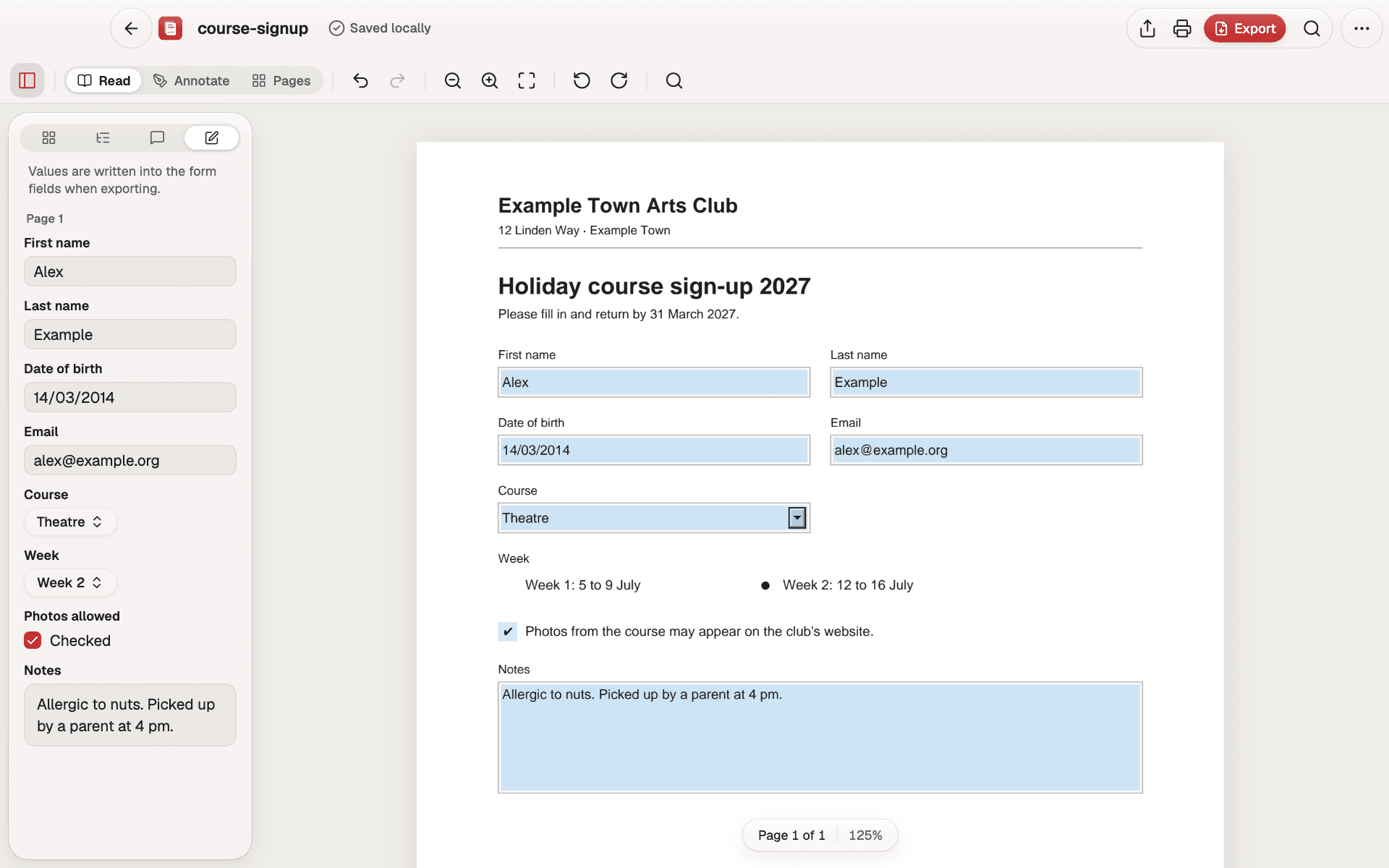
“Fill In Form” opens the Form tab. It lists every field in order of page and position, each with its label: text fields as inputs, drop-downs and radio buttons as menus, checkboxes to tick, multi-line fields with wrapping. A note at the top says that values are written into the form fields when exporting.
The page on the right shows each value immediately as it will appear in the exported PDF. Each entry is a step of its own, and undo takes it back. Read-only fields are marked, and digital signature fields aren’t filled in.
Keep it fillable or flatten it?
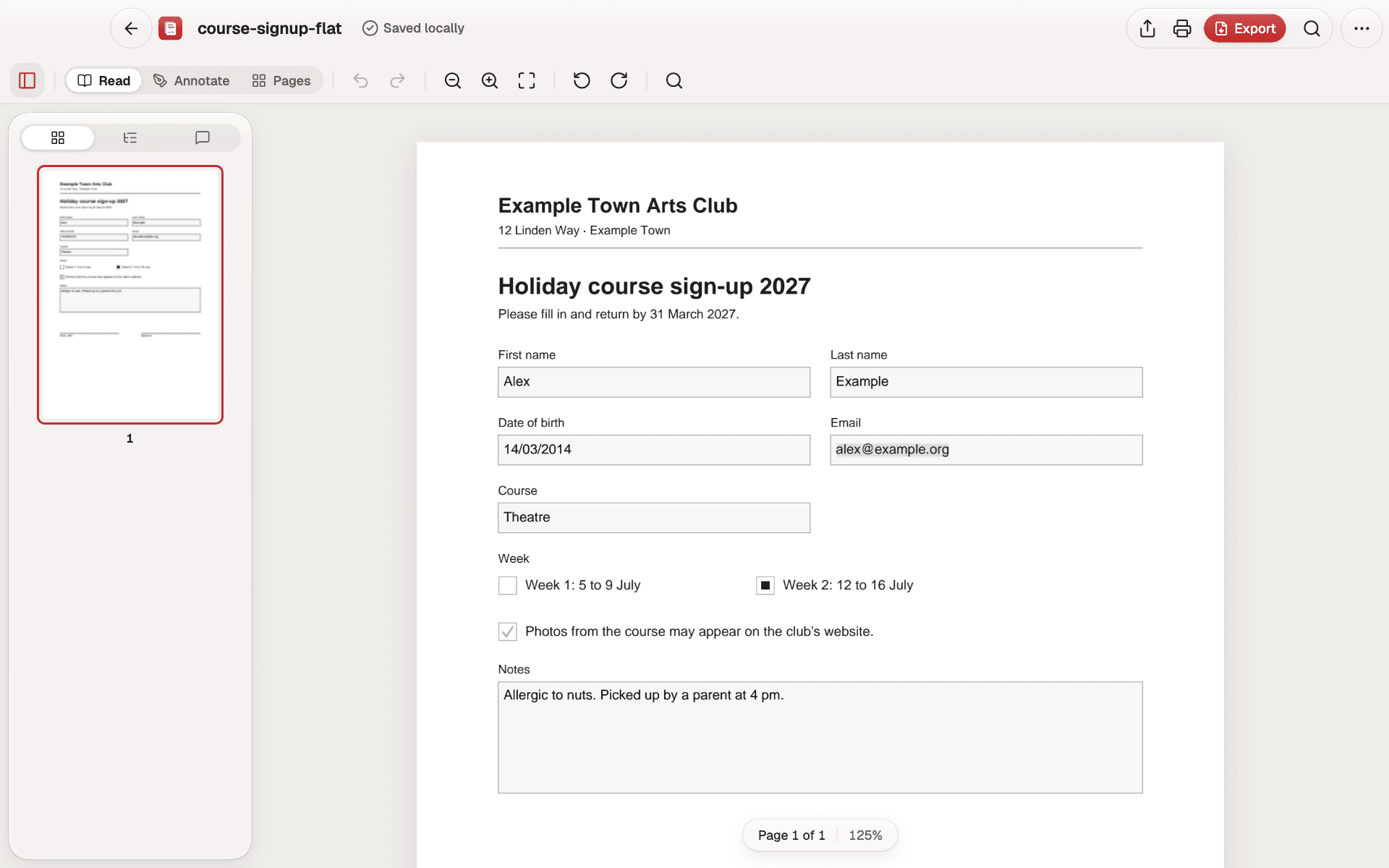
A form exported as fillable can still be edited by the recipient, for example to add their own details. Paperwork writes both value and appearance into each field. A flattened form becomes an ordinary PDF: the values sit in the page content, the form is removed, and Paperwork no longer shows a Form tab for that file.
Flattening makes sense once the form is complete or when a portal only accepts plain PDFs. A test confirms that the values can be read as page text afterwards. Either way, the working file keeps your entries, so you can export differently later.
Before you send the form
Check how the recipient wants the form. Some portals only accept PDFs without form fields, some also require a handwritten signature on paper, and some want the fields returned fillable so they can read the values by machine. That decides whether you export normally or with a flattened form.
Give the exported file a meaningful name and keep the working file. If a question comes back, you change one value there and export again instead of filling in the whole form from scratch.
In the browser and with many records
Paperwork also runs in the browser. You open the PDF through the file picker, the working file is kept in the browser’s storage and survives a reload, and the export arrives as a download. The PDF processing runs inside the browser itself.
For many identical forms, such as one sign-up per row of a participant list, batch filling is built and tested but not in a released version yet. It creates one PDF per data row, fillable or flattened, and is initially limited to macOS and Linux.
How it works
Open the PDF
Choose “Open PDF” on the home screen. A working file is created, and the original stays untouched.
Fill in the fields
“Fill In Form” shows the fields on the Form tab in the left sidebar. Type, tick and choose values.
Check on the page
The page shows the values as they’ll be exported. Undo any mistakes.
Export
Choose “Export as PDF…” to keep the form fillable, or “Export with Flattened Form…”.
At a glance
- Form type
- AcroForm
- Field types
- Text, checkboxes, radio buttons, lists
- Export
- fillable or flattened
- Also in
- Browser
Limits
What the feature can’t do yet, or what hasn’t been tested.
- Forms in encrypted PDFs can’t be filled in; XFA forms aren’t supported.
- Characters outside the Western European character set (WinAnsi) appear as “?” in the field.
- After changes to the pages, fields still show their values but are no longer fillable. Digital signature fields aren’t filled in.
- Tested with PDFium; how the result looks in Adobe Acrobat and macOS Preview hasn’t been checked yet. Batch filling isn’t released yet.
Frequently asked questions
Can I do this without Adobe Acrobat?
Yes. Paperwork fills in AcroForm forms itself and writes a new PDF, with no extra program.
My PDF has no fields. What now?
Then it’s just printed or scanned. With the Text Box tool under Annotate you can place text anywhere on the page; on export it’s written as an annotation.
Can the recipient keep editing the form?
Yes, if you export normally as PDF; the form stays fillable. After “Export with Flattened Form…” it doesn’t.
Why does a character show up as a question mark?
Paperwork writes the field appearance using Helvetica in the Western European character set (WinAnsi). Characters outside it, such as Cyrillic or Greek letters, appear as “?” in the field.
Can I fill in the PDF in the browser?
Yes. You open the PDF through the file picker, the working file is kept in the browser’s storage and the export arrives as a download.
How do I clear a field?
Delete the text on the Form tab, untick a checkbox, or choose “No Selection” in a drop-down. Alternatively, undo takes back the last value.
Are my entries lost if I close the app?
No. Paperwork keeps saving the working file on your device; the title bar shows “Saved locally”. Next time you open it, all values are back on the Form tab.
Can I fill many forms from a list?
Batch filling, which creates one PDF per row of data, is built and tested but not in a released version yet.
What does it cost?
Nothing. Balane Office is free, with no account and no in-app purchases. The PDF stays on your device.
Balane Office is a long-running experiment: nine office apps, mostly built with AI. The apps are free and save to your own device. About the experiment →