Mail merge, row by row
Mail merge turns one letter with placeholders and a list with one row per recipient into many personal letters. This page explains how to prepare the data, how Word and LibreOffice do it, and how mail merge works in Documents, which is built and coming soon.
What it does
- Placeholders in the text
- Write fields as {{ Name }} straight into the letter, including the title and header. The app matches them to columns by name or ID.
- Preview per row
- Before starting, view any row as a finished letter. The preview doesn’t create a file.
- Pre-check
- Missing values, ambiguous fields and unknown placeholders are reported with their row number before the first letter is created.
- Log and resume
- Each row has a status: planned, in progress, letter created, failed or skipped. A stopped run picks up where it left off without creating any letter twice.
- Protection against mix-ups
- If the template was changed after the run started, the app requires a new run. If a letter already created is missing or has been changed, the run stops.
How mail merge works
A mail merge has two parts: a main document in which the variable details are placeholders, and a data source with one row per recipient. When you merge them, each row becomes a separate letter with the placeholders replaced by that row’s values.
Typical uses are invitations, member letters, donation receipts, certificates and payment reminders. The same principle also produces labels, envelopes, emails to many recipients and directories, where all rows appear one after another in a single document.
What matters is that the list’s columns match the placeholders and every required value is filled in. An empty field in a finished letter only shows up once it has reached the recipient, which is why previewing several rows before each run pays off.
Preparing the data source
The list needs a header row with unique column names and one row per recipient below it, with no blank rows and no merged cells. Microsoft recommends naming the column headers like the merge fields and keeping first and last names in separate columns, so salutation and address can be built independently.
Numbers, amounts and postal codes should be formatted in the spreadsheet so they come across correctly; stored as a number, a postal code with a leading zero turns into “1067” instead of “01067”. Keep all data on the first sheet, and finish editing the spreadsheet before connecting it.
Data protection is part of the preparation: an address list contains personal data. Only include the columns the letter needs, and delete copies once the series has gone out.
Mail merge in Word and LibreOffice
For Word, Microsoft names Excel spreadsheets and Outlook contacts as the most common data sources; any database you can connect to Word works. After connecting, you choose recipients in the recipient list, insert fields such as Address Block and Greeting Line or individual merge fields, check row by row with Preview Results and finish with Finish & Merge, to print or as email.
Word for the web keeps mail merge settings from documents created in the desktop app, but it can’t run a merge itself. You need the installed Word application for that.
In LibreOffice Writer, Tools > Mail Merge Wizard guides you through five steps: select starting document, select document type, addresses, create salutation and adjust layout. The salutation can vary depending on information in the data source.
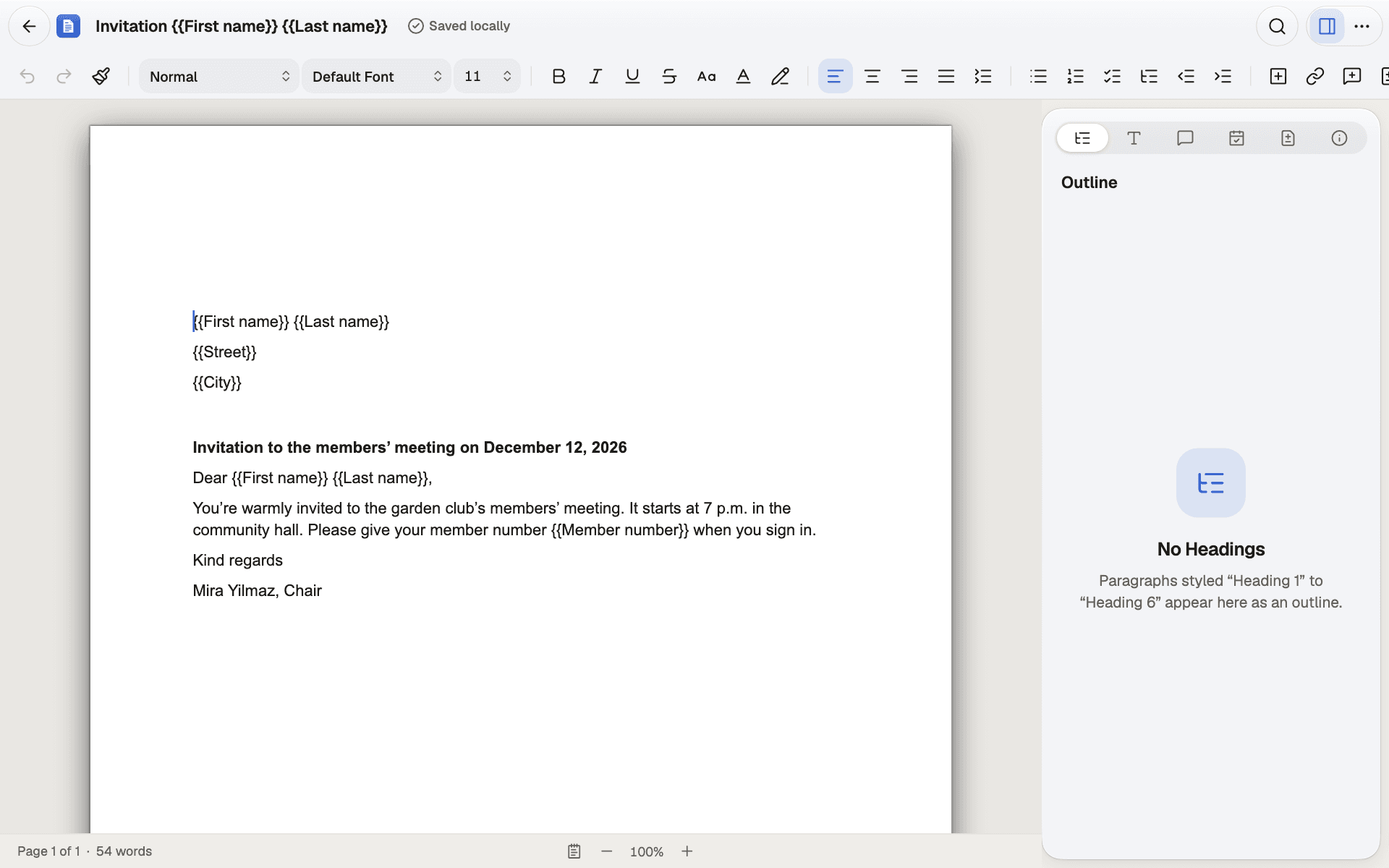
Placeholders in Documents
In Documents the template is a normal document, for example one based on the DIN 5008 letter template. Write the variable parts as {{ field name }} straight into the text. A placeholder can be up to 40 characters long and contain spaces, for example {{ City }}. Formatting that spans part of a placeholder doesn’t get in the way.
Placeholders also work in the document title and the header. The title matters because each generated letter gets it with the values filled in plus its row number, such as “Invitation Clara Sommer · 3”. That way you can find every letter in the library.
Field mapping, preview and pre-check
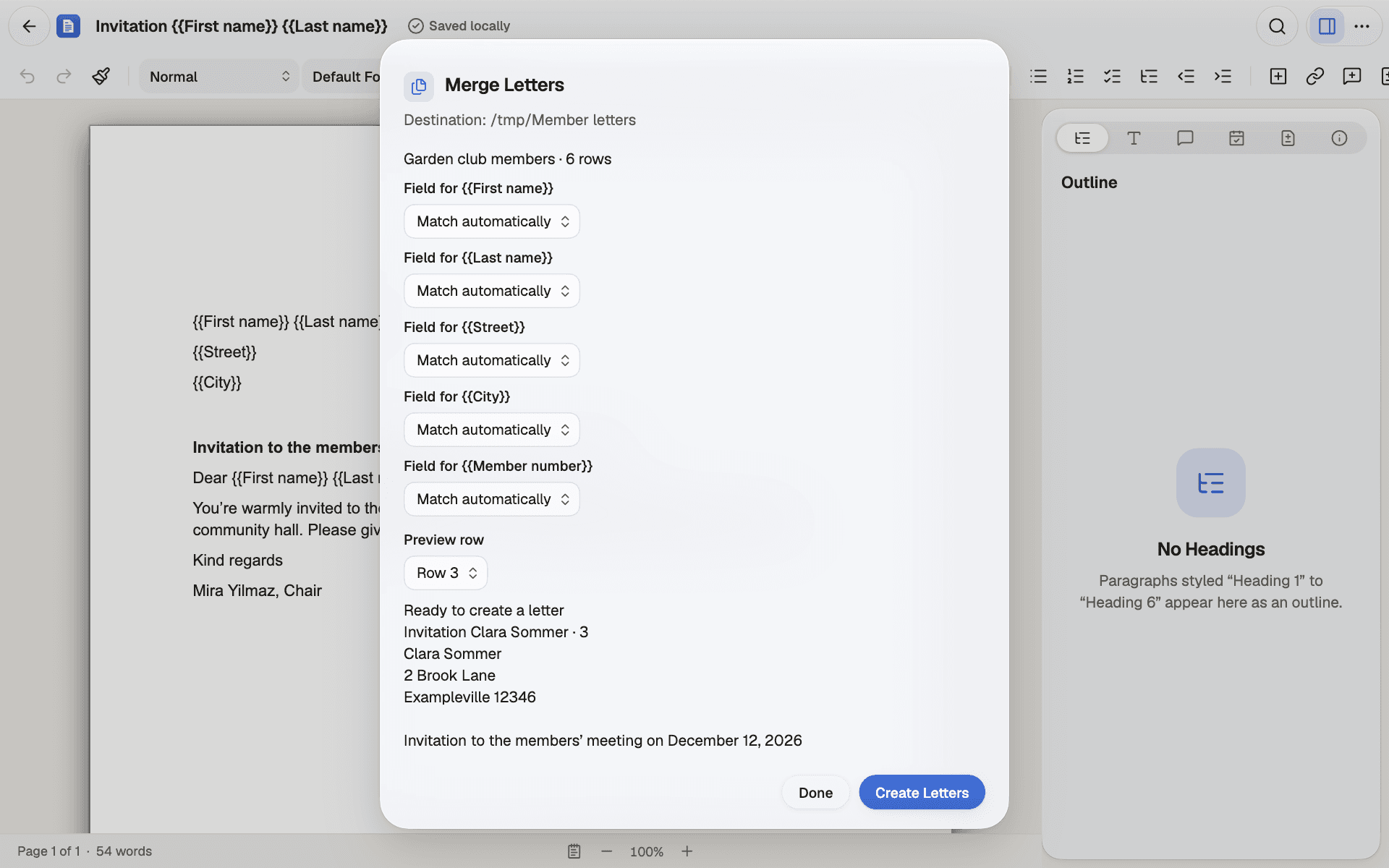
“Create Merge Letters…” first asks for the dataset. The dialog shows its title and row count and lists every placeholder with a selector. “Match automatically” links {{ First name }} to the “First name” column; if two columns share a name, you pick the right one by hand.
Under “Preview row” you pick any row and see the title and opening of the finished letter. If that row is missing a value, it shows something like “Value for Street is missing” instead of “Ready to create a letter”.
When you start, the app checks every remaining row. If it finds missing values, ambiguous fields or placeholders without a matching column, it reports them with row numbers and creates no further letters.
Log, stopping and resuming
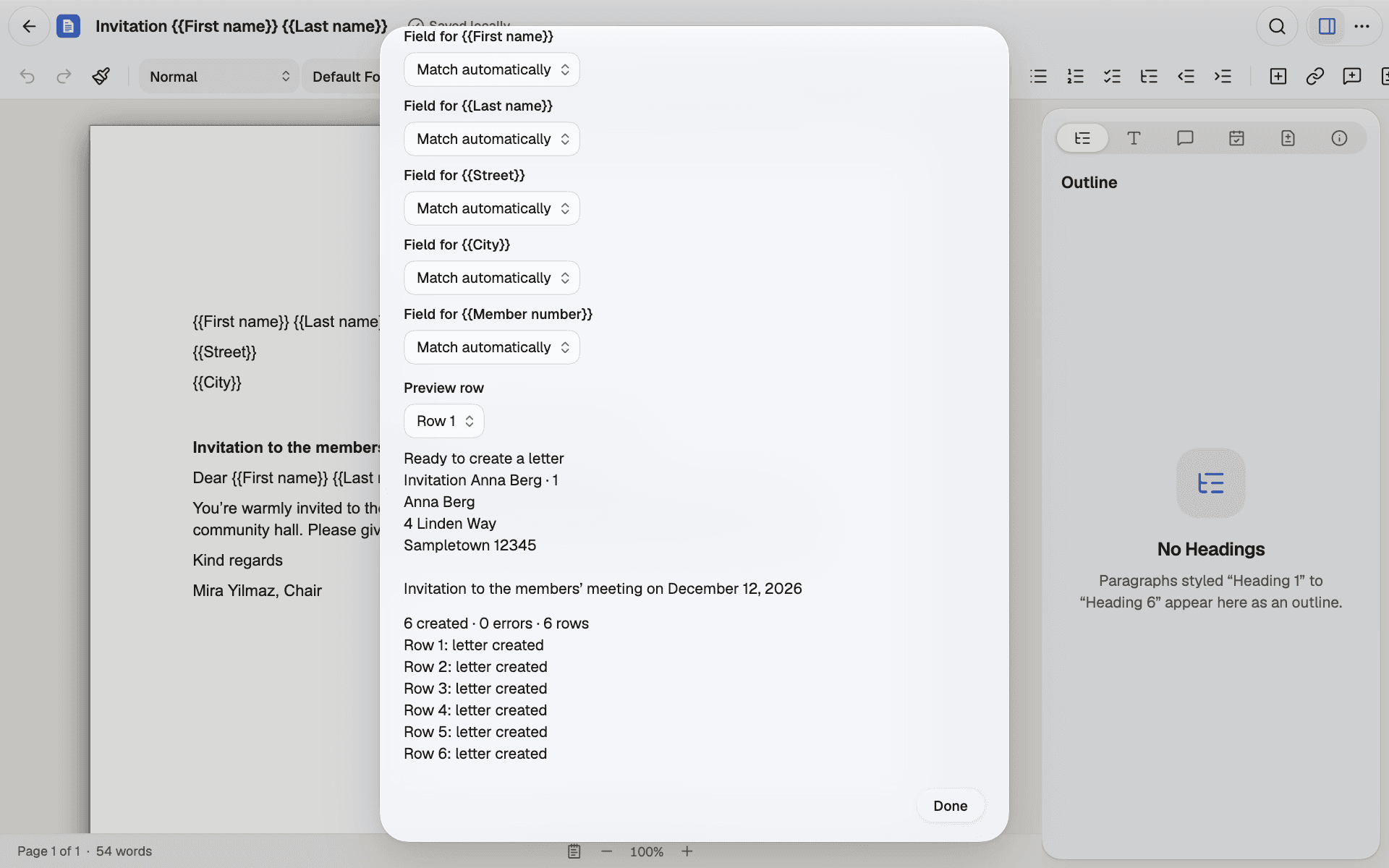
“Create Letters” puts a separate document for each row in the folder of the source document. During the run the dialog counts letters created and errors and keeps a status for every row.
“Stop after this row” halts the run cleanly. “Resume” carries on later, even after restarting the app, and only creates the missing letters. This has been verified with 512 rows resumed after restarting a test process, without duplicates.
Two safeguards prevent mix-ups: if the template changed after the start, the run no longer matches and the app requires a new one. If a letter already created is missing or has been changed, it doesn’t resume and says so.
Where the data comes from
The mail merge reads a Balane dataset. Sheets can save a list as such a dataset, and Forms can do the same with collected responses. That way an address list or the sign-ups for an event turn straight into a series of letters. An Excel or CSV file is opened in Sheets first and saved from there.
The same building block is in other apps: Mail creates one email draft per row and never sends on its own, and Paperwork fills in one PDF form per row. These are also built and waiting for the owner’s review.
Common mail merge mistakes
A typo in the placeholder: {{ First names }} won’t find a “First name” column. Documents reports this as “Cannot resolve placeholder …” before any letter is created.
Empty cells: a missing street produces a letter without an address line. The pre-check reports the row; fill in the value in the list and save the dataset again.
Gendered salutations: Documents has no conditional sections that pick “Dear Ms” or “Dear Mr” from a column. A neutral salutation such as “Dear {{ First name }} {{ Last name }},” or a separate column holding the complete salutation solves this.
How it works
Provide the data
Open the list in Sheets or collect it in Forms and save it as a Balane dataset.
Prepare the letter
Write a letter, for example from the DIN 5008 template, and enter the variable parts as {{ field name }}, including the title.
Start the mail merge
Choose “Create Merge Letters…” from the command search and pick the dataset. The dialog shows its title and row count.
Map the fields
Leave “Match automatically” or pick the matching column for a placeholder.
Check the preview
Look at several rows under “Preview row”, especially the first, the last and any with long values.
Create the letters
“Create Letters” makes one letter per row. Pause with “Stop after this row” and carry on with “Resume”.
At a glance
- Status
- Soon: built, not yet released
- Placeholders
- {{ Name }}, up to 40 characters
- Data source
- Balane dataset
- Output
- one document per row
- Tested with
- 512 rows, resumed after restart
Limits
What the feature can’t do yet, or what hasn’t been tested.
- Built and tested, but not in a released version yet. The owner’s hands-on check on a device is still pending.
- The data source is a Balane dataset. The mail merge doesn’t read a CSV or Excel file directly.
- Each letter is created as its own document in the source document’s folder, not as one combined file. Conditional sections aren’t supported.
- Documents’ mail merge doesn’t produce labels, envelopes or directories.
- Tested with synthetic data; much larger runs, timing and the native file picker aren’t covered yet.
Frequently asked questions
Can I use an Excel list?
Not directly. Sheets opens the Excel file and saves it as a Balane dataset, which the mail merge reads.
What happens if the run is interrupted?
The log records every row. When you resume, only the missing letters are created, never duplicates. Tested with 512 rows across a restart.
How should I name the placeholders?
Like the list’s column headers, in double curly braces, for example {{ First name }}. Spaces are allowed, up to 40 characters. The dataset’s field ID works instead of the name too.
Do I get one big document or many separate ones?
Many separate ones: one document per row in the same folder as the template, named after the title with values filled in and the row number.
Can I send the letters by email?
Documents creates letters. For email, the same building block in Mail creates a draft per row and never sends anything itself; it isn’t released yet either.
When will the feature be available, and what will it cost?
It’s built and tested and ships with an upcoming released version of Documents, free like the rest of the app. There’s no fixed date yet.
Balane Office is a long-running experiment: nine office apps, mostly built with AI. The apps are free and save to your own device. About the experiment →