Track changes and work through comments
With change tracking on, every insertion and deletion stays visible with a name and time until someone accepts or rejects it. This page explains the workflow, shows how it’s done in Word and LibreOffice, and how to revise, comment and hand the file on in Documents.
What it does
- Insertions and deletions marked
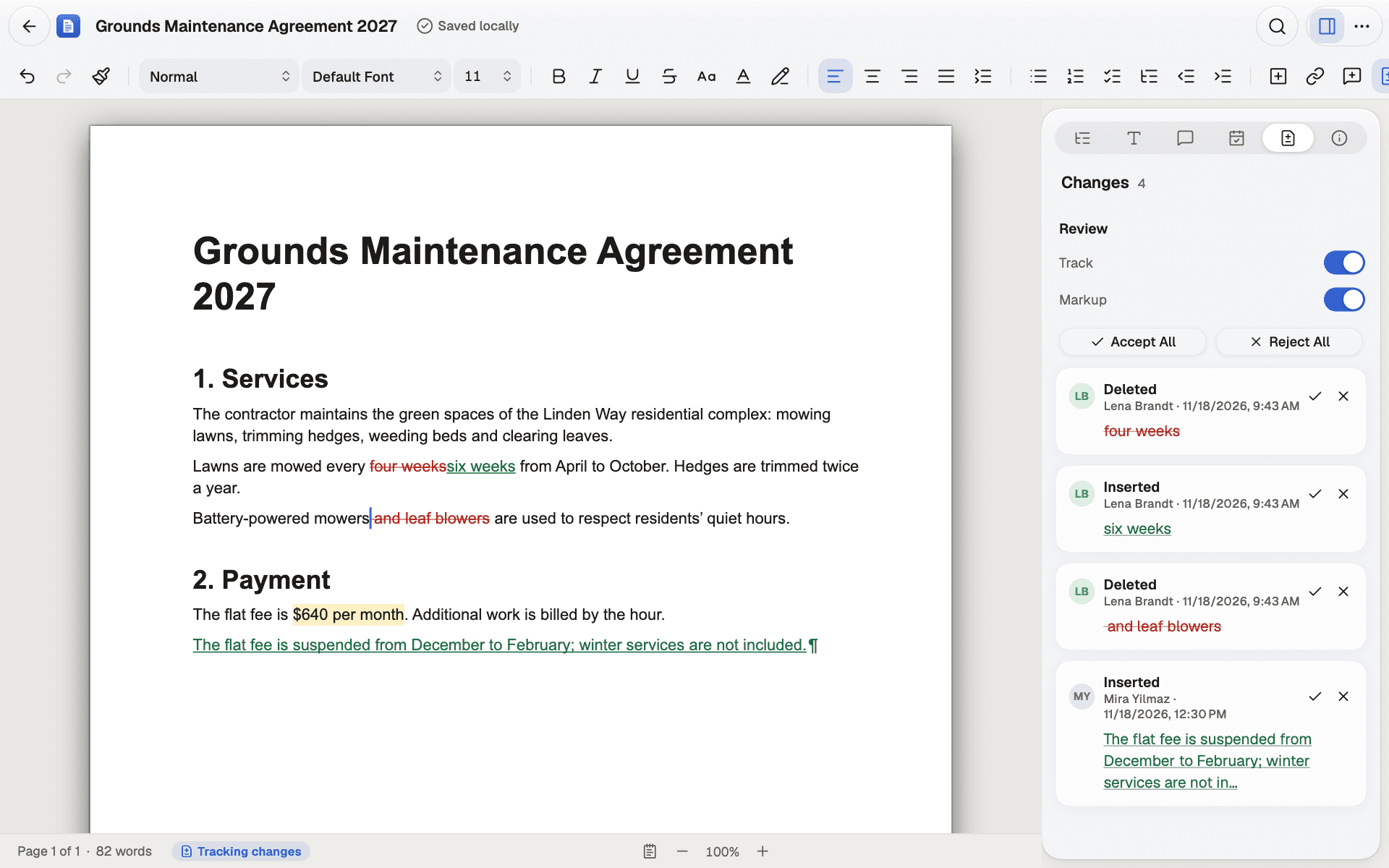
- New text appears underlined in green, deleted text struck through in red, including paragraph marks. The status bar shows “Tracking changes”.
- Accept or reject
- One at a time in the sidebar, stepping through with “Next Change” and “Previous Change”, or all at once with “Accept All” or “Reject All”.
- With author and time
- The name from settings appears on every change and comment, together with date and time.
- Threaded comments
- Comments attach to a passage, take replies and can be marked as resolved. The sidebar hides resolved ones and shows how many there are.
- Round trip with DOCX and ODT
- Tracked insertions, deletions and comments survive saving as DOCX and ODT and are read back in.
- AI suggestions as changes
- If you use the AI with your own Anthropic key, “Insert AI Edits as Tracked Changes” brings its suggestions in as tracked changes by “AI” for you to review one by one.
What tracking changes is for
As soon as more than one person works on a text, such as a contract, an application or a thesis, you need a trail: what was there before, what’s new, who changed it? Tracking changes records exactly that, without anyone laying two versions side by side.
The usual flow: one side revises with tracking on and leaves questions as comments. The other goes through the changes, accepts or rejects them and replies to the comments. At the end the text is clean, and anything still open sits next to it as a comment.
The key difference from a second version: a tracked change isn’t decided yet. Only “Accept” makes it part of the text; “Reject” restores what was there before.
How Word and LibreOffice do it
In Microsoft Word the feature is on the Review tab under Track Changes. Word asks whether to track everyone’s edits or just your own. There are four display levels: Simple Markup with a line in the margin, All Markup with a colour per reviewer, No Markup showing the result of all changes, and Original showing the text before any changes.
For review, Word steps from change to change with Next and Previous; Accept and Reject decide the selected change, and Accept All Changes decides them all at once. On Windows, tracking can be locked with a password so nobody switches it off unnoticed.
In LibreOffice Writer, Edit > Track Changes > Record starts tracking. Inserted text appears underlined in colour, and deleted text stays visible, struck through in colour. Hovering over a change shows its type, author, date and time. Changes are accepted and rejected in the Manage Changes dialog.
Reviewing changes in Documents
In Documents you switch tracking on with “Track Changes”, from the command search, with Ctrl+Shift+T (⌘⇧T on a Mac) or with the “Track” switch in the “Changes” sidebar. From then on the editor marks every insertion and deletion with your name.
The “Changes” sidebar lists all open changes in text order: type (Inserted, Deleted), author, time and the affected text. The tick and cross on each entry accept or reject it. “Accept All” and “Reject All” sit above the list.
The “Markup” switch hides the highlighting so you can read the text as if all changes were accepted. That doesn’t change the document: the changes stay open until someone decides them.
Comments and replies
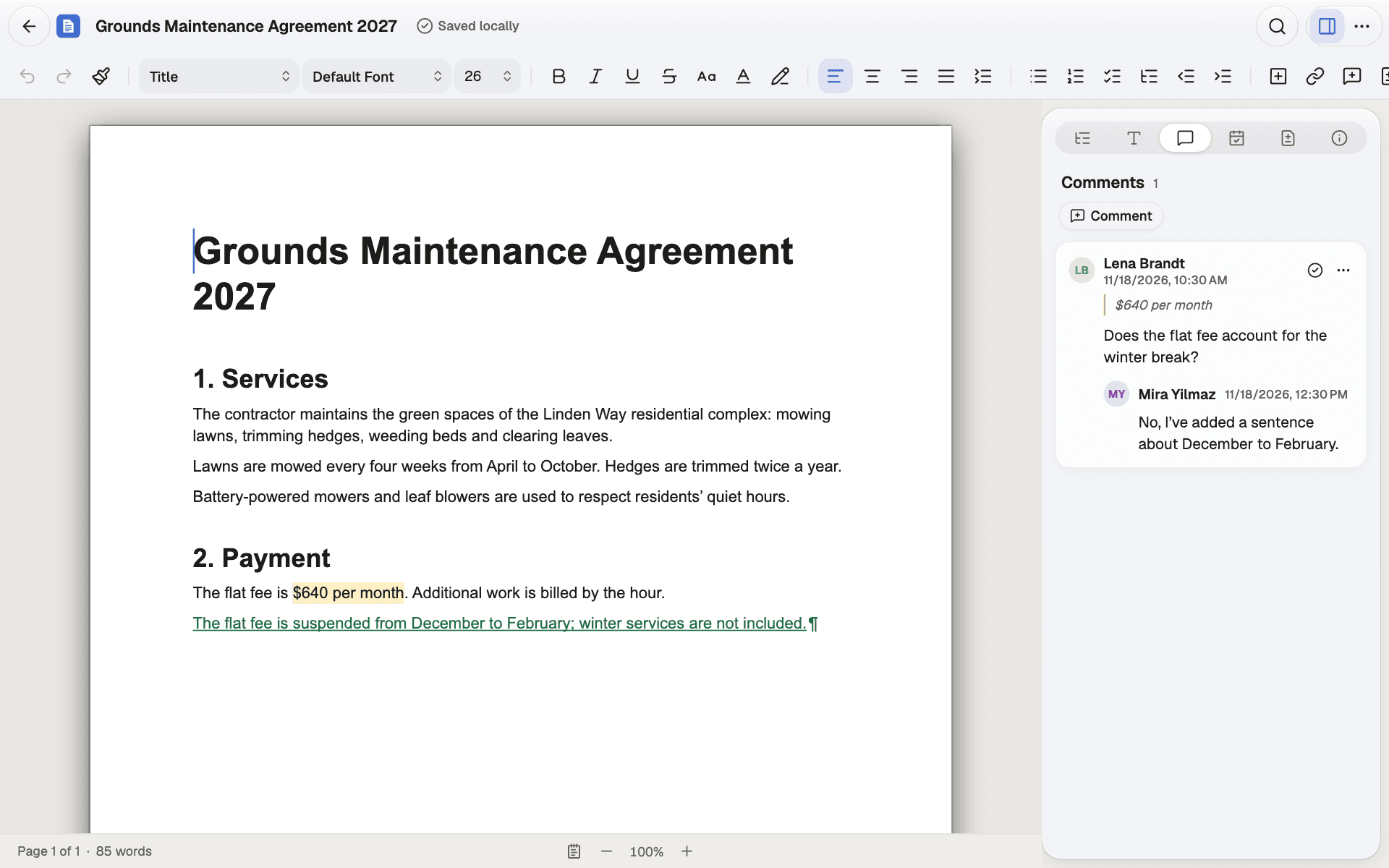
To comment, select a passage and choose “Comment…”, or “Comment” in the sidebar. The comment is anchored to exactly that passage, which is highlighted yellow in the text, and shows the quoted text above the comment.
Each comment has a reply field below it. Replies are indented with their own name and time. Once the question is settled, “Mark as resolved” closes the thread; the sidebar hides it and shows under “Resolved” how many there are.
Working with Word and LibreOffice users
Documents reads and writes DOCX and ODT. Tracked insertions and deletions in the body text, plus comments with replies and resolved status, are written to DOCX and read back. The round trip has been tested with LibreOffice 26.2; a check in Microsoft Word is still pending.
Not everything carries over: formatting changes and table-row changes from a DOCX file are dropped when it opens, and moved text becomes a deletion plus an insertion. The app lists each such simplification under “Import Notes” when the file opens.
ODF has no concept of replies or resolved comments. Documents writes the extension LibreOffice understands; other programs show replies as separate comments. The ODT export writes changes to paragraph marks and in headers and footers as accepted.
PDF, printing and earlier versions
When you export a PDF or print from the editor, you get the accepted version: insertions appear as normal text, deletions are gone and no markup is shown. A PDF with visible changes is currently only produced by the export through the MCP server with the showChanges option.
Alongside tracked changes, Documents keeps a version history. It saves the state before the first save and then at most every ten minutes, including before changes made by Claude through the MCP server. “Version History…” lists them; “Restore” brings one back, and Undo reverses that.
Through the MCP server, Claude can list, accept and reject tracked changes and add comments. Several edits by Claude count as one version.
Common pitfalls
Tracking is switched on too late. Anything changed before doesn’t show up as a change. Turn it on before you start revising; the status bar then shows “Tracking changes”.
Hidden markup doesn’t mean accepted. If you pass on a file with markup hidden, all open changes go with it. Before sending it to outsiders, use “Accept All” or decide each change deliberately.
Name and time travel with the file. Every change and comment carries an author and timestamp, in the DOCX file too. Without a name set, the sidebar shows “Unknown”, so enter the name others know you by under “Author” in settings.
How it works
Set your name
In settings, enter your name under “Author”. It appears on comments and tracked changes.
Turn tracking on
Turn on “Track Changes” with Ctrl+Shift+T or the “Track” switch in the “Changes” sidebar.
Revise and comment
Write and delete as usual. For questions, select text and choose “Comment…”.
Review the changes
In the “Changes” sidebar, accept each entry with the tick or reject it with the cross, or jump through the text with “Next Change”.
Close the comments
In the “Comments” sidebar, reply and close settled threads with “Mark as resolved”.
Pass it on
Use “Export…” to save as DOCX or ODT if the other side carries on editing, or as PDF with the accepted version.
At a glance
- Tracked
- Insertions, deletions, paragraph marks
- Shortcut
- Ctrl+Shift+T, ⌘⇧T
- Round trip
- DOCX, ODT
- PDF from the editor
- accepted version
- Tested with
- LibreOffice 26.2
Limits
What the feature can’t do yet, or what hasn’t been tested.
- Tracked formatting changes and row changes from DOCX are dropped when the file opens; moved text becomes a deletion plus an insertion.
- On ODT export, changes to paragraph marks and in headers and footers are written as accepted.
- PDF export and printing from the editor show no markup; a PDF with visible changes is only available through the MCP export.
- Documents has no password lock for tracking like the one Word offers.
- While changes are tracked, sections can’t be moved in the navigator.
- The round trip with Microsoft Word hasn’t been tested yet.
Frequently asked questions
Will the changes show up in Word?
Documents writes tracked insertions, deletions and comments to DOCX. The round trip has been tested with LibreOffice; a check in Microsoft Word is still pending.
Can I accept all changes at once?
Yes, with “Accept All” in the sidebar or “Accept All Changes” in the command search. There’s also “Reject All” and one-by-one review.
How do I switch tracking on and off quickly?
With Ctrl+Shift+T, or ⌘⇧T on a Mac. Word uses Review > Track Changes instead, and LibreOffice Edit > Track Changes > Record.
Do the changes appear in the PDF?
Not from the editor: PDF and print show the accepted version. Only the MCP server currently exports with visible changes.
What’s the difference between hiding and accepting?
Hiding with the “Markup” switch only changes the view. Accepting makes the change part of the text; after that it’s no longer a change.
Do I need an account or a cloud?
No, and Documents is free. You exchange the file as usual, by email for example. Editing together without a server is built but not released yet.
Balane Office is a long-running experiment: nine office apps, mostly built with AI. The apps are free and save to your own device. About the experiment →