Presenter view: notes and the next slide in sight
While presenting you see the current and next slide, your notes and the time. Laser pointer, pen and highlighter are one key away, and beforehand you can rehearse the talk with timing.
What it does
- Next slide and next step
- Next to the current slide you see the next slide or the next animation step, so you know what comes up.
- Notes at a readable size
- The slide’s speaker notes are shown large on the right, and two buttons make the text smaller or larger.
- Timer and clock
- The timer can be paused and reset, and the current time is shown next to it.
- Laser pointer, pen, highlighter
- L for the laser pointer, S for the pen in six colours, I for the highlighter, plus an eraser. E clears the drawings on the slide.
- Jump instead of paging
- The slide strip takes you to any slide, G opens an overview of all slides, and a number plus Enter jumps straight to that slide.
- Rehearse with timing
- Rehearse Timings measures the time per slide and, if you like, enters it as automatic advance.
What a presenter view should do
A presenter view is the speaker’s side of a talk: it shows what the audience sees right now, what comes next and what you meant to say about it. The time belongs there too, so you don’t run over, as does a quick way to a particular slide when a question comes up.
The common programs do this in similar ways. According to Microsoft, PowerPoint shows the current and next slide, notes, a timer with pause and reset, the clock, pen and laser pointer, a slide overview, zoom and a black screen. Keynote calls it the presenter display, and Google Slides has a presenter view with speaker notes in a separate window.
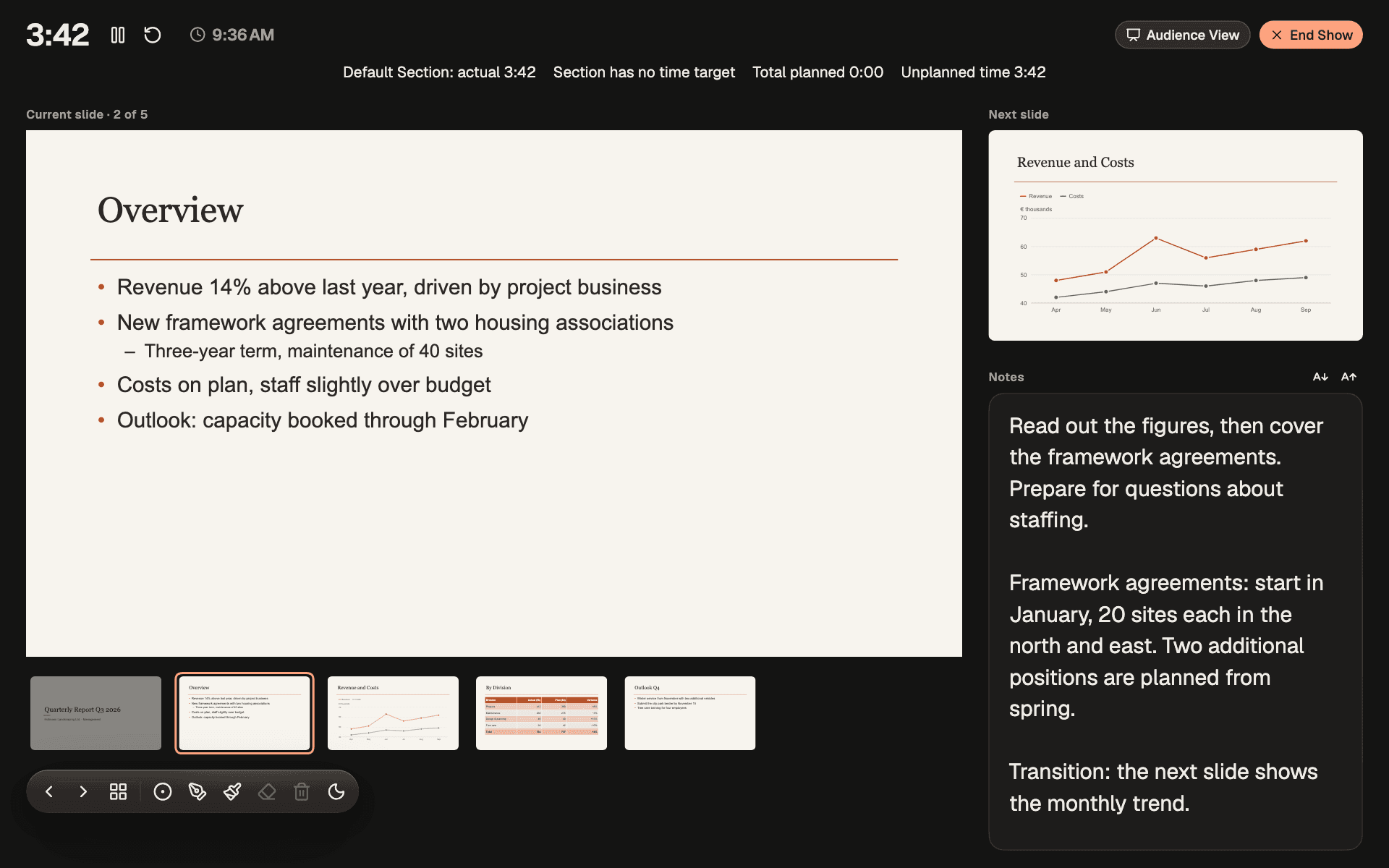
The presenter view in Slides
The timer and clock run at the top left, with buttons to pause and reset. The large area shows the current slide, labelled “Current slide · 2 of 5”, with the next slide or next animation step to the right and the notes below it. The slide strip sits under the slide; one click jumps there.
At the top right, Audience View switches to the full-screen slide as the audience sees it; Show Presenter View takes you back. End Show closes the slide show. The control bar at the bottom left offers back, next, all slides and the pointing tools.
Keys for the slide show
F5 starts from the beginning, Shift+F5 from the current slide, and ⌥F5 or Alt+F5 straight into the presenter view. Space, right or down arrow, Page Down, N or Enter move forward; left or up arrow, Page Up, Backspace or P move back. Home and End go to the first and last slide, and a slide number plus Enter jumps straight there.
B or period turns the screen black, W or comma white, and G shows all slides. Esc first puts away an active pointing tool, then closes the overview, and only then ends the show. The full list is under Help → Keyboard Shortcuts.
The layout largely follows PowerPoint: according to Microsoft, F5, Shift+F5, Alt+F5, B, W, E and number plus Enter work there too. The pointing tools differ: PowerPoint uses Ctrl+L for the laser pointer and Ctrl+P for the pen, while Slides uses the single keys L and S.
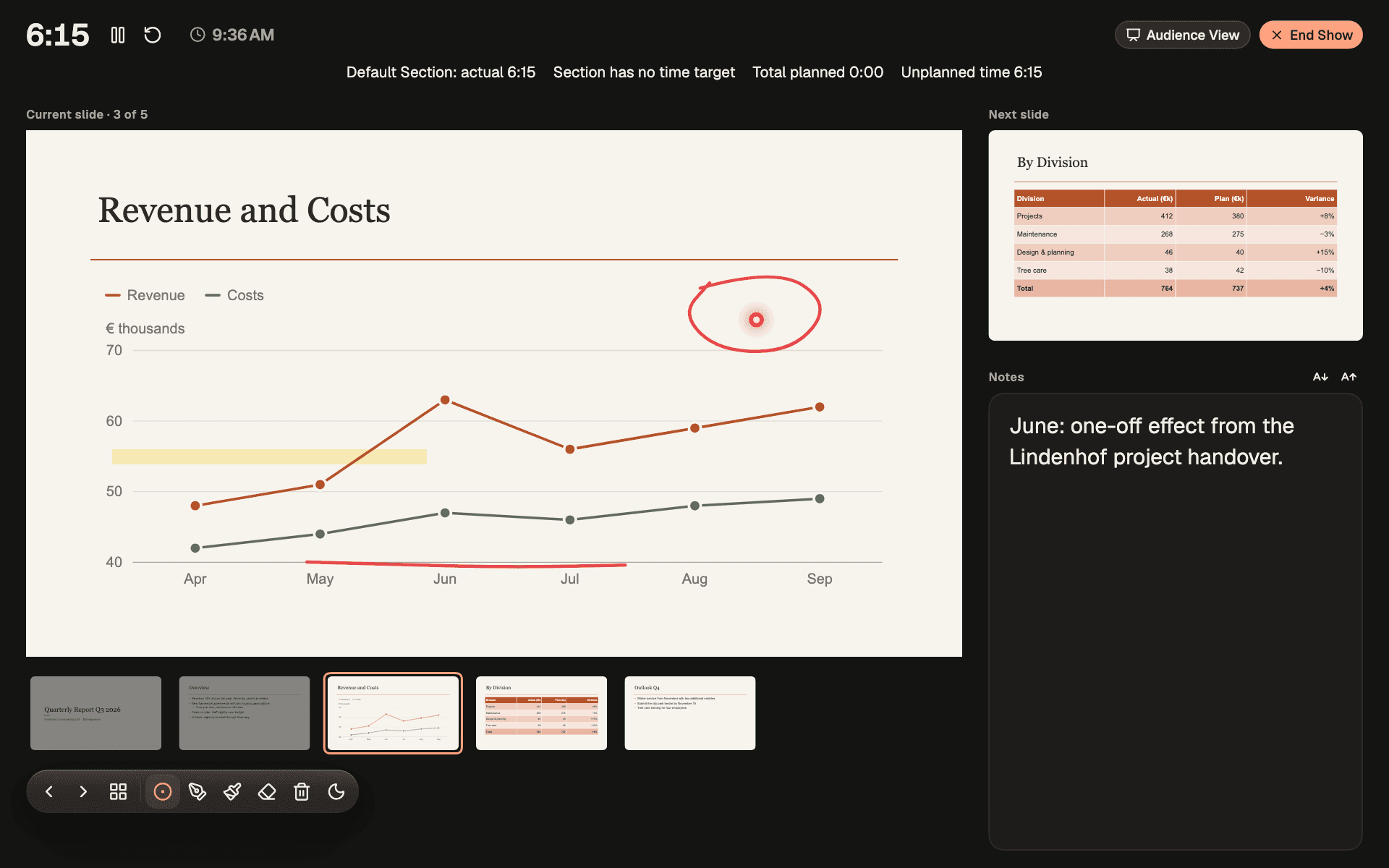
Pointing and drawing
L shows a red laser dot that follows the mouse. S turns on the pen; pick the colour in the control bar from red, blue, green, yellow, black and white. I draws translucent highlighter strokes. The eraser removes single strokes, and E clears all drawings on the current slide.
The tools work the same in the presenter view and the audience view. On touch devices a tap shows the control bar, swiping moves through slides, and pinching with two fingers ends the show.
Rehearsing the talk
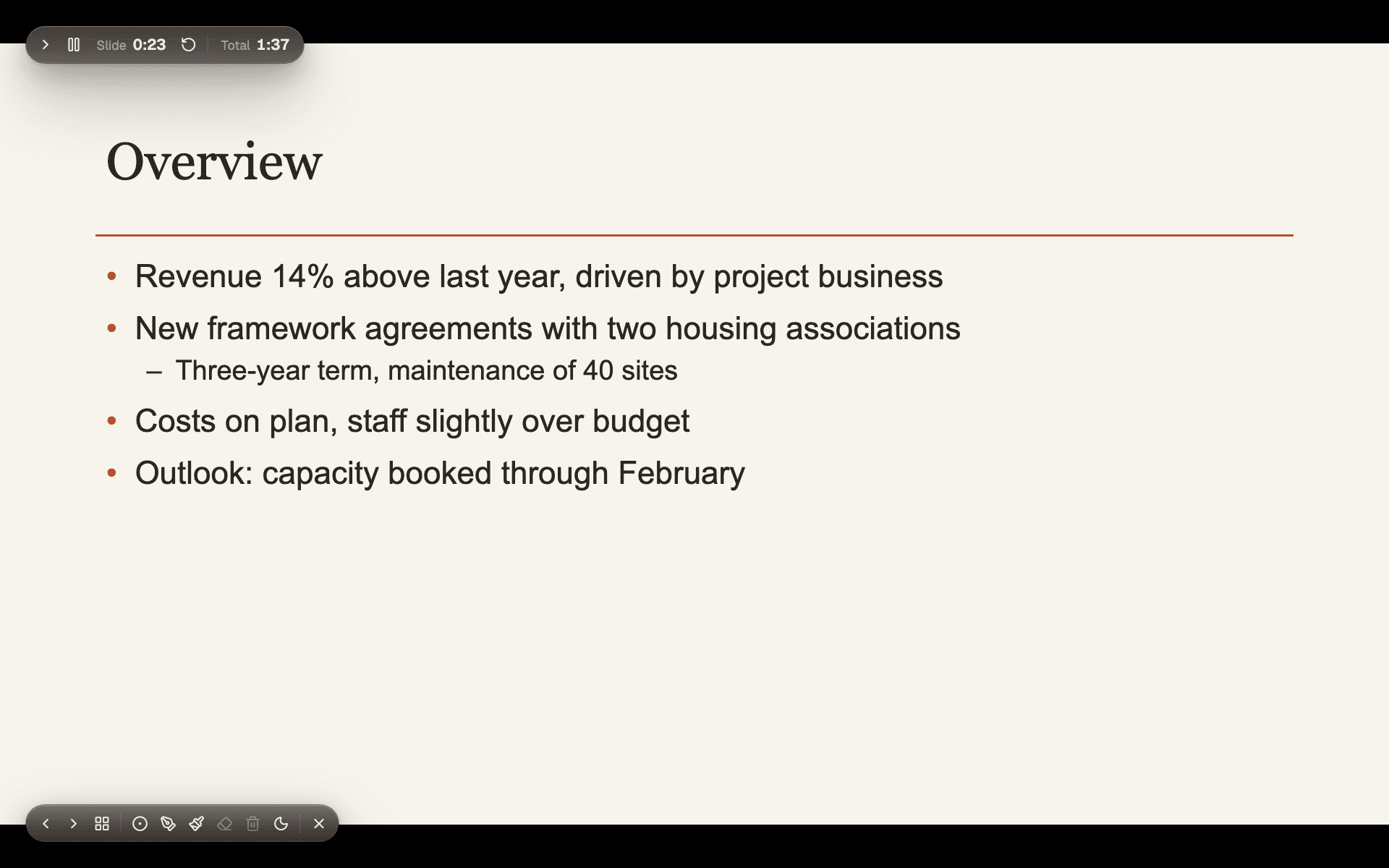
Rehearse Timings starts the slide show from the first slide with a bar for slide and total time. You can pause or re-time a slide. At the end the app asks whether to keep the new timings: Keep enters them as automatic advance, as one undo step, while Discard leaves everything as it was. The app subtracts animation durations and spreads the rest over the slide’s clicks.
PowerPoint has the same feature under Slide Show → Rehearse Timings, also asking whether to keep the timings. Keynote offers a rehearse mode that works without a second display connected.
One screen or two
PowerPoint and Keynote usually show the presenter view on your own screen and the slides on the projector. Google Slides opens the presenter view in a separate window and notes that on a single screen you can’t use presenter view and full screen at the same time.
In Slides the presenter view and audience view run in the same window and are switched. Separate output to a second screen isn’t available yet. That’s enough for rehearsing at your desk and for a tablet at the lectern; in a room with a projector, the projector currently shows the same picture as your screen.
Writing notes that help while you talk
Notes are cues, not a script. Short paragraphs with the point of the slide, the transition to the next one and prepared answers to likely questions work well. Long notes are hard to scan in the presenter view; you can enlarge the text, but then less fits at once.
Type your notes in the editor below the slide under Speaker Notes; the app shows the word count and approximate speaking time there. The same notes appear under each slide in the Notes PDF export and are kept in PPTX and ODP, so you can print them or use them in PowerPoint.
How it works
Write your notes
In the editor, type cues for each slide under Speaker Notes below the slide.
Do a rehearsal
Choose “… → File → Rehearse Timings”, run through the talk once and pick Keep or Discard at the end.
Start the presenter view
Press ⌥F5 on a Mac, Alt+F5 on Windows, or click the Presenter View icon next to Play. The view starts at the current slide.
Present
Use the space bar or arrow keys to advance, and L, S or I to point and draw. B and W turn the screen black or white, and Audience View shows the slide full screen.
Finish
Press Esc or click End Show. On touch devices, pinch with two fingers to end it.
At a glance
- Start
- ⌥F5 / Alt+F5
- Pointing
- Laser, pen, highlighter
- Pen colours
- 6
- Rehearsal
- time per slide
- Tablet
- own portrait view
Limits
What the feature can’t do yet, or what hasn’t been tested.
- Presenter view and audience view run in the same window and are switched. Separate output to a second screen or projector isn’t available yet.
- A target time per section, with elapsed and remaining time in the presenter view, and a preview of the rehearsal measurements are built and tested but not in a released version yet.
- In the light theme, the section time line in the presenter view is currently hard to read (dark text on a dark background); in the dark theme it’s readable.
- Video and audio can’t be embedded in slides.
Frequently asked questions
Can I show the presenter view on my laptop and the slides on a projector?
Not separately yet. Both views share one window and are switched. Output to a second screen is listed as an open item.
How do I start the presenter view?
Press ⌥F5 on a Mac, Alt+F5 on Windows, or click the Presenter View icon next to Play. It starts at the current slide. F5 starts the normal slide show from the beginning instead.
Do the keys work like in PowerPoint?
The common ones do: F5, Shift+F5 and Alt+F5 start, space and arrows advance, B and W go black or white, E clears drawings, Esc ends. Laser pointer and pen are on L and S rather than Ctrl+L and Ctrl+P.
Can the audience see my notes?
Not in the audience view, which shows only the slide. Because both views run in the same window, though, the audience sees the presenter view if exactly that window is mirrored to the projector. When sharing your screen, switch to Audience View first.
Is there a presenter view on tablets?
Yes, in portrait there’s a layout of its own with the slide at the top and the next slide and notes below. You move through slides by swiping.
Does it work in the browser?
Yes. The slide show switches the page to full screen, and the presenter view stays in the same tab. Leaving full screen with Esc ends the show there.
What does it cost?
Nothing. Balane Office is free, with no account and no in-app purchases. Your files stay on your device.
Balane Office is a long-running experiment: nine office apps, mostly built with AI. The apps are free and save to your own device. About the experiment →