Edit PowerPoint files without PowerPoint
Slides opens PPTX and ODP files, lets you edit text, slides, masters and layouts, and exports the result back to PPTX or ODP. Anything it can’t represent is listed, with a count, when the file opens.
What it does
- PPTX and ODP round trip
- Open, edit, export as PPTX or ODP. Round-trip tests cover text, shapes, images, tables, charts, sections, links, transitions and animations.
- Import notes
- Content the app can’t represent is simplified or left out and reported with a count when the file opens. Nothing disappears silently.
- Masters and layouts
- Slide masters and layouts with placeholders are kept. In the master view you can insert, duplicate, rename and delete layouts.
- Morph transition
- Objects glide to the next slide. In PPTX the transition is written the way PowerPoint 2019 expects it, with a fade as fallback.
- The file stays on your device
- No account, no upload. The opened deck becomes a copy in the app’s library; the original file stays untouched.
What’s inside a PPTX file
PPTX is the presentation format of Office Open XML, standardised as ECMA-376 and ISO/IEC 29500. Technically a PPTX file is a ZIP package of XML parts: one part per slide, plus slide masters, layouts, the theme, images, chart data and notes. Because the format is published, programs other than PowerPoint can read and write it.
Its counterpart in the OpenDocument family is ODP, the presentation format of LibreOffice Impress. ODF is maintained at OASIS; version 1.2 is standardised as ISO/IEC 26300. Both formats describe much the same things but differ in the details, such as theme colours and transitions.
The older .ppt extension is a different, binary format from before Office 2007. Slides doesn’t open .ppt files and asks you to save them as PPTX first.
Your options without PowerPoint
Microsoft offers PowerPoint for the web free with a Microsoft account; the files live in OneDrive for that. Google Slides opens .pptx in Office Compatibility Mode or converts the file into a Google presentation. LibreOffice Impress opens .ppt, .pps and .pptx and can save in Office formats.
The options differ mainly in where the file lives and what happens during conversion. With the web services the deck is uploaded to cloud storage. Slides works on your device without an account, as an installed app or in the browser; in the browser your decks are kept in the browser’s storage.
What all options share: no program other than PowerPoint represents every PowerPoint feature. What matters is that a program tells you what it simplified. Slides does this in a dedicated notice when the file opens.
Opening: what happens on import
Use “Open Presentation…” on the start page to pick a PPTX, ODP or Balane file. The app recognises the format from the content, not just the extension. If the file is actually a Word or Excel document or an OpenDocument text, it says so instead of showing an empty deck.
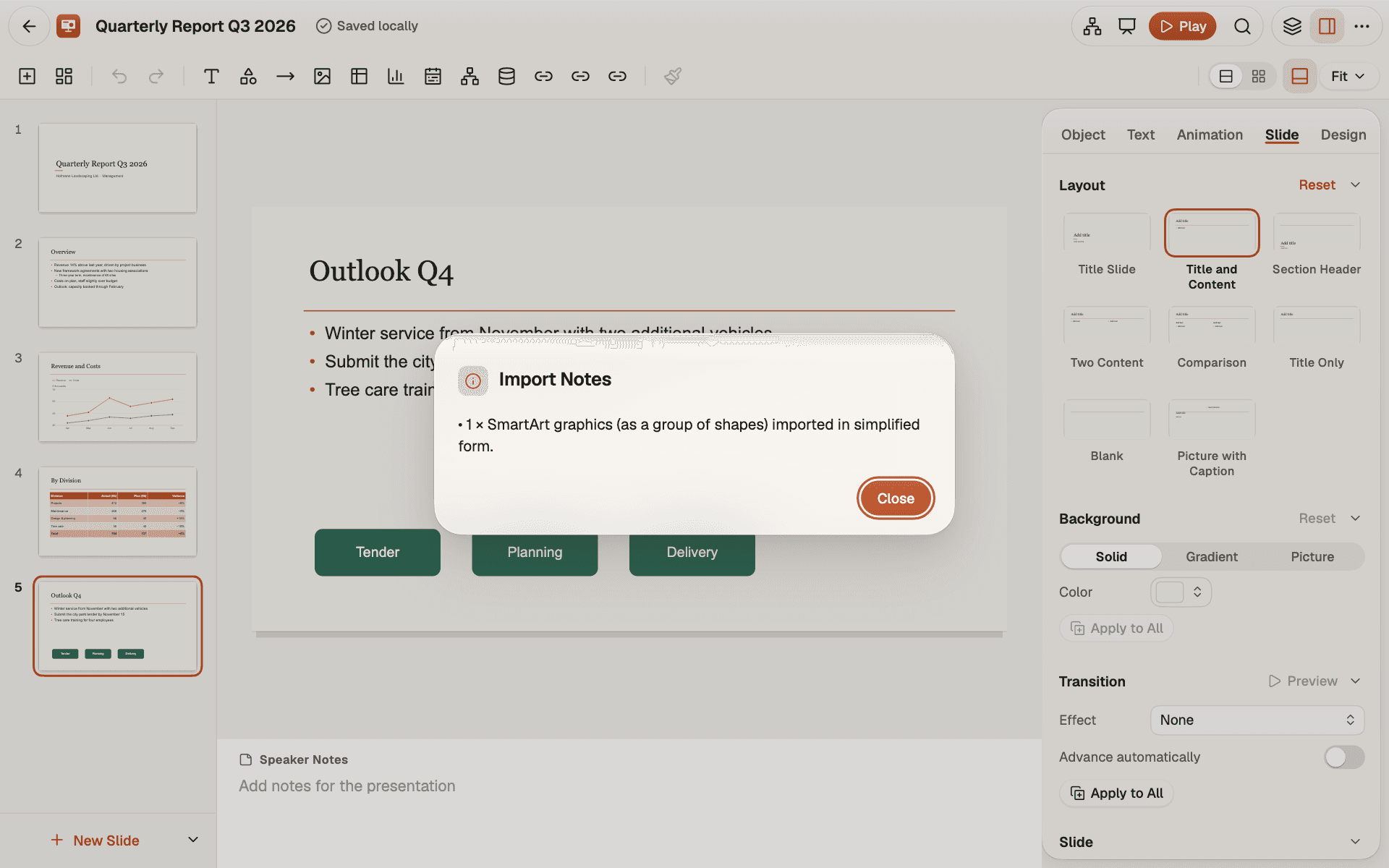
The deck is created as a new file in the app’s library; the original file stays unchanged. If the import simplified or left out anything, the Import Notes dialog appears straight away, with one line per kind of content and a count, for example “1 × SmartArt graphics (as a group of shapes) imported in simplified form.”
SmartArt, OLE, video: what gets simplified
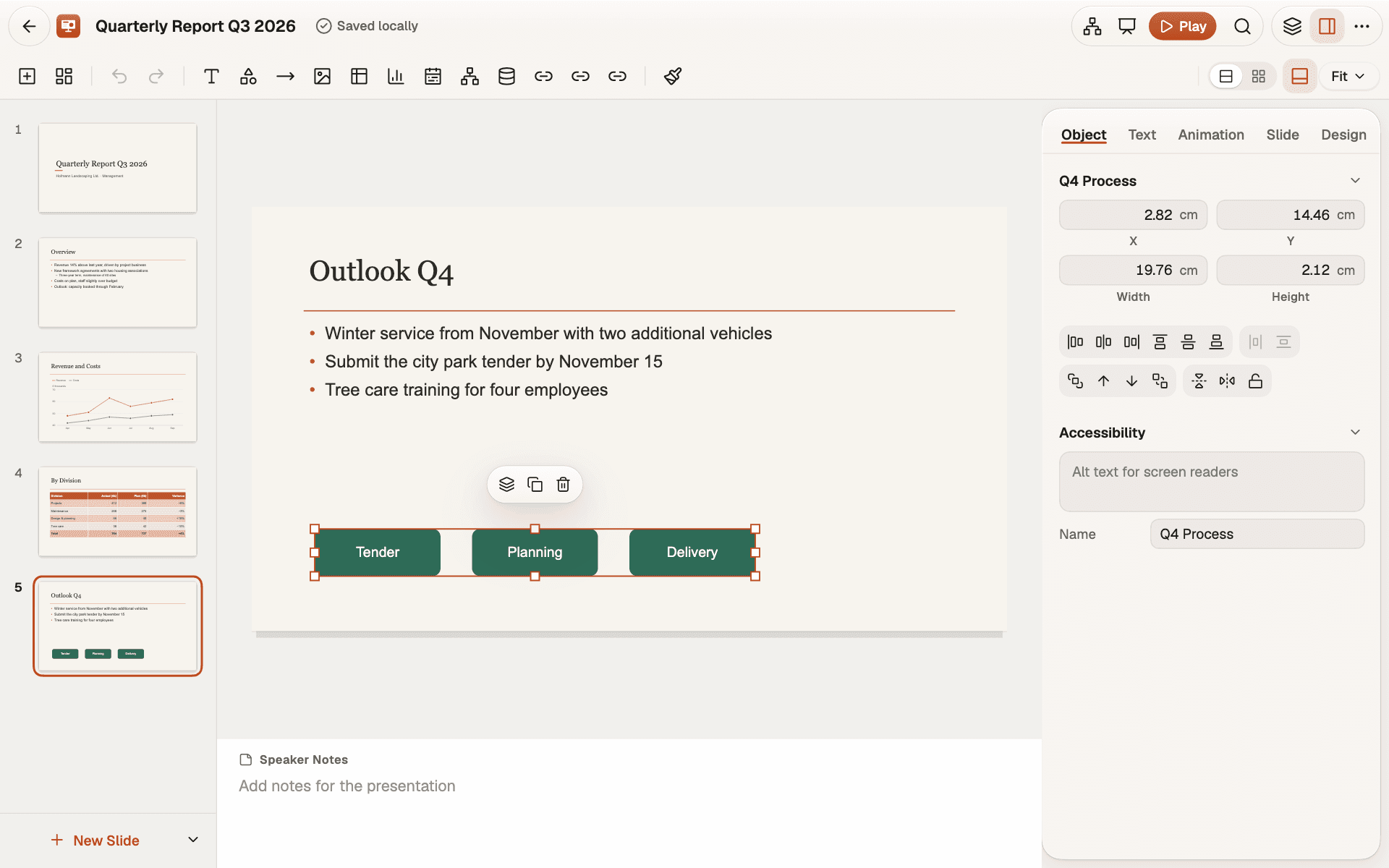
SmartArt graphics are taken from the drawing PowerPoint stores alongside them in the file and arrive as a group of shapes with text. They look the same and can be edited one by one, but the SmartArt structure with its data and layout is lost; on export it stays a group. PowerPoint has the same step as “Convert to Shapes”, which it says can’t be reversed.
Embedded OLE objects, such as an Excel table, become their preview picture if the file contains one; the embedded data is dropped. Video, audio, ink drawings and EMF or WMF images are dropped on opening. Chart types the app doesn’t know are mapped to the nearest one: 3D becomes 2D, radar, stock and surface charts become lines.
The file format documentation lists smaller adjustments too: line breaks inside a paragraph become separate paragraphs, several slide masters are merged into one, group rotation is dropped, and fields such as date or slide number become plain text.
Editing masters and layouts
Decks from other people often bring their own look: a logo in the master, fixed fonts, custom layouts. Slides takes over the slide master and the layouts with their placeholders, so new slides look like the existing ones.
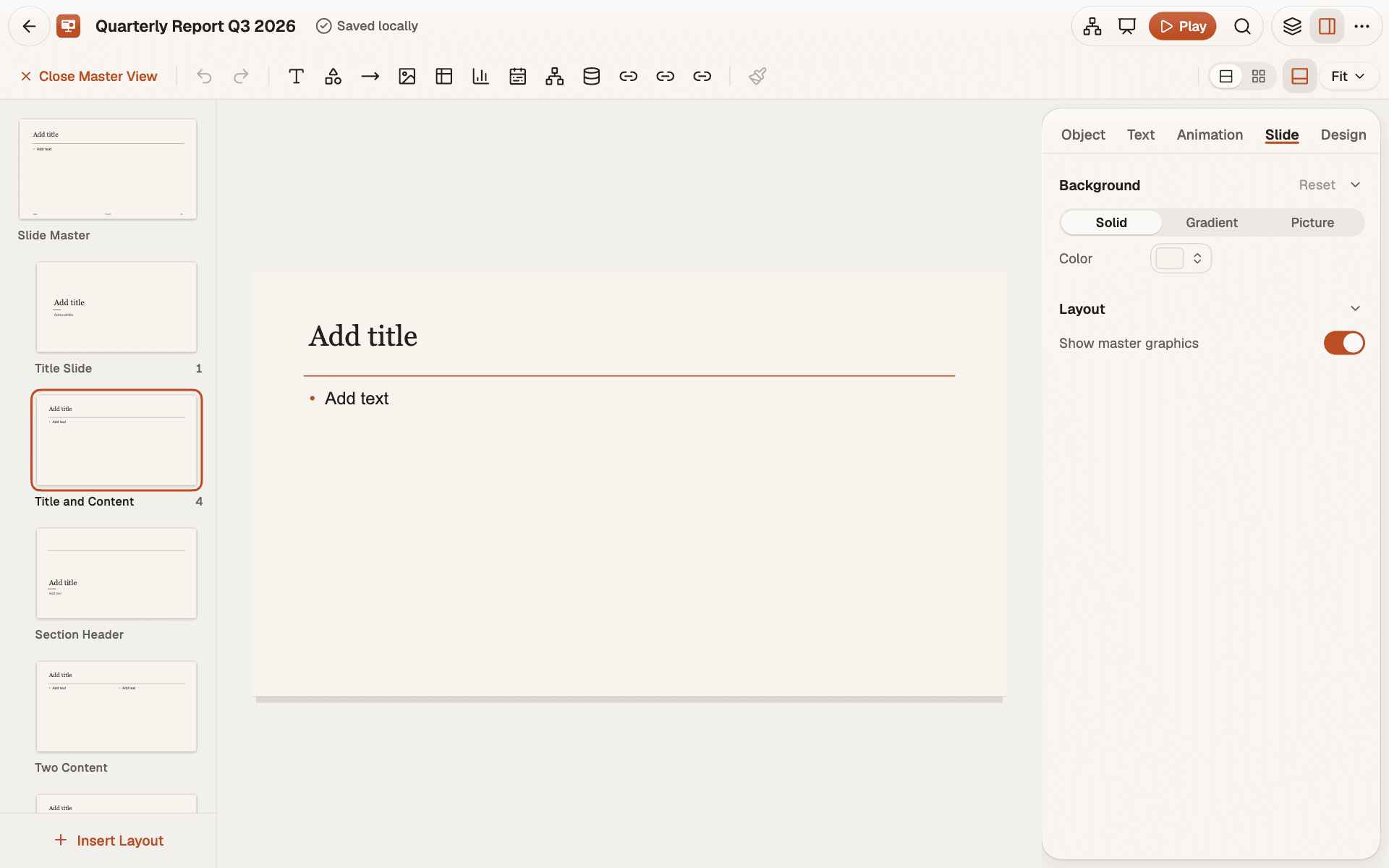
In the master view (“… → View → Slide Master”) the left-hand strip shows the master and every layout. The number under a layout tells you how many slides use it. You can insert, duplicate, rename and delete layouts, and as in PowerPoint only unused ones can be deleted. New layouts come from Insert Layout, and placeholders for content, text, picture, chart and table from Insert Placeholder in the context menu. Custom layouts are written to PPTX as custom layouts.
What survives the round trip
Slide size, theme colours and font pair, masters and layouts, backgrounds, character and paragraph formatting, bullets and numbering, 34 preset shapes and freeform geometry, images with alt text and cropping, tables with merged cells, charts, groups, speaker notes, sections, links, hidden slides and objects, headers and footers, and transitions and animations, including by paragraph, are all kept.
Charts are written with their values directly in the chart, without an embedded Excel workbook. In PowerPoint the chart stays visible and can be formatted; anyone who wants to change the data there through a workbook won’t find one. Gantt, waterfall and Mekko charts are exported as a group of individually editable shapes, and status symbols in tables as cell text; the app points this out before exporting.
PPTX or ODP?
For working with PowerPoint, PPTX is the better choice, because ODF lacks some things: theme colours, sections, custom guides and the Morph transition. In ODP the app therefore writes the visible colours and a fade instead of Morph.
Morph itself needs a suitable PowerPoint version on the recipient’s side. According to Microsoft, PowerPoint 2019, 2021 and Microsoft 365 can create and play the transition; PowerPoint 2016 only plays it from a certain build onwards, otherwise a fade appears.
Common mistakes when editing someone else’s deck
Dismissing the notes on opening without reading them: if a video or an OLE object is listed there, it will also be missing from the exported PPTX. In that case change only the text and have the video put back in PowerPoint afterwards.
Overlooking fonts: on screen the app uses the installed font. If a font is missing on your device, the slide looks different from the sender’s. In PDF the app replaces fonts other than Arial, Times New Roman and Courier New with a matching standard font.
Expecting the original file to be overwritten: Slides works on a copy. When exporting, choose a recognisable name, for example with a date, so it’s clear which version goes back.
How well the exchange is tested
Automated round-trip tests write and read PPTX and ODP for every supported kind of content, including SmartArt as a group. With LibreOffice 26.2 it was checked that PPTX and ODP files from Slides open without repair and are read back in after saving in LibreOffice.
In PowerPoint for macOS, slides with a Gantt, waterfall, Mekko and line chart were opened and inspected in November 2026, and a Gantt bar was changed there and read back in. A general check against PowerPoint for every kind of content isn’t documented.
How it works
Open the file
On the start page choose “Open Presentation…” and select the PPTX or ODP file. The app creates a copy in its library.
Read the import notes
If the app simplified or left out anything, the Import Notes dialog lists each kind of content with a count. Close it to continue.
Edit the slides
Change text right on the slide, adjust shapes, images, tables and charts in the properties on the right, and type speaker notes below the slide.
Adjust masters and layouts
“… → View → Slide Master” opens the master view. Close Master View takes you back to the slides.
Export as PPTX or ODP
Choose “… → File → Export as PowerPoint (PPTX)…” or “Export as OpenDocument (ODP)…”, then pick a location and name.
Export a PDF if needed
“Export as PDF…” offers Slides, Notes (slide with speaker notes on each A4 page) and Handouts with several slides per page.
At a glance
- Open
- PPTX, ODP, .bslides
- Export
- PPTX, ODP, PDF, PNG, ZIP
- Shapes
- 34 predefined
- Legacy .ppt
- not supported
- Account
- none needed
Limits
What the feature can’t do yet, or what hasn’t been tested.
- SmartArt comes in as a group of shapes with text. The SmartArt structure is lost; export keeps the group. SmartArt without a stored drawing is dropped.
- Video, audio, ink drawings and EMF or WMF images are dropped on opening and reported. OLE objects remain as a preview picture at most.
- Charts are written without an embedded Excel workbook. Gantt, waterfall and Mekko become shape groups without chart data in PPTX and ODP.
- The app doesn’t open legacy .ppt files; it asks you to save them as PPTX first.
- Round trips were tested with LibreOffice, and individual chart slides in PowerPoint for macOS. A general check against PowerPoint isn’t documented.
Frequently asked questions
Can I edit a PowerPoint file for free?
Yes. Slides is free, with no account and no in-app purchases, and also runs in the browser. Microsoft also offers PowerPoint for the web free with a Microsoft account, where files are stored in OneDrive.
Can I continue in PowerPoint afterwards?
Yes. The export is a real PPTX file with masters, layouts, notes, transitions and animations. Simplified content such as SmartArt stays a group of shapes, and charts have no embedded workbook.
Is my original file changed?
No. Opening creates a copy in the app’s library. A PPTX file is only written again through “Export as PowerPoint (PPTX)…”, under the name you choose.
Which formats are supported?
Open: PPTX, ODP and the app’s own .bslides format. Export: PPTX, ODP, PDF, PNG for one slide and a ZIP with all slides as images. Legacy .ppt files aren’t opened.
What happens to SmartArt?
It becomes a group of shapes with text, so it looks the same and stays editable, but loses the SmartArt features. The notice on opening says how many SmartArt graphics are affected.
What about ODP and LibreOffice?
ODP opens and exports as well. ODF has no theme colours and no Morph transition, so the visible colours and a fade are written instead.
Are my presentations uploaded?
No. Files stay on your device, or in the browser’s storage when you use the web version. No account or upload is needed.
Balane Office is a long-running experiment: nine office apps, mostly built with AI. The apps are free and save to your own device. About the experiment →