Redact a PDF so nothing is left underneath
When you pass on a proof of tenancy, a bank statement or a case file, you want names, birth dates or account numbers to be unreadable. A black box on its own doesn’t do that. This page explains why, what matters when redacting and how Paperwork actually removes the content from the file.
What it does
- Mark areas
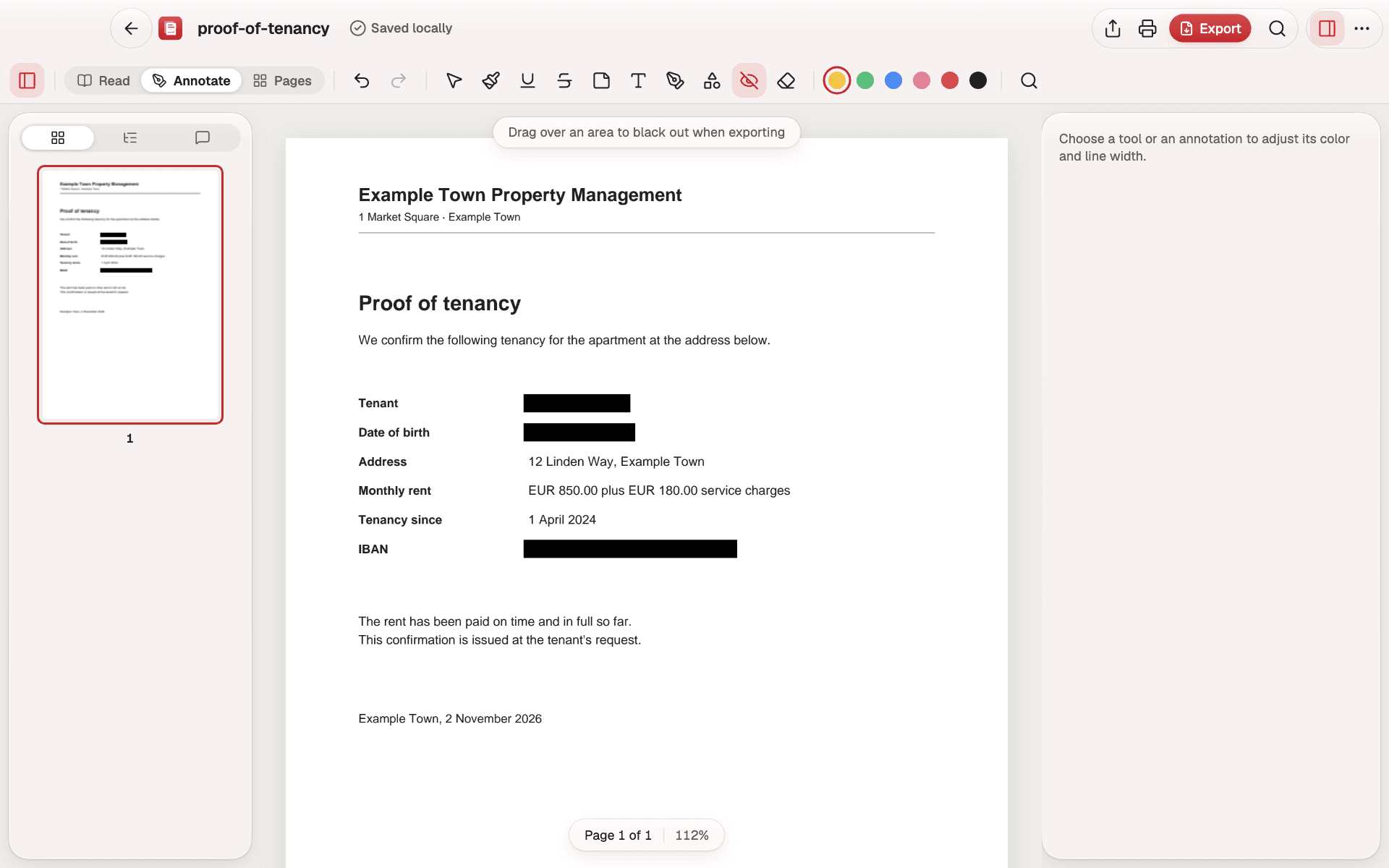
- Drag out areas with the “Redact” tool or take selected text with “Redact Selection”. The preview shows them in black, and each one can be undone.
- Actually removed
- On export, affected pages are rebuilt as images at 150 dpi. It has been verified that the redacted text appears neither in the page text nor in the file’s bytes.
- Metadata cleaned
- Document info, XMP metadata, outline and annotations from the original are left out of the output. Your own annotations stay, and so does page rotation.
- Confirmation before output
- Export, share, print and extract ask first and explain what will happen. The working file stays unchanged.
Why a black box isn’t enough
A PDF describes a page as a series of instructions: text here in this font, a line there, an image over here. Drawing a black rectangle over a passage just adds another instruction. The text underneath stays in the file and can be selected, copied, searched and extracted by software; it’s merely hidden on screen.
The same applies to a black comment annotation, a white box over a number or text set in white on white. Things that aren’t on the page can give information away too: title, author and producing application in the document properties, bookmarks with names, or annotations left by earlier editors.
What matters when redacting
Real redaction removes the content from the file, not just from view. That takes three things: the text under the areas has to be gone, metadata and hidden content have to be cleaned, and every occurrence has to be covered. No software can guarantee the third. A name often appears more often than you think: in the letterhead, the salutation, a footer, a table on page 7.
A fixed routine works well: go through the document page by page, mark every spot, check the preview, export under a new name, open the result and search for the redacted terms. Keep the original and the working file separate; neither should be shared.
Marking areas in Paperwork
Under Annotate, choose the Redact tool; the hint reads “Drag over an area to black out when exporting”. You drag out each area with the mouse and it turns black right away. If you’ve selected text, “Redact Selection” turns the selection into an area. Each area is a step of its own in the working file and can be removed with undo.
Until export, nothing is removed: the working file still holds the full content so you can fix mistakes. Only the output applies the redaction.
Draw the areas slightly larger than the text so ascenders and descenders are covered, and zoom in for small print. Anything the area doesn’t fully cover stays visible in the page image. The thumbnail in the left sidebar shows the marked areas too, which helps you keep track in long documents.
What happens on export
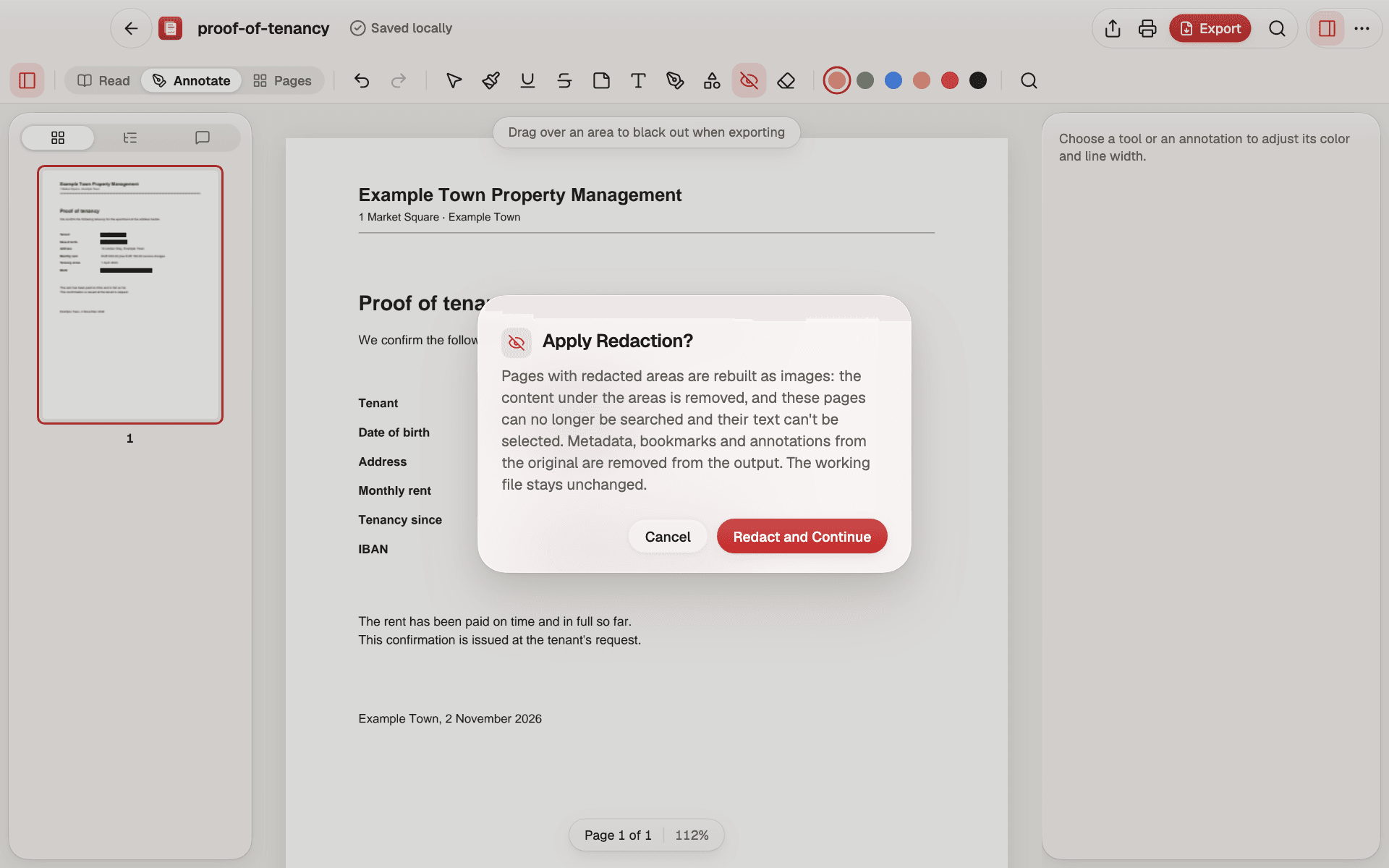
When you choose Export, Paperwork asks “Apply Redaction?” and explains the consequences: pages with redacted areas are rebuilt as images, the content under the areas is removed, these pages can no longer be searched and their text can’t be selected. Metadata, bookmarks and annotations from the original are removed from the output; the working file stays unchanged. The same question appears when you share, print or save an extract.
After “Redact and Continue”, Paperwork renders each affected page at 150 dpi into an image with the areas in black and builds the new PDF from it. Pages without redactions stay as they are. A test checks that the redacted text appears neither as page text nor in the file’s bytes, that the source’s title and links are removed, and that your own annotations and page rotation are kept.
Checking the result
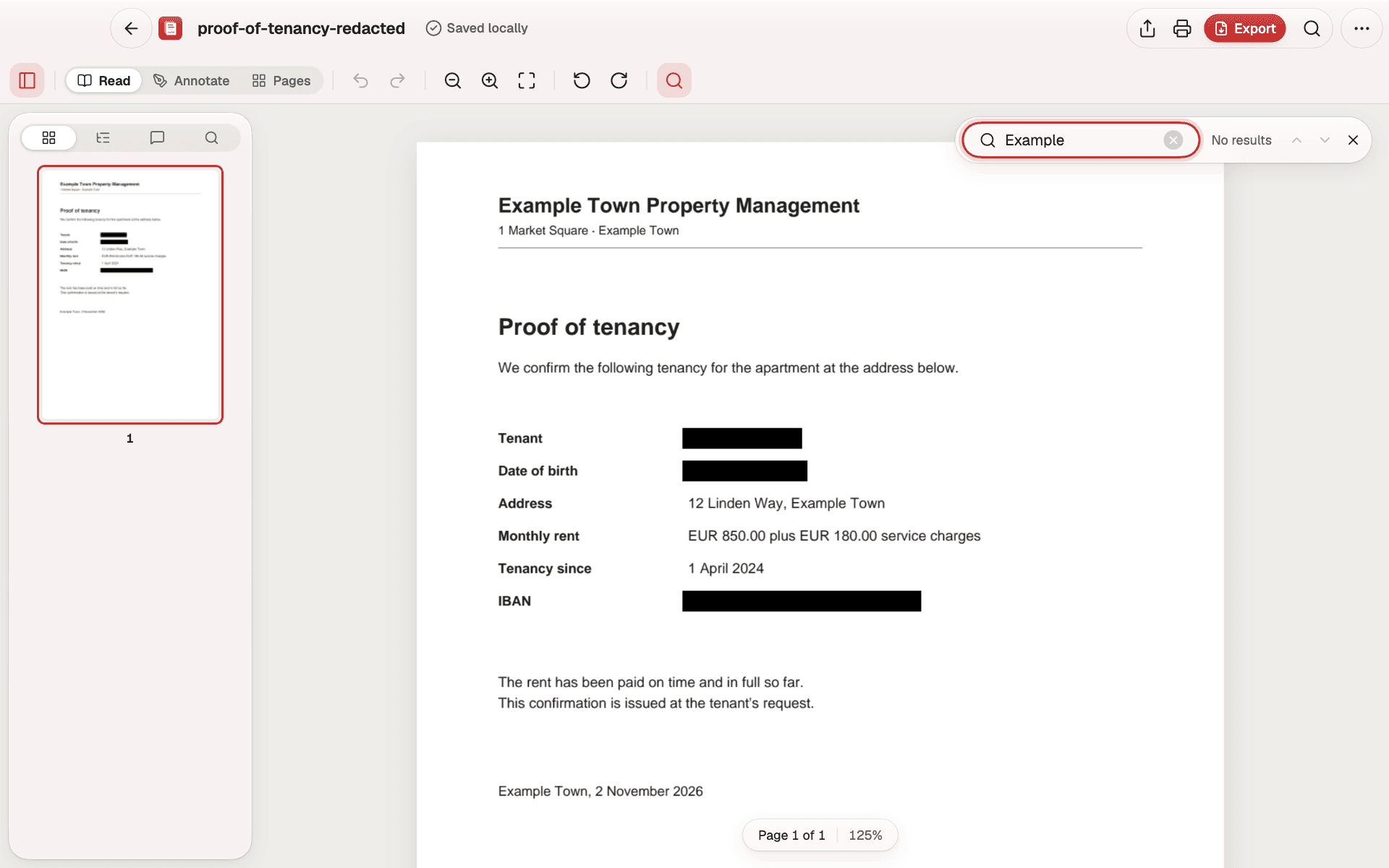
Open the exported PDF and search for a term that was redacted. In the example, the search finds nothing at all, not even in the lines that stayed visible: the whole page is now an image without a text layer. That’s the trade-off of this method. If the document needs to stay searchable, redact only on the pages where it’s needed; the other pages keep their text.
Checking that every occurrence is covered is still up to you. Paperwork doesn’t produce a report listing all redactions.
Share only what’s needed
Article 5 of the GDPR requires personal data to be limited to what is necessary for the purpose (data minimisation). In practice: before you pass on a certificate, an invoice or a case file, think about which details the recipient actually needs. A landlord might need the rent amount for a proof of tenancy, but not the account number.
Often it’s enough to pass on only some pages. “Save Pages as PDF…” creates an extract; if it contains redactions, the confirmation before output applies there too.
Redacting by search term
In the released version, you mark each spot yourself. A literal search is built in which all hits start unchecked and you review and select each one; marking only changes the working file, and the redaction still follows the export confirmation. Pattern search, for account numbers for example, and text recognition for scans are still open.
Paperwork works locally on your device, with no account; in the browser, too, the PDF processing runs inside the browser itself. The document you’re redacting doesn’t leave your device.
How it works
Open the PDF
Choose “Open PDF” on the home screen. Paperwork creates a working file; the original stays untouched.
Mark the areas
Under Annotate, choose the “Redact” tool and drag out areas, or select text and choose “Redact Selection”.
Check
Go through every page in the preview, including headers and footers. Remove mistakes with undo.
Redact and export
Choose Export and confirm with “Redact and Continue”. The new PDF no longer contains the content under the areas.
Verify the result
Open the exported PDF and search for the redacted terms.
At a glance
- Method
- page rebuilt as image
- Resolution
- 150 dpi
- Removed
- text, document info, XMP, outline
- Verified
- text not in page text or bytes
Limits
What the feature can’t do yet, or what hasn’t been tested.
- Redacted pages are no longer searchable, and their text can’t be selected any more. The app points this out before export.
- Redacting by search term isn’t in the released version yet. A literal search with hit selection is built; pattern search and text recognition (OCR) are still open.
- There’s no report listing all redactions. Checking that everything is covered is up to you.
Frequently asked questions
Is the redacted text really gone?
Yes. Affected pages are rebuilt as images. A test checks that the redacted text appears neither as page text nor in the file’s bytes.
Why can’t I search the whole page any more?
Because Paperwork rebuilds the affected page entirely as an image. That leaves nothing under the areas, but the rest of that page’s text becomes image too. Pages without redactions keep their text.
Can I redact every occurrence of a name at once?
Not in the released version yet; you mark each spot yourself. A literal search where you pick each hit individually is built and will come in a later version.
Can I redact images or signatures too?
Yes. An area applies to everything underneath it on the page, because the whole page is rebuilt as an image with the area filled in black. Whether it’s text, a photo or a signature makes no difference.
Can I undo a redaction?
In the working file, yes: each area is a step you can remove with undo. In the exported PDF, no, because the content under the areas no longer exists there.
Are author and title removed as well?
Yes. Document info and XMP metadata, outline and annotations from the original are left out of the redacted output. Your own annotations stay.
Are my files uploaded?
No. Paperwork works locally on your device, without an account. In the browser, the PDF processing also runs inside the browser.
What does it cost?
Nothing. Balane Office is free, with no account and no in-app purchases.
Balane Office is a long-running experiment: nine office apps, mostly built with AI. The apps are free and save to your own device. About the experiment →