Merge PDFs and organise their pages
Combining application documents into one file, rotating a receipt scanned sideways, deleting blank back pages, passing on three pages of a long notice: this page shows how that generally works, what to watch out for and how to do it in Paperwork without uploading your files.
What it does
- Merge
- Use “Append PDF…” to add another PDF at the end, or “Insert Pages from PDF…” to insert pages anywhere you like.
- Reorder by dragging
- Select pages in the page overview and drag them to their new place. On a touchscreen, tap to select and touch and hold to reorder.
- Rotate, delete, insert
- Rotate pages left or right, delete them or insert blank pages. A PDF always keeps at least one page.
- Pages as a separate PDF
- “Save Pages as PDF…” saves the selected pages as a new file, such as a single enclosure from a combined document.
- Every step undoable
- Changes are kept as steps in the working file. Only the export writes a new PDF; page order, text and rotation have been verified afterwards.
Typical jobs
Turning a cover letter, CV, certificates and reference into one application file. Rotating a receipt that was scanned crooked. Deleting blank back pages from a double-sided scan. Passing on only the three relevant pages of a 40-page notice. Putting a signed page into a contract. All of these change only the page order, not the content of the pages.
Many websites for merging PDFs upload your files to someone else’s server to do it. For contracts, bank statements or job applications, that isn’t always what you want. Paperwork does everything on your device; the browser version runs PDFium as WebAssembly inside the browser itself.
How it works in macOS Preview
In Preview on the Mac, Apple says to show the sidebar with View > Thumbnails and drag thumbnails from one PDF into another; you drag a whole PDF from the Finder into the sidebar. Pages are deleted with the Delete key or Edit > Delete, and blank pages are added with Edit > Insert. Apple notes that Preview saves changes automatically and recommends duplicating the files first.
Paperwork takes a different route here: the original is never changed. All changes are kept as steps in a separate working file, and only the export writes a new PDF.
That has a practical upside: you can put together a set of documents, swap a page a week later and export again without hunting for the source files. The working file contains the original PDF, all inserted sources and every step.
What to watch out for when merging
A merged PDF is a new file, not a container of the old ones. In many programs, bookmarks and document properties of the sources are lost, form fields with the same names get in each other’s way, and a source’s password protection doesn’t automatically carry over. File size adds up too: three scanned documents make one big file.
Paperwork tells you which of these apply: after page changes, a new unencrypted PDF is created without bookmarks or document metadata. If a source is protected, the app asks before output whether to export without protection. Form fields only stay fillable if the page order is unchanged.
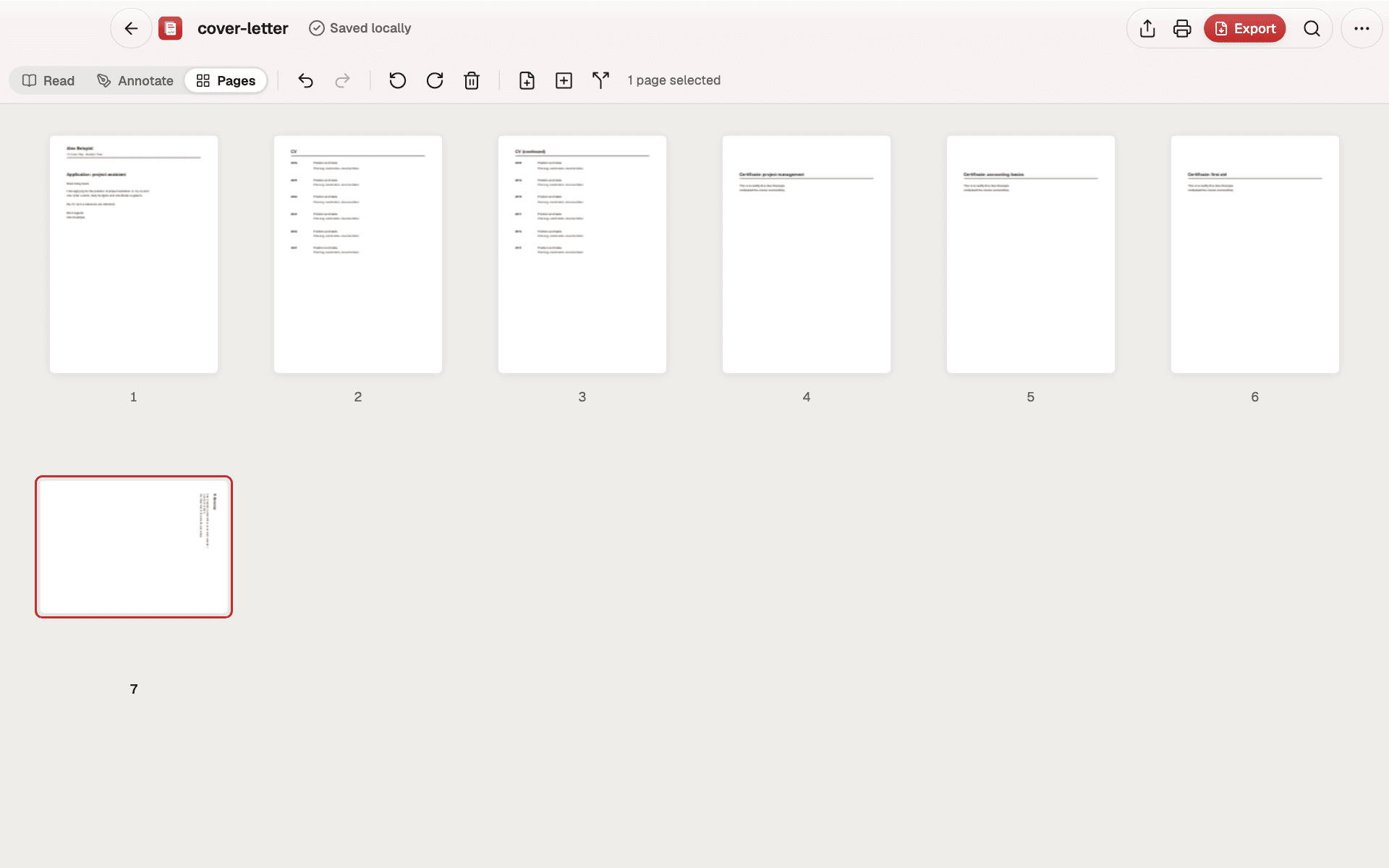
The page overview in Paperwork
Pages at the top left switches to the page overview. All pages appear as thumbnails, the selected one outlined in red, and the toolbar above has undo, redo, Rotate Left (⌘L), Rotate Right (⌘R), Delete Pages, Insert Pages from PDF…, Insert Blank Page and Save Pages as PDF…. Next to it, you see how many pages are selected.
In the example, a CV, three certificates and a reference were appended to a cover letter. The reference was scanned sideways and lies on its side as page 7; it’s selected and about to be rotated.
Append, insert, rotate
“Append PDF…” in the “…” menu or the command search adds a whole PDF at the end. “Insert Pages from PDF…” in the toolbar inserts pages at the selected position, and “Insert Blank Page” adds a blank page of matching size. Paperwork reports how many pages were inserted from which file and offers undo right away.
After rotating, the reference stands upright. You move pages by dragging, or by touching and holding on a touchscreen; a “Move to end” drop target helps with long documents. You can delete as many pages as you like except the last remaining one: a PDF needs at least one page.
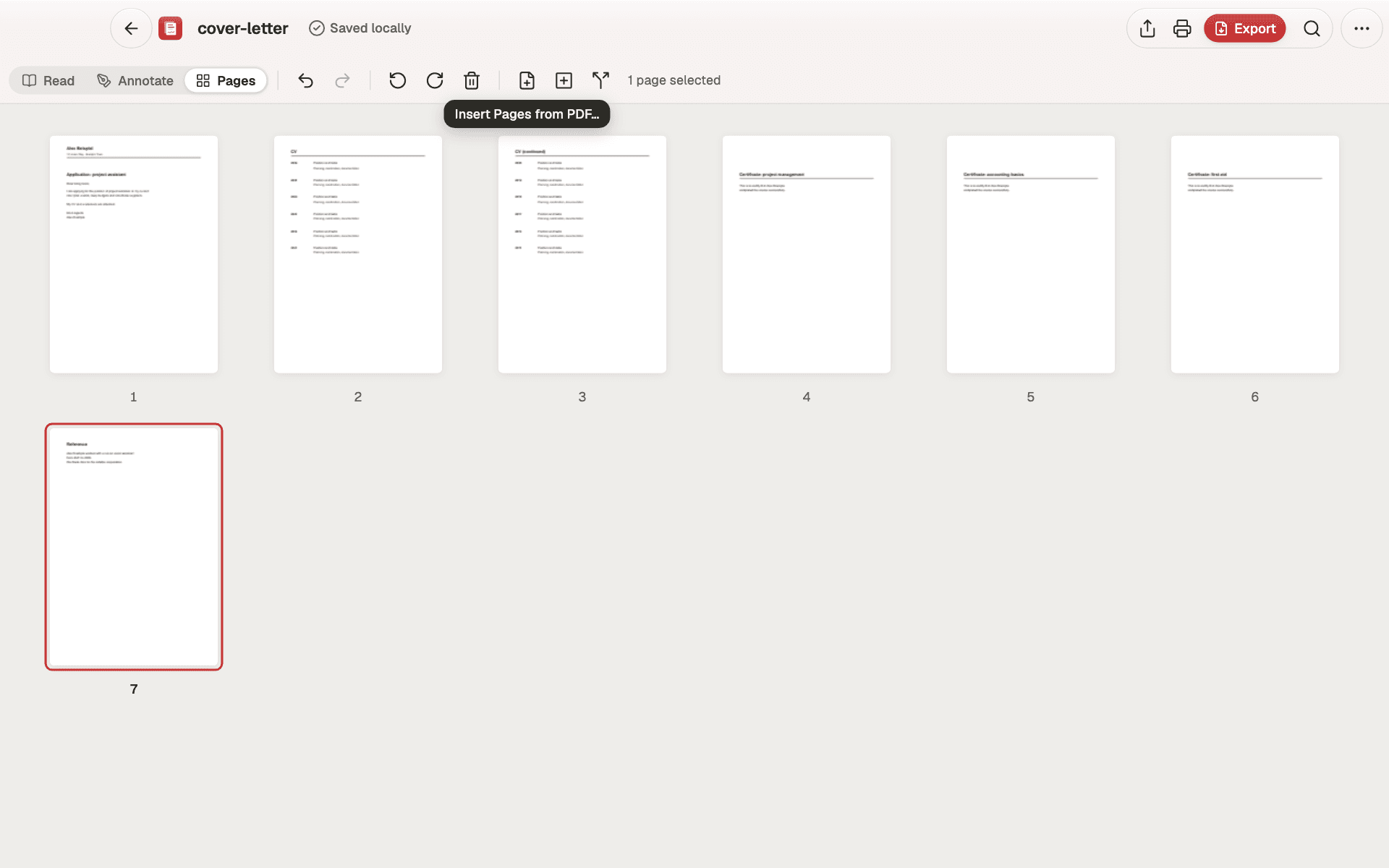
Cleaning up scans
Double-sided scans often contain blank back pages, sheets turned the wrong way and pages out of order. In the page overview you select several blank pages at once with the Command key held down (Ctrl on Windows), or a whole range with Shift, and delete them together; the toolbar shows how many pages are selected. You straighten turned sheets one by one with ⌘L or ⌘R and drag misplaced ones into position.
Paperwork only edits the page order, not the content of a page: it can’t crop margins, improve contrast or recognize text. It doesn’t reflow text either; longer texts are written in Documents and arrive here as PDF.
Bookmarks and outline
Many long PDFs have a table of contents in the sidebar, technically called bookmarks or outline. Paperwork shows it in reading view and maps it to the new page order after reordering, so a click still takes you to the right page.
The exported PDF, however, no longer contains this outline once pages have changed, and neither does it keep the document metadata. Worth knowing if you’re reassembling a long manual and need the bookmarks.
Exporting and saving extracts
Export writes the new version as a PDF. If nothing has changed and there are no annotations, Paperwork outputs the original byte for byte. After page changes, a new PDF is created; a test then checks page order, text and rotation through PDFium.
“Save Pages as PDF…” saves only the selected pages as a separate file, named after the document with “(Excerpt)” added. That way you pass on exactly the pages someone needs from a combined document. Cover letters and CVs, by the way, are written in Documents and arrive in Paperwork as PDF, where you can arrange, annotate and sign them.
How it works
Open the PDF
Open the first PDF in Paperwork and switch to Pages at the top left.
Append more PDFs
Choose “Append PDF…” in the “…” menu, or “Insert Pages from PDF…” in the toolbar to place pages at the selected position.
Arrange the pages
Drag pages, straighten them with Rotate Left or Rotate Right, and remove them with Delete Pages.
Export
Choose Export for the whole document, or “Save Pages as PDF…” for the selected pages.
At a glance
- Actions
- append, insert, reorder, rotate, delete, extract
- Original
- stays untouched
- Shortcuts
- ⌘L, ⌘R to rotate
- Also in
- Browser
Limits
What the feature can’t do yet, or what hasn’t been tested.
- After page changes, a new unencrypted PDF is created, without bookmarks or document metadata. For protected PDFs, Paperwork asks first.
- Form fields only stay fillable if the page order is unchanged.
- No setting a password, no file size reduction and no text recognition (OCR).
Frequently asked questions
How do I merge several PDFs into one?
Open the first PDF, add the others with “Append PDF…”, arrange them in the page overview and export as a new PDF.
How do I rotate just one page?
Select the page in the page overview and choose Rotate Left (⌘L) or Rotate Right (⌘R). The other pages stay as they are.
How do I pass on only some pages?
Select the pages and choose “Save Pages as PDF…”. A new file with “(Excerpt)” in its name is created; the document itself stays complete.
Can I insert pages from a second PDF in the middle?
Yes. Select the page the new pages should follow and choose “Insert Pages from PDF…”. “Append PDF…”, by contrast, always adds at the end.
Are my PDFs uploaded?
No. Paperwork processes the files on your device, and in the browser inside the browser itself. There’s no account.
Does it work on a phone?
Yes, Paperwork is available for Android and in the browser. On a touchscreen, tapping selects pages and touching and holding reorders them; the bar for rotating, inserting and deleting sits at the bottom.
Is my original changed?
No. Paperwork copies the PDF into a working file and writes a new PDF only on export. The file you opened stays as it was.
Can I make the file smaller?
No, Paperwork doesn’t have a file size reduction feature.
What does it cost?
Nothing. Balane Office is free, with no account and no in-app purchases.
Balane Office is a long-running experiment: nine office apps, mostly built with AI. The apps are free and save to your own device. About the experiment →