Sign a PDF without printing it
Printing, signing and scanning isn’t necessary for many documents. This page explains the three levels of electronic signatures under eIDAS, when an inserted signature is enough and when it isn’t, and how to sign and stamp in Paperwork.
What it does
- Three ways to sign
- Draw with a mouse, finger or pen, type your name or pick an image (PNG, JPEG). With an image, the paper background becomes transparent.
- Kept in the keychain
- Up to eight signatures can be saved in the device’s keychain and reused for the next document.
- Place and adjust
- The signature sits on the page as an annotation that you can move, resize and recolor. On export it’s flattened into the page as an image.
- Stamps
- Approved, Reviewed and Rejected with a date, plus Draft, Confidential, date and custom text. Stamps are flattened in as vector graphics.
- Undoable until export
- Until you export, everything stays a step in the working file. The original PDF isn’t changed.
Simple, advanced and qualified signatures
EU Regulation No 910/2014 (eIDAS) distinguishes three levels. An electronic signature is data in electronic form attached to other data and used by the signatory to sign; an inserted image of a signature or a typed name already counts. An advanced electronic signature is uniquely linked to the signatory, identifies them, is created with means under their sole control and makes any later change to the data detectable.
A qualified electronic signature (QES) is an advanced signature created with a qualified signature creation device and based on a qualified certificate. Only this level has, under Article 25 of the regulation, the same legal effect as a handwritten signature.
When an inserted signature is enough
Many documents don’t require a particular form: an accepted quote, an order confirmation, a club form, an internal approval. A simple electronic signature is enough here, as long as the other side accepts it. Where German law requires written form, it can only be replaced electronically if the issuer adds their name and applies a qualified electronic signature (section 126a of the German Civil Code). For some declarations, electronic form is excluded altogether.
If in doubt, ask the recipient which form they require, for example whether a signed PDF by email is enough or the original has to come by post. This page isn’t legal advice.
How it works in Preview and Acrobat Reader
Preview on the Mac creates a signature from the trackpad, the camera or a nearby iPhone or iPad; you then drag it into place and resize it. Adobe Acrobat Reader offers a comparable fill and sign tool. In both cases, as in Paperwork, the result is a simple electronic signature.
Paperwork takes the signature from a mouse, finger or pen, as a typed name or from a photo. Until export it remains a movable annotation, and the file you received stays unchanged.
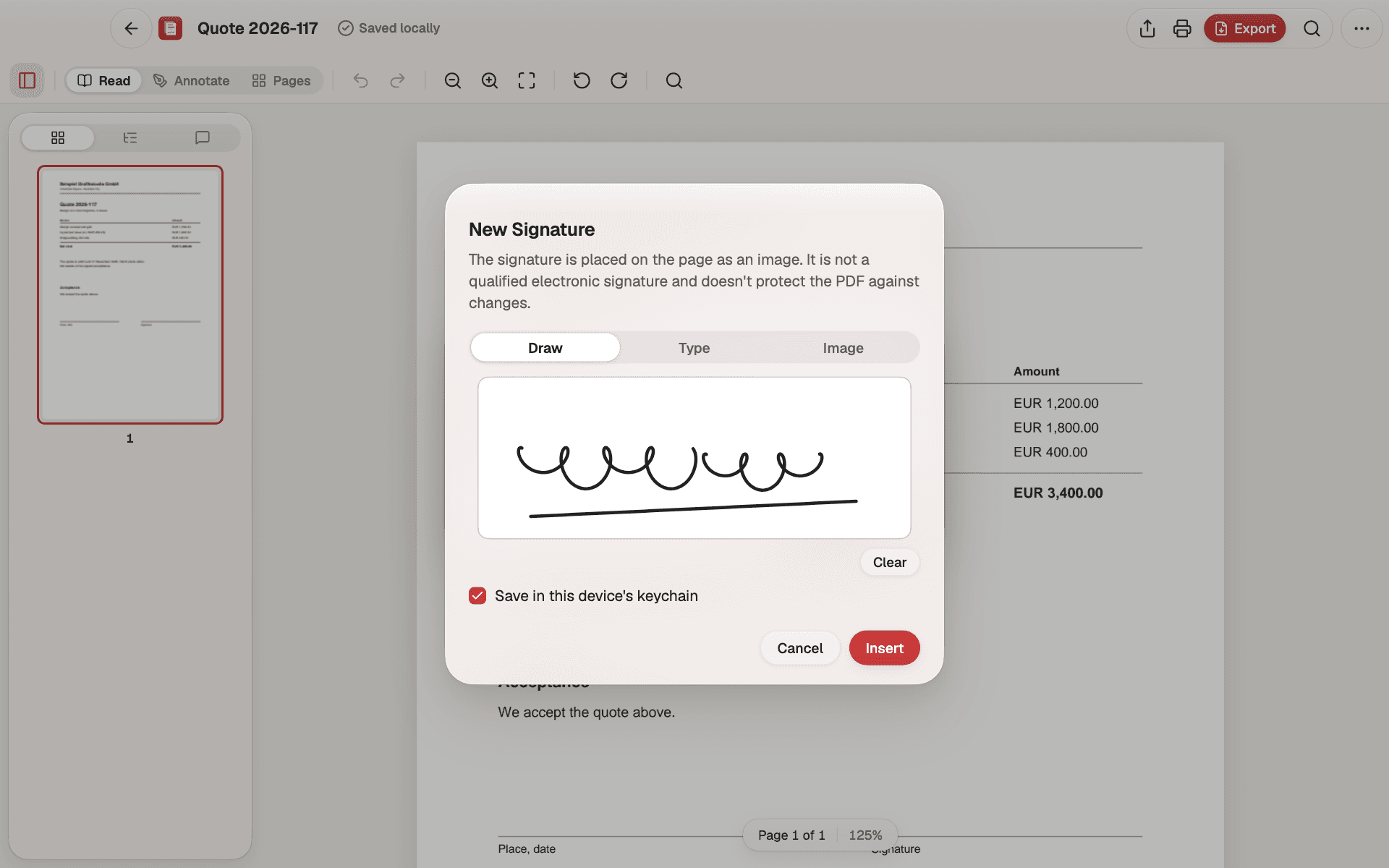
Creating a signature
“Insert Signature…” opens the list of saved signatures; “New Signature” creates one. You can choose Draw, Type or Image. With Draw you sign in the box with a mouse, finger or pen, and Clear resets it. With Image you pick a PNG or JPEG; the paper becomes transparent and only the strokes remain.
With “Save in this device’s keychain” ticked, the signature is ready for the next document, up to eight of them. It isn’t uploaded anywhere. The top of the dialog states plainly that the signature is placed on the page as an image, isn’t a qualified electronic signature and doesn’t protect the PDF against changes.
For the image, a signature in dark ink on white paper works best, photographed straight on and without shadows. When drawing with a mouse, writing slowly helps; if you don’t like the result, Clear resets the box.
Place, stamp, export
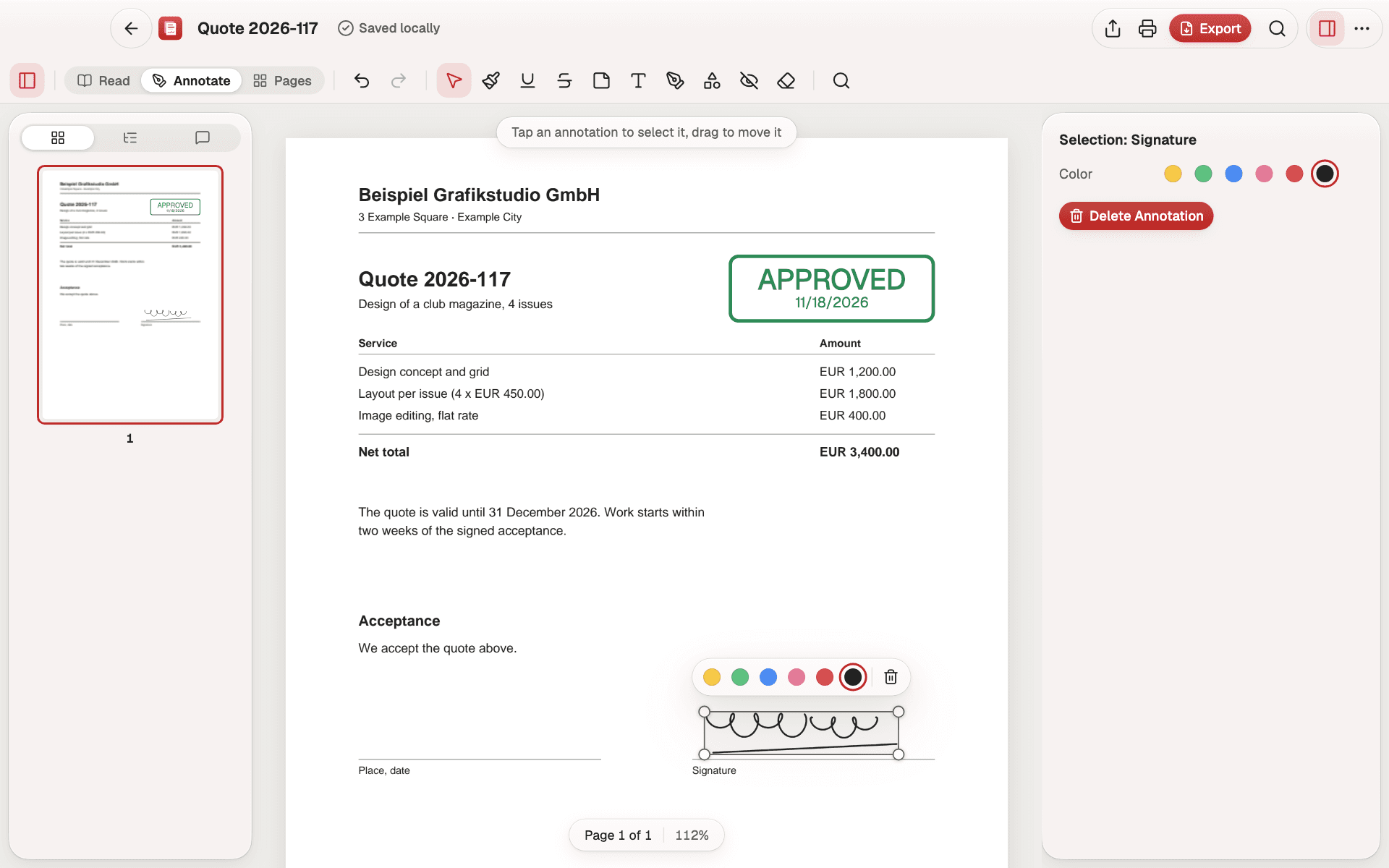
After Insert, the signature sits in the middle of the current page, selected. You drag it onto the signature line, resize it by the corners and change its color if needed. “Insert Stamp” offers Approved, Reviewed and Rejected, each with a date, plus Draft, Confidential, Date and “Custom Stamp…”.
On export, Paperwork writes the signature as an image and stamps as vector graphics into the page; a test confirms that the stamp text can be read as page text afterwards. If you want to send a draft first, use the Draft stamp instead of a signature.
What an inserted signature doesn’t do
A signature image doesn’t prove who placed it: whoever receives the PDF could copy the image and paste it elsewhere. Nor does it reveal later changes to the document. That is exactly what advanced and qualified signatures do, which are based on certificates issued by a trust service provider.
In everyday terms: an inserted signature works when both sides know each other and the form doesn’t matter. For contracts with a form requirement, or where protection against forgery matters, you need a signing service with qualified signatures. Paperwork isn’t built for that.
Stamps instead of or next to a signature
Stamps mark the status of a document without signing anything. Approved appears in green, Reviewed in blue and Rejected in red, each with today’s date below in the date format of the interface language. Draft and Confidential come without a date, Date adds just the date. Custom Stamp… lets you enter any text, such as “Paid” or “Copy”; the date is added automatically.
Like signatures, stamps are annotations you can move, resize or recolor. On export they’re written into the page as vector graphics, so their text stays readable and searchable as page text.
Fill in, sign, send
Signing often comes right after filling in: complete the fields on the Form tab, add your signature, export. Texts you wrote yourself come from Documents to Paperwork as PDF.
Paperwork is available for macOS, Windows, Android and in the browser. On phones and tablets the pen draws while your finger scrolls, so nothing gets scribbled while you page through.
How it works
Open the PDF
Open the document in Paperwork and fill in the form first if there is one.
Create your signature
Choose “Insert Signature…” from the “…” menu or the command search, then “New Signature” and Draw, Type or Image.
Save and insert
Tick “Save in this device’s keychain” if you’ll need the signature again, then choose Insert.
Place and stamp
Drag the signature onto the line and resize it. Add a stamp with “Insert Stamp” if needed.
Export
Choose Export. Signature and stamps are written into the page.
At a glance
- Signature
- drawn, typed, from an image
- Saved
- up to 8 in the keychain
- Stamps
- 6 built-in plus custom text
- Signature type
- simple (image), not qualified
Limits
What the feature can’t do yet, or what hasn’t been tested.
- Not a qualified electronic signature (QES) and no certificate-based digital signature. The PDF isn’t protected against changes afterwards.
- Paperwork can’t verify existing digital signatures, and signature fields in forms aren’t filled in.
- Collecting signatures from other people, by link as signing services do, isn’t supported.
Frequently asked questions
Is it legally valid?
It’s a simple electronic signature. That’s enough for many everyday cases, but not where the law requires a written form or a qualified signature. Paperwork doesn’t offer qualified electronic signatures.
Can I use it to terminate an employment contract?
No. In Germany, terminating an employment relationship requires written form under section 623 of the Civil Code, and electronic form is expressly excluded. Only paper with a handwritten signature will do.
Where is my signature stored?
If you choose, in your device’s keychain, up to eight of them. It isn’t uploaded anywhere.
Can I use a photo of my signature?
Yes. Under Image, pick a PNG or JPEG. Paperwork makes the paper transparent so only the strokes sit on the page.
Can I move the signature afterwards?
Until export, yes: under Annotate, tap it with the select tool, then move it, resize it by the corners, recolor it or remove it with Delete Annotation. In the exported PDF it’s written into the page.
Can several people sign?
Yes, if everyone is at the same device: each person creates their signature and places it on their line. Paperwork can’t collect signatures from others by link, as signing services do.
How do I delete a saved signature?
In the Signature dialog, each saved signature has Delete Signature. That removes it from the keychain; PDFs you’ve already exported aren’t affected.
Can I sign on my phone?
Paperwork is also available for Android and in the browser. On phones and tablets the pen draws and your finger scrolls.
What does it cost?
Nothing. Balane Office is free, with no account and no in-app purchases.
Balane Office is a long-running experiment: nine office apps, mostly built with AI. The apps are free and save to your own device. About the experiment →