Clean spreadsheet data, cell by cell with a preview
After you paste a list, Sheets shows where numbers stored as text, repeated spaces, dates stored as text and duplicate rows are hiding. You decide for each one whether it gets changed. Plus how the same tasks are handled in Excel.
What it does
- Four kinds of problems
- Numbers stored as text, repeated spaces, dates stored as text and duplicate data rows in the selected range. Ambiguous dates get a separate note.
- Location and before/after
- Each finding names the sheet and cell, for duplicates the row and the first row it matches. The preview shows the value before and after.
- Fix one at a time
- “Clean this cell” checks the cell again and changes only that cell. Each fix is its own undo step.
- Leading zeros stay
- Values such as 01 or 00123 stay text, so postcodes and customer numbers don’t get mangled. Whether 980.50 counts as a number depends on the language setting.
- Nothing happens automatically
- Ambiguous dates and duplicates are only shown for review. The check never deletes duplicates on its own.
- Formulas stay untouched
- Formulas, spill cells, merged cells and hidden or filtered cells are excluded. Read-only workbooks offer no fixes.
Why lists get messy
Most spreadsheets aren’t typed, they’re pasted: a CSV export from accounting, an address list from a web form, a table from an email. Numbers often arrive as text, dates as plain strings, and there are two spaces between first and last name.
The effects show up later. A SUM skips numbers stored as text. A VLOOKUP doesn’t find “Tom Example” when the other list says “Tom Example”. A duplicate counts one customer twice, and a pivot table works with wrong totals.
So cleaning mostly means turning numbers back into numbers and dates into real date values, removing extra spaces and deciding deliberately about duplicates. Only then do analyses calculate reliably.
How it’s done in Excel
Microsoft’s overview of cleaning data describes several separate tools. For extra spaces there’s TRIM, which removes all spaces except single spaces between words, but not the non-breaking space with code 160. For numbers stored as text, Microsoft mentions VALUE among others, and DATEVALUE for dates stored as text.
In Excel, you highlight duplicates through Conditional Formatting › Highlight Cells Rules › Duplicate Values, or remove them with Data › Remove Duplicates. Microsoft explicitly warns that removing duplicates permanently deletes data and recommends copying the original first.
That works well with helper columns, but you need to know the right function and take a second step to replace the formulas with values again. Sheets bundles the four most common cases into one check that first only counts and shows.
The list of findings in Sheets
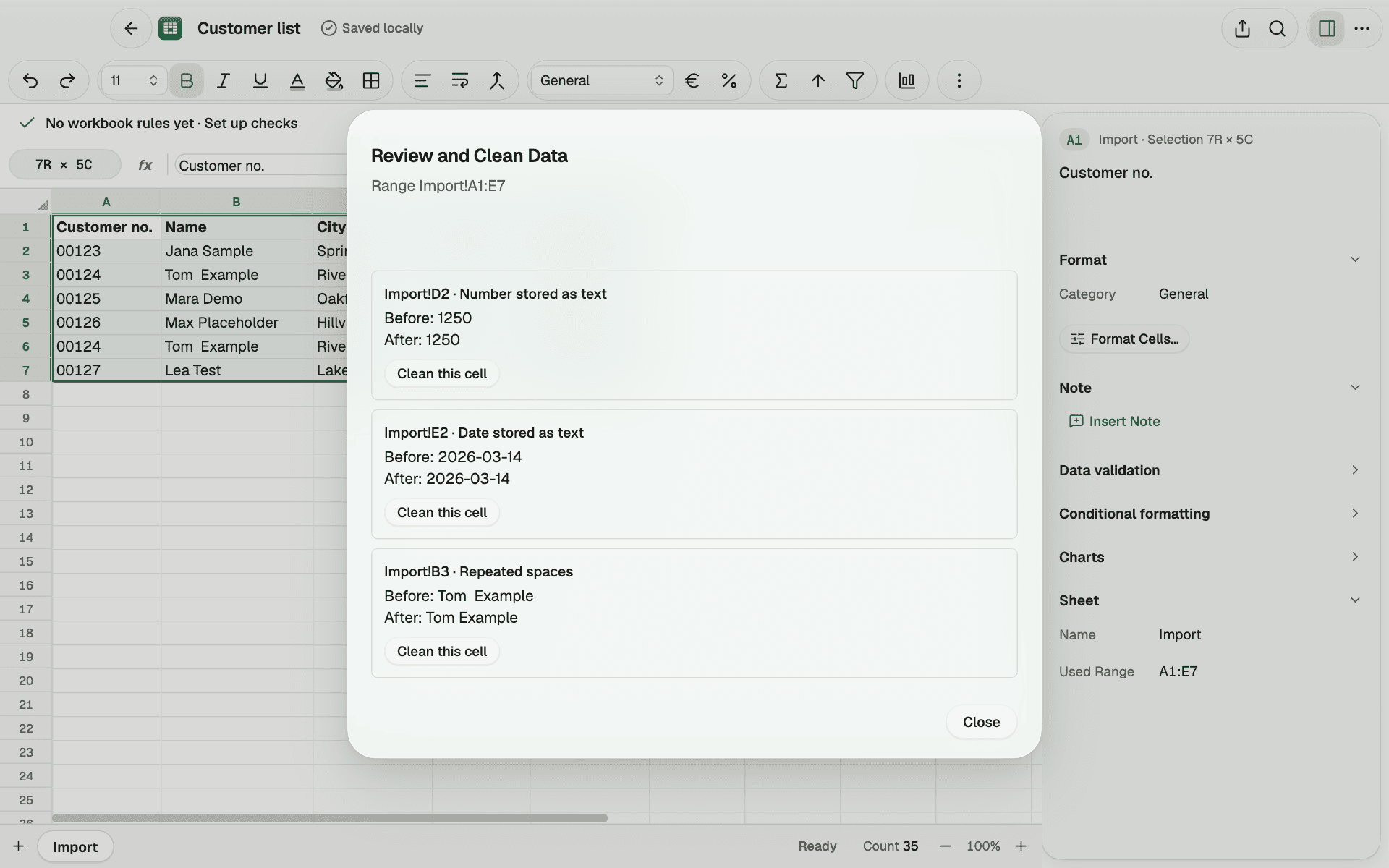
You select the pasted list and run Review and Clean Data…. At first the check changes nothing. It shows the checked range and, below it, each finding as a card with location and type, such as “Import!D2 · Number stored as text”, the value before and the suggestion after.
In the example, revenue 1250 is stored as text. The suggestion looks the same but is a real number that SUM and pivot tables can calculate with. For “Tom Example”, the preview shows the name with a single space. Customer number 00123 doesn’t appear at all: leading zeros count as an identifier and stay text.
Whether text counts as a number depends on the Language for Functions and Numbers. With the English setting, 980.50 is a number; with the German setting, 980,50 is.
Ambiguous dates and duplicates
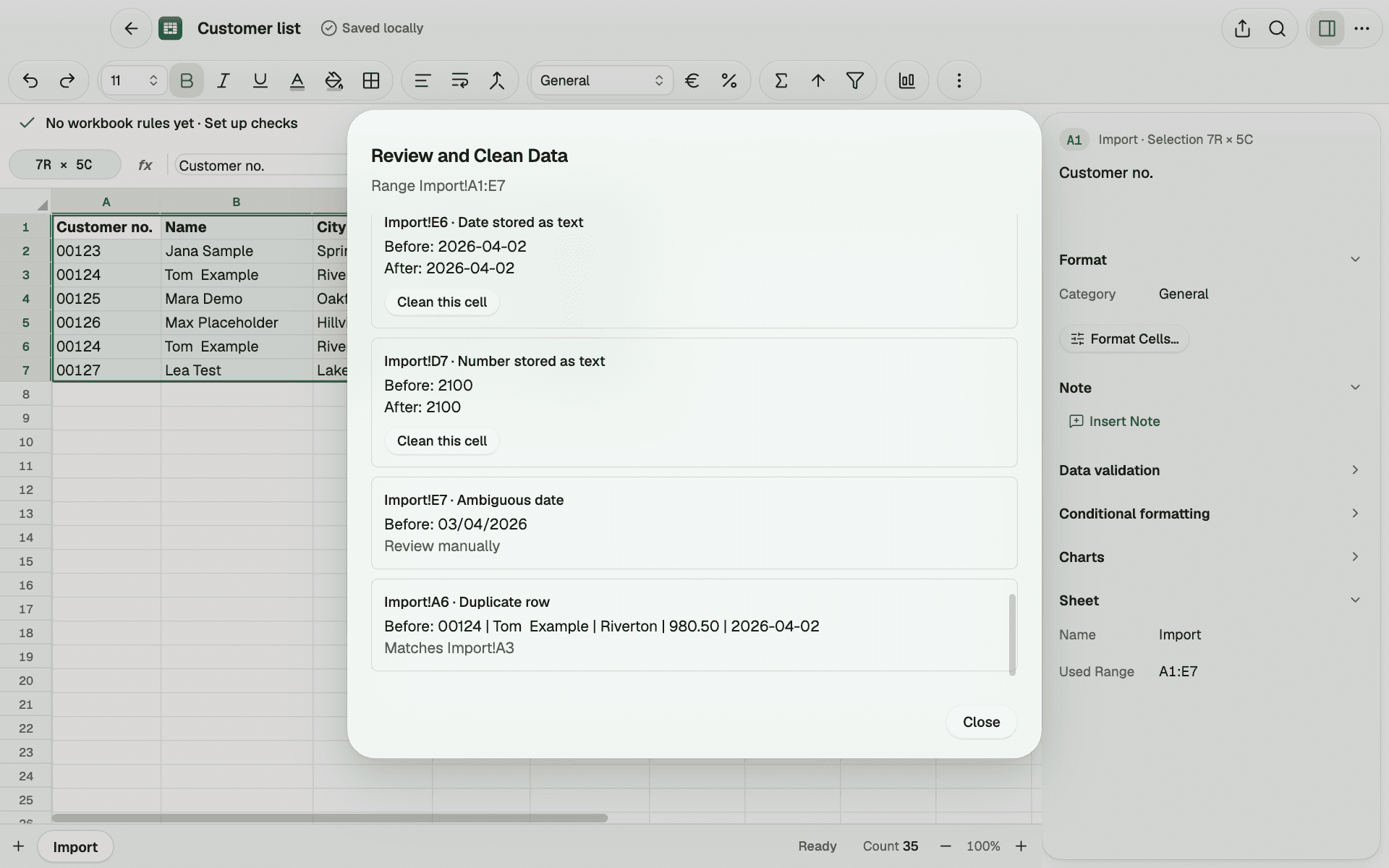
A date like 03/04/2026 can mean 3 April or 4 March depending on convention. Sheets treats any date with both day and month up to 12 as ambiguous, regardless of the separator, so 02.04.2026 too. Such findings are labelled “Ambiguous date” and show “Review manually” instead of a button.
Dates that can be converted unambiguously are ISO dates such as 2026-03-14, and dates where the day is greater than 12 and the separator fits the language setting, such as 14.03.2026 with the German setting.
Duplicate rows come at the end of the list. The displayed text of all columns is compared without regard to upper and lower case, as with Remove Duplicates…; a detected header row isn’t included. The card names the row and, with “Matches”, the first identical row. Deleting is up to you.
Clean a cell and undo it
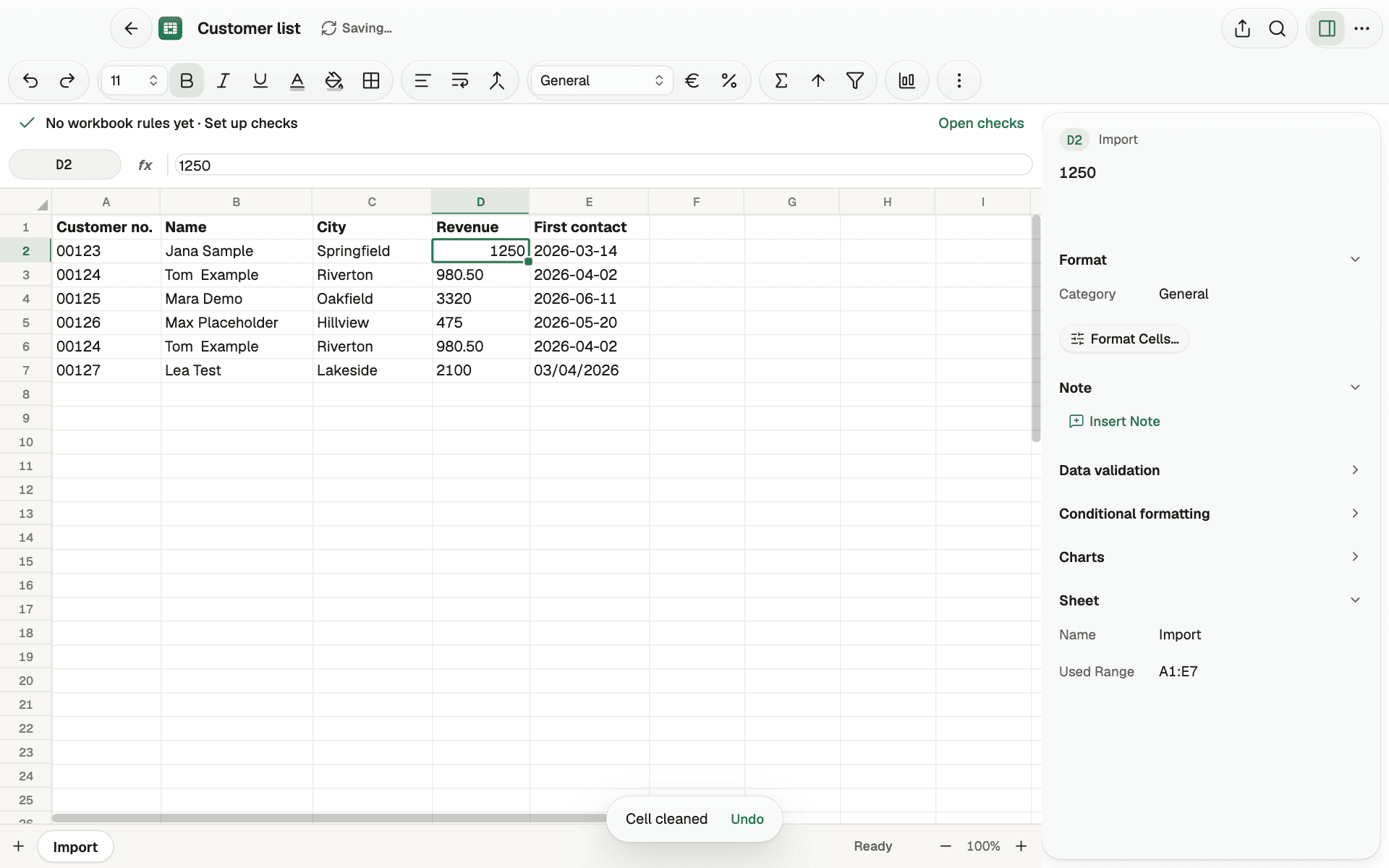
“Clean this cell” checks once more before writing that the workbook hasn’t changed since the check and that the cell may be edited. Only then does the app replace the content. The “Cell cleaned” notice at the bottom offers Undo.
After a fix, the dialog closes. For the next spot, you run the check again, and it then shows the current state. In the picture, 1250 is now right-aligned in D2, so it’s a number, while the values below are still left-aligned text.
Clean first, then analyse
Clean data is the basis for everything that follows: pivot tables, AutoFilter and subtotals only calculate correctly with real numbers and dates. Bank reconciliation with CAMT.053 reads amounts as numbers or decimal text.
To split and reshape columns, there’s Text to Columns… and Flash Fill (⌘E / Ctrl+E), which fills a whole column from a few examples, locally and without AI. If you like, the optional AI with your own key can also unify spellings; every change then comes as a suggestion you review.
How it works
Select the range
Select the list you want to check, ideally including its header row. Exactly this selection is checked.
Run the check
Choose Review and Clean Data… from the Data menu or the command search (⌘K / Ctrl+K).
Go through the findings
For each finding, look at the location, Before and After, and apply it with “Clean this cell” or leave it.
Resolve ambiguous dates
For an “Ambiguous date”, check the source to see which convention is meant and enter the date yourself.
Decide on duplicates
Check duplicate rows and delete them yourself if needed, for example with Remove Duplicates…. Every fix can be reverted with undo.
At a glance
- Problem types
- 4, plus ambiguous dates
- Check size
- up to 50,000 filled cells
- Duplicates
- up to 10,000 rows × 64 columns
- Undo
- one step per fix
Limits
What the feature can’t do yet, or what hasn’t been tested.
- Built and tested, but not in a released version yet. A hands-on check in the finished app is still pending.
- The check knows four problem types. It doesn’t detect inconsistent spellings, typos, non-breaking spaces or wrong assignments.
- Dates with both day and month up to 12 always count as ambiguous, even in clearly German notation such as 02.04.2026.
- There’s no fix-all for every finding at once and no automatic deletion of duplicates. The dialog closes after each fix.
- Beyond 50,000 filled cells, the check is capped; the app then warns that findings may be missing.
Frequently asked questions
How do I convert numbers stored as text?
Select the range, run Review and Clean Data… and clean the “Number stored as text” findings one by one. In Excel, you can use the VALUE function in a helper column, for example.
How do I remove repeated spaces?
The check shows them as “Repeated spaces” and suggests the text with single spaces. In Excel, TRIM does this and also removes leading and trailing spaces.
Are leading zeros kept?
Yes. Values such as 01 or 00123 count as identifiers and aren’t suggested as numbers.
Are duplicates deleted automatically?
No. The check shows duplicate rows and the first identical row. You delete them yourself, for example with Remove Duplicates….
Does the check need AI or the internet?
No. It uses the calculation engine’s number and date recognition on your device. The AI features in Sheets are separate and optional.
When will the feature be available?
It’s built and tested and ships with the next released version of Sheets. There’s no fixed date yet.
Balane Office is a long-running experiment: nine office apps, mostly built with AI. The apps are free and save to your own device. About the experiment →