Edit an Excel file without having Excel
Sheets opens XLSX files, calculates with their formulas and, if you like, writes your changes straight back into the same file. Anything the round trip can’t keep is listed when you open the file, and again before the app overwrites anything.
What it does
- Save in place
- On macOS, Windows and Linux an opened .xlsx stays linked to the workbook. ⌘S or Ctrl+S writes to the same file, and so can every autosave if you want.
- Import notes on opening
- The Import Notes dialog lists what the app doesn’t take over, such as macros, sheet protection, workbook protection or slicers. Formulas it can’t read are counted.
- Asks before overwriting
- Before the first save that would lose something, “Save to …?” shows the same list. The Excel file changes only after you choose Save Anyway.
- Guarded against outside edits
- Before writing, the app compares the file’s modification time and size. If the file changed elsewhere in the meantime, you choose Reload, Overwrite or Later.
- What survives the round trip
- Values, formulas including LET and LAMBDA, named ranges, number formats, cell formatting, conditional formatting, data validation, AutoFilter, tables, notes, links, sparklines, outlines and page layout.
- Working copy with history
- Alongside the Excel file, the app keeps a .bsheet working copy with version history and backups. “Disconnect from …” stops writing back.
When you need to edit an Excel file without Excel
XLSX is Excel’s usual file format and one of the Office Open XML formats. So these files arrive by email all the time: a cost sheet from a club, a timesheet from a client, a price list from a supplier. Without Office installed, you still need to change a few numbers and send the file back.
It’s rarely just about viewing. What matters is that the formulas keep calculating, the formatting stays and the recipient gets an ordinary Excel file back. A workbook with macros uses the .xlsm extension; according to Microsoft, an .xlsx can’t contain macros.
Many programs treat this as an import: they read the file and save a new one at the end. Sheets can do that too, but on macOS, Windows and Linux it also edits in place. The file keeps its name and location, and you don’t have to hunt down and rename a copy.
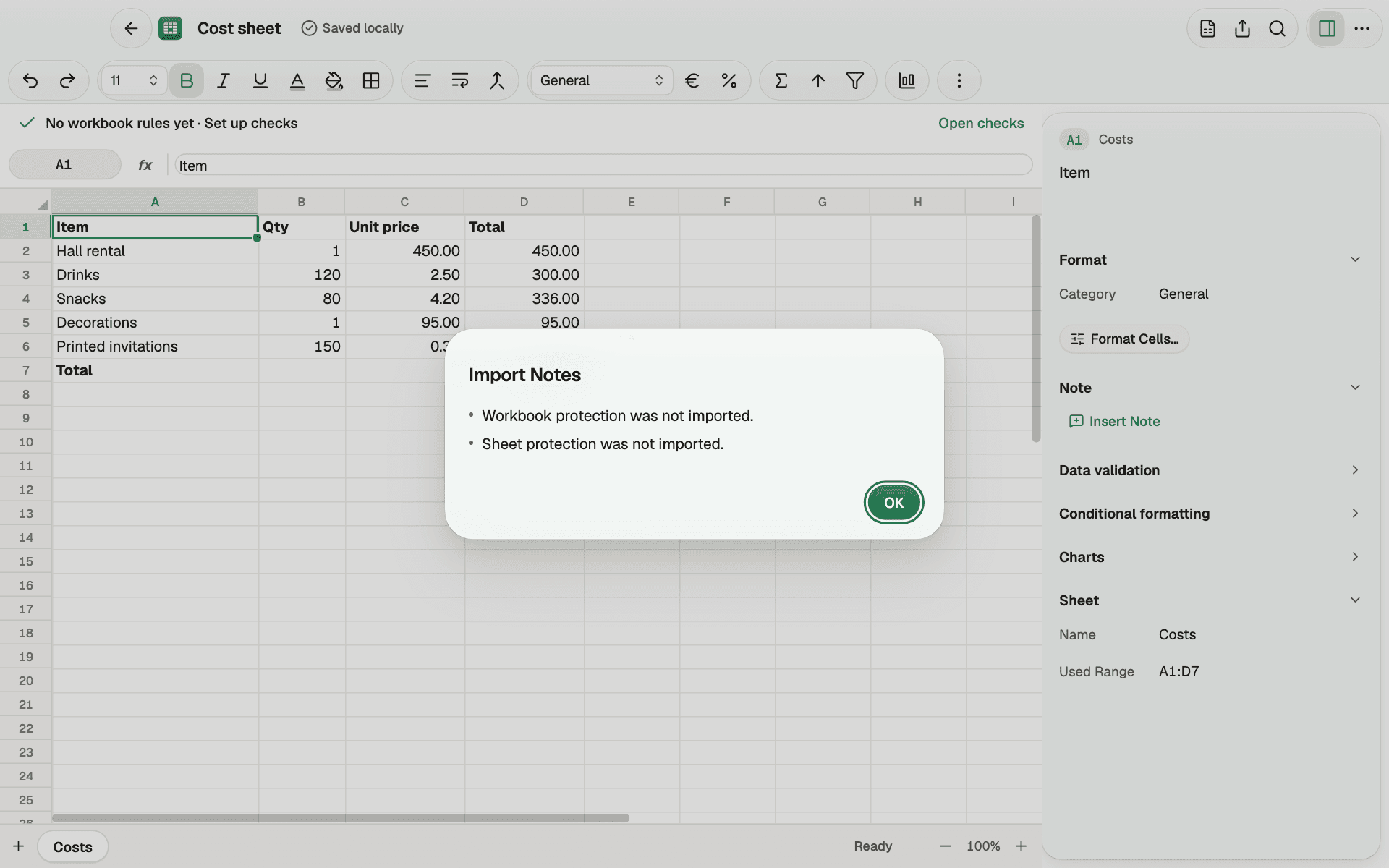
On opening: what the app takes over and what it doesn’t
An XLSX file can contain more than a spreadsheet app other than Excel can reproduce. Sheets reads the whole file and then reports in the Import Notes dialog which parts are missing. In the picture, the file had sheet protection and workbook protection; the app takes over neither.
Other possible notes cover macros (VBA), pivot tables that only arrive as fixed values, links to other workbooks, data connections and queries, slicers and timelines, images and freeform shapes, controls, manual page breaks and mixed formatting within a cell. Comments with replies become simple notes.
Formulas the calculation engine doesn’t understand keep their last calculated value, and the note says how many there are. That way the result stays visible even if the formula itself no longer calculates.
Edit and write back to the same file
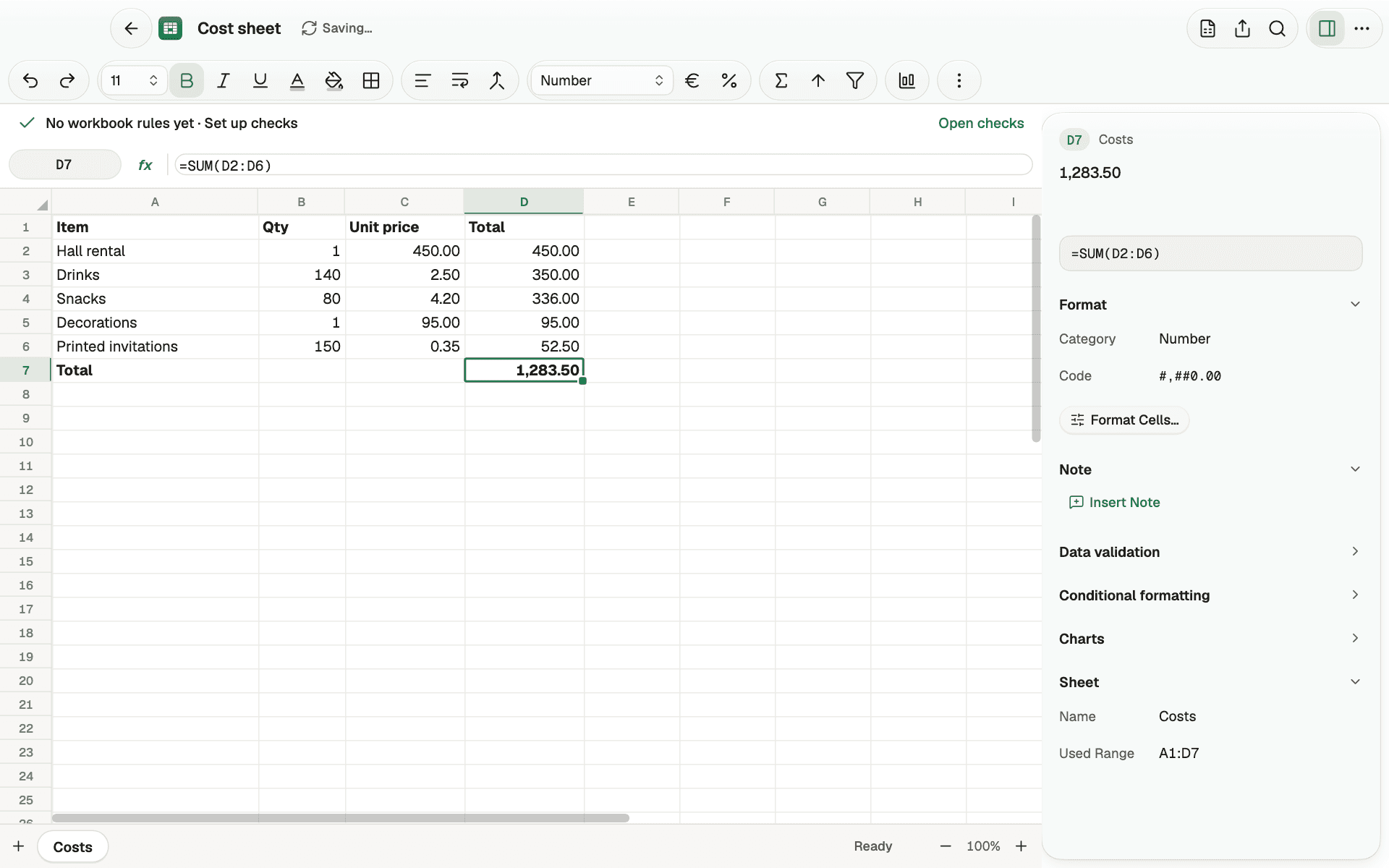
Once the file is open, you work as in any spreadsheet: change values, type formulas, set number formats. In the picture, the quantity of drinks went from 120 to 140, and the line total and grand total recalculate at once. The formula bar shows the formula in your chosen language, here =SUM(D2:D6) or =SUMME(D2:D6).
Internally, Sheets saves to the working copy shortly after each change. ⌘S or Ctrl+S, or the button with the sheet icon at the top right, writes to the Excel file. “Write Changes to … Automatically” is on by default; autosave then writes back as well, once you have confirmed any losses.
The app normally writes to a temporary file first, which replaces the old file only at the end. If something interrupts the save, no half-written Excel file is left behind. In the macOS sandbox, the app writes directly when no temporary file is allowed next to a single granted file.
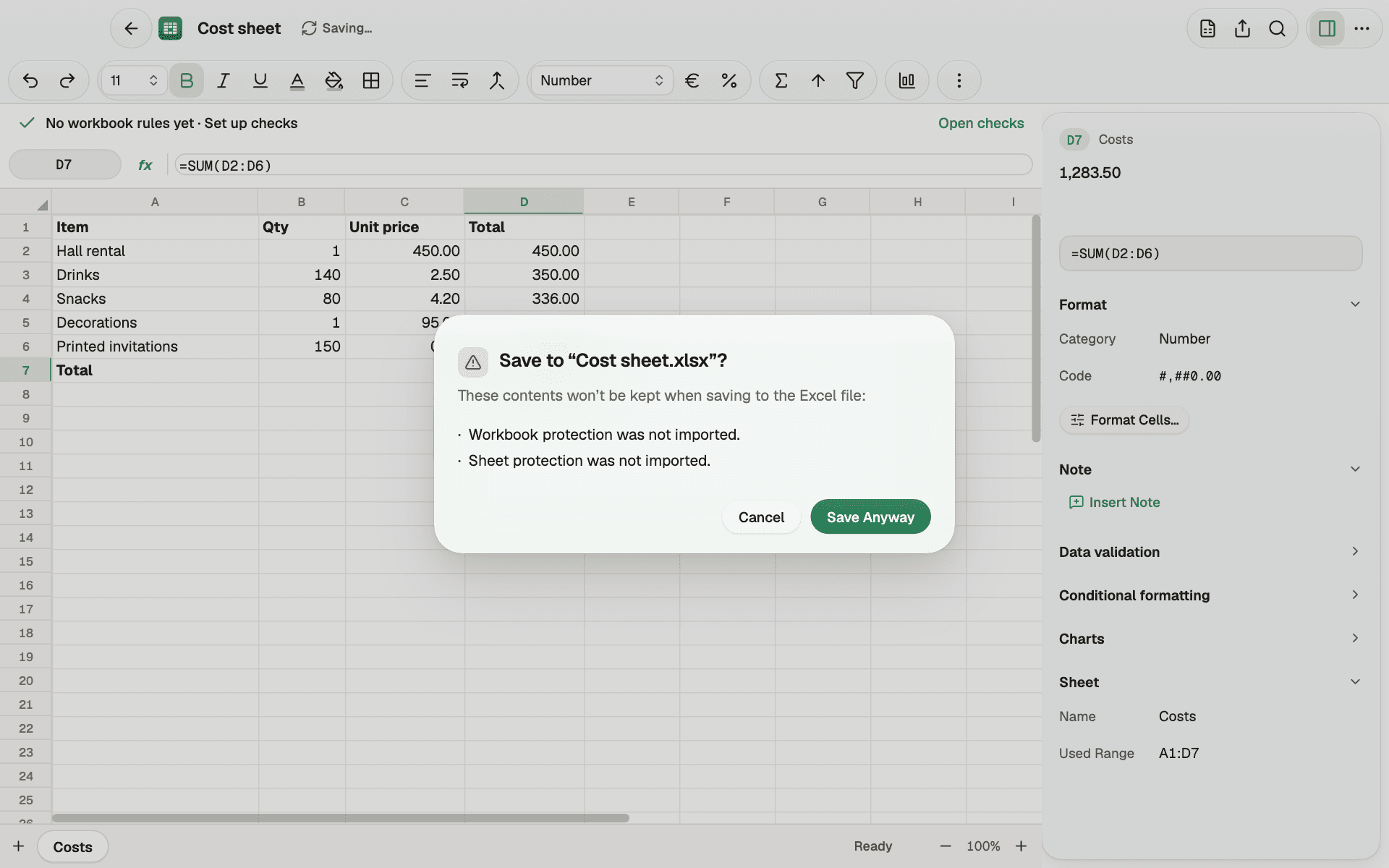
The prompt before the first save that loses something
Whatever was missing on opening is missing when you write back too. So before the first save to the Excel file, the app asks explicitly and shows the same list again, plus anything from Sheets that XLSX can’t hold. Until you choose Save Anyway, the file stays as it was.
Your confirmation covers exactly this list. If a new loss appears later, the app asks again. If the workbook changed while the dialog was open, it discards the old approval instead of writing a different state.
If you need to keep a file’s sheet protection, don’t overwrite it in place. Export as XLSX is the better route then: it creates a new file and leaves the original untouched.
Common mistakes when editing someone else’s Excel file
Editing at the same time: if the file sits in a shared folder and someone changes it in Excel meanwhile, a blind save overwrites their work. Sheets notices this from the modification time and size and asks with Reload, Overwrite or Later.
Sending back the wrong file: if you import and export as a new file, you end up with two versions. When editing in place, there is only the one file you opened.
Copying formulas wrongly: an English tutorial writes =SUM(A1,B1), a German Excel expects =SUMME(A1;B1). Sheets understands both spellings when the matching formula language is set, and stores the formula in the file in one consistent form.
Overlooking losses: saving over a macro-enabled workbook would remove the macros. That’s why Sheets opens .xlsm files only as a copy and doesn’t link them for writing back.
Engine, grid size and sharing within Balane Office
The grid is the same size as Excel’s, 1,048,576 rows by 16,384 columns. Calculations use 343 functions that you can write in German or English, including XLOOKUP, dynamic arrays such as FILTER and UNIQUE, and LET and LAMBDA.
The file stays a normal .xlsx that you can pass on. Within Balane Office you can also publish ranges; Documents, Slides and Reports link to them and refresh when the numbers change. Copy and paste between the apps keeps table structure and formatting.
How it works
Open the file
On the home screen, choose Import… (⌘O / Ctrl+O) and pick the .xlsx. If the Import XLSX file dialog appears, choose Import workbook.
Read the import notes
The Import Notes dialog lists what wasn’t taken over. OK takes you to the workbook.
Make your changes
Change values, formulas and formats as usual. The working copy is saved shortly after each change.
Write to the Excel file
Press ⌘S / Ctrl+S or the button with the sheet icon in the title bar. The first time something would be lost, confirm with Save Anyway.
Control writing back
In the command search (⌘K / Ctrl+K), switch “Write Changes to … Automatically” on or off, or choose “Disconnect from …”.
At a glance
- Formats
- XLSX, ODS, CSV, TSV; PDF output
- In place
- macOS, Windows, Linux
- Grid
- 1,048,576 × 16,384 cells
- Functions
- 343, in German or English
Limits
What the feature can’t do yet, or what hasn’t been tested.
- Images, freeform shapes, macros, pivot caches, slicers, sheet and workbook protection and mixed formatting within a cell are lost when saving back. The app names them but doesn’t keep them.
- Charts: the current development version reads charts from XLSX and writes its own charts as editable Excel charts, with some styling simplified. Whether this is already in released version 1.0.1 hasn’t been checked.
- Macro-enabled workbooks (.xlsm) and files on iOS, Android and in the browser open as a copy, not for editing in place.
- A cross-check of XLSX round trips in Excel itself is still pending.
- PDF output uses Helvetica; characters outside Windows-1252 show as question marks, and charts aren’t printed.
Frequently asked questions
Can I edit an Excel file without Excel?
Yes. Sheets reads and writes XLSX itself; no Office program is needed. On macOS, Windows and Linux it can save straight into the original file.
Can the recipient open the file in Excel afterwards?
Yes, it stays an .xlsx with values, formulas and formatting. Anything that isn’t kept, such as sheet protection or macros, was named by the app before saving. A systematic cross-check in Excel is still missing.
What happens to formulas Sheets doesn’t know?
They keep the last value stored in the file. The note on opening says how many formulas are affected.
What if someone changes the file in Excel at the same time?
Before writing, the app checks the modification time and size. If they differ, it doesn’t write but asks: Reload takes the other version, Overwrite replaces it, Later postpones the decision.
Does it work in the browser or on a phone?
Yes, but as a copy: in the browser you open the file through the file picker and get the result as a download. On iOS and Android a copy is opened as well.
Do I need an account or a subscription?
No. Sheets is free and works without an account. The Excel file stays on your device and isn’t uploaded.
Balane Office is a long-running experiment: nine office apps, mostly built with AI. The apps are free and save to your own device. About the experiment →