Write Excel functions in German or English
Sheets understands =SUM(A1,B1) just as well as =SUMME(A1;B1). You choose once which spelling you see, and the file itself isn’t affected. Below are the most important function names in both languages.
What it does
- Two spellings, one file
- Type in German with semicolons or in English with commas. Storage is always English, so a German workbook opens correctly with the English setting too.
- Language for Functions and Numbers
- Automatic, German or English. The setting covers suggestions, the function list, number display and format codes such as
dd.mm.yyyyorTT.MM.JJJJ, immediately in every open workbook. - Suggestions as you type
- After the equals sign, the app suggests matching functions with a short description. ↑ and ↓ pick one, Tab or Enter accepts it.
- Function help with arguments
- Once the bracket is open, a tooltip shows the syntax, such as
VLOOKUP(lookup_value, table_array, col_index_num, [range_lookup]), and highlights the current argument. References are colour-coded. - Function catalogue
- Insert Function… (Shift+F3) lists all 343 functions in ten categories, with search, syntax and description in your chosen language.
- LET, LAMBDA, dynamic arrays
- Under Name Manager…,
=LAMBDA(net,net*1.19)becomes a function of your own, such as=GROSS(A2). FILTER, SORT and UNIQUE spill into the neighbouring cells.
Why Excel functions have different names by language
Excel shows function names in the language it is installed in. SUM becomes SUMME in German, IF becomes WENN, VLOOKUP becomes SVERWEIS. Microsoft gives an example: a formula =SUM(A1:A10) entered in an American Excel appears as =SUMME(A1:A10) in a German Excel.
Then there’s the separator. Because German uses the comma as the decimal mark, arguments are separated by semicolons. Microsoft’s German help therefore writes XLOOKUP as =XVERWEIS(Suchkriterium; Suchmatrix; Rückgabematrix; …), the English help as =XLOOKUP(lookup_value, lookup_array, return_array, …).
The file itself isn’t affected: a workbook from an English-speaking office calculates in a German Excel too. The trouble starts with tutorials and forums, which mostly use the English names, and with copying formulas from a template in another language.
The most common functions in German and English
Arithmetic and counting: SUM = SUMME, SUMIF = SUMMEWENN, SUMIFS = SUMMEWENNS, ROUND = RUNDEN, AVERAGE = MITTELWERT, AVERAGEIF = MITTELWERTWENN, COUNT = ANZAHL, COUNTA = ANZAHL2, COUNTIF = ZÄHLENWENN, SUBTOTAL = TEILERGEBNIS.
Logic: IF = WENN, IFS = WENNS, IFERROR = WENNFEHLER. Dates: TODAY = HEUTE, DATE = DATUM, EOMONTH = MONATSENDE, NETWORKDAYS = NETTOARBEITSTAGE. Text: LEFT = LINKS, TRIM = GLÄTTEN, VALUE = WERT, CONCAT = TEXTKETTE, TEXTJOIN = TEXTVERKETTEN; TEXT is the same in both languages.
Lookup: VLOOKUP = SVERWEIS, HLOOKUP = WVERWEIS, XLOOKUP = XVERWEIS, MATCH = VERGLEICH, XMATCH = XVERGLEICH, INDIRECT = INDIREKT, OFFSET = BEREICH.VERSCHIEBEN; INDEX stays the same. Dynamic arrays: FILTER = FILTER, SORT = SORTIEREN, UNIQUE = EINDEUTIG, GROUPBY = GRUPPIERENNACH, PIVOTBY = PIVOTMIT, WRAPROWS = ZEILENUMBRUCH, BYROW = NACHZEILE. LET, LAMBDA, REDUCE and SCAN have the same name in both languages.
All pairs come from the function catalogue in Sheets. Insert Function… opens the full catalogue with descriptions; there you can also search for the German name while the English spelling is set.
Translating error values, logical values and numbers
It’s not just function names that differ. Logical values are TRUE and FALSE in English and WAHR and FALSCH in German. Error values have two spellings as well: #VALUE! = #WERT!, #REF! = #BEZUG!, #N/A = #NV, #NUM! = #ZAHL!, #SPILL! = #ÜBERLAUF!, #CALC! = #KALK!. #DIV/0!, #NAME? and #NULL! stay the same.
If you search a forum for “#N/A with VLOOKUP”, German forums discuss the same question under “#NV SVERWEIS”. In Sheets, error values, logical values and numbers follow the same setting as function names, not just the interface language.
Numbers inside formulas change as well: =ROUND(A2*1.19,2) in English corresponds to =RUNDEN(A2*1,19;2) in German. When copying from a tutorial, this is the most common source of errors, because a comma in the wrong place turns one decimal number into two arguments.
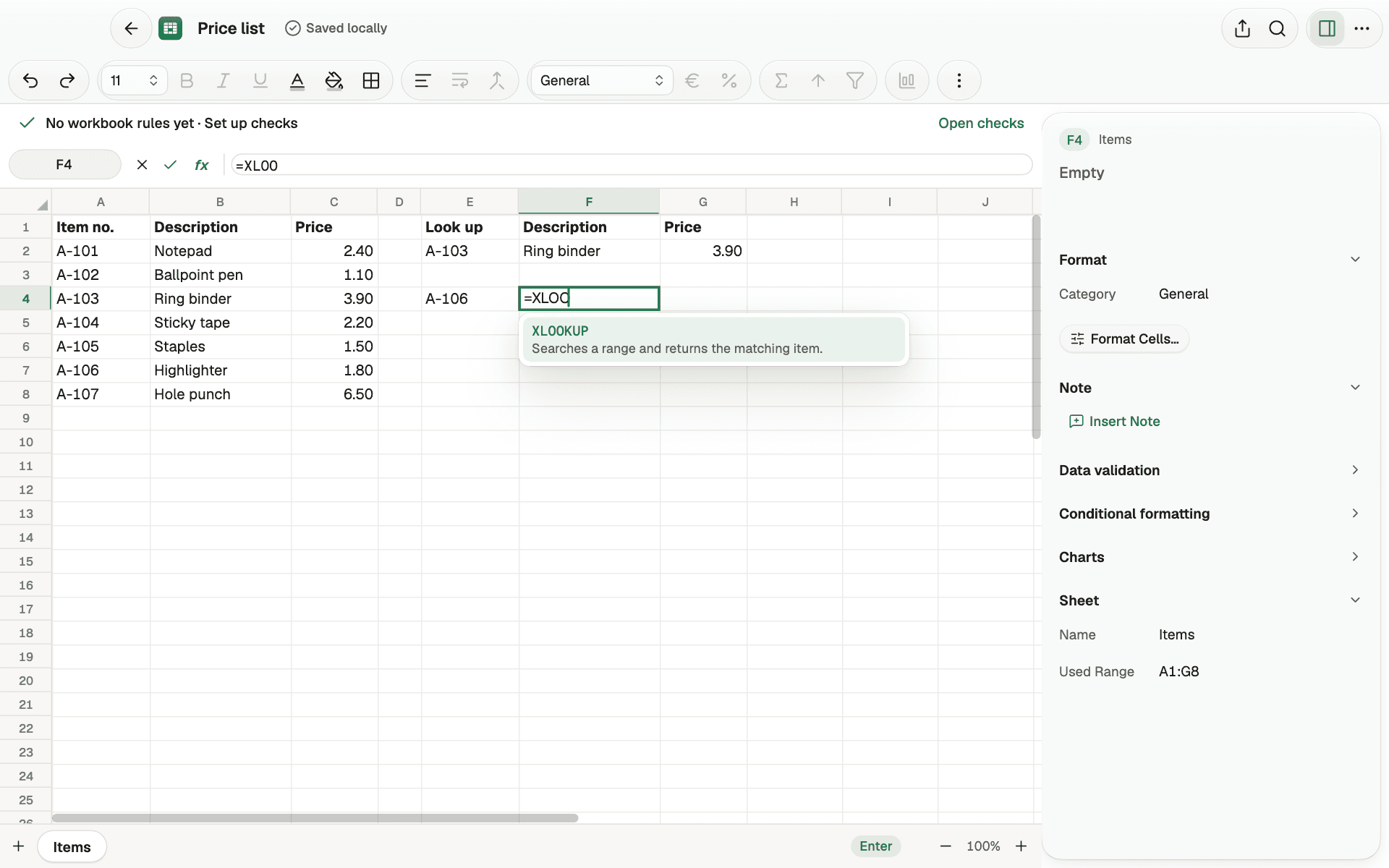
Typing with suggestions
After the equals sign and the first letters, Sheets lists matching functions with a one-line description. With the English setting, =XLOO leads to XLOOKUP; with the German setting, =XVER leads to XVERWEIS and XVERGLEICH. ↑ and ↓ pick one, Tab or Enter inserts the name with the opening bracket.
Clicking in the grid inserts references, and dragging selects ranges. Each reference gets a colour that reappears as a frame in the grid. That way you see while typing which cells a formula actually uses.
Function help: which argument comes next
Once the bracket is open, function help replaces the suggestions. It shows the syntax with the argument names of your chosen language and highlights the argument at the cursor. In =VLOOKUP(E4,A2:C8, that’s col_index_num.
The argument names match Microsoft’s help, such as lookup_value, table_array, col_index_num and range_lookup for VLOOKUP. Optional arguments are in square brackets. The same help appears in the inspector on the right, together with a short description of the function.

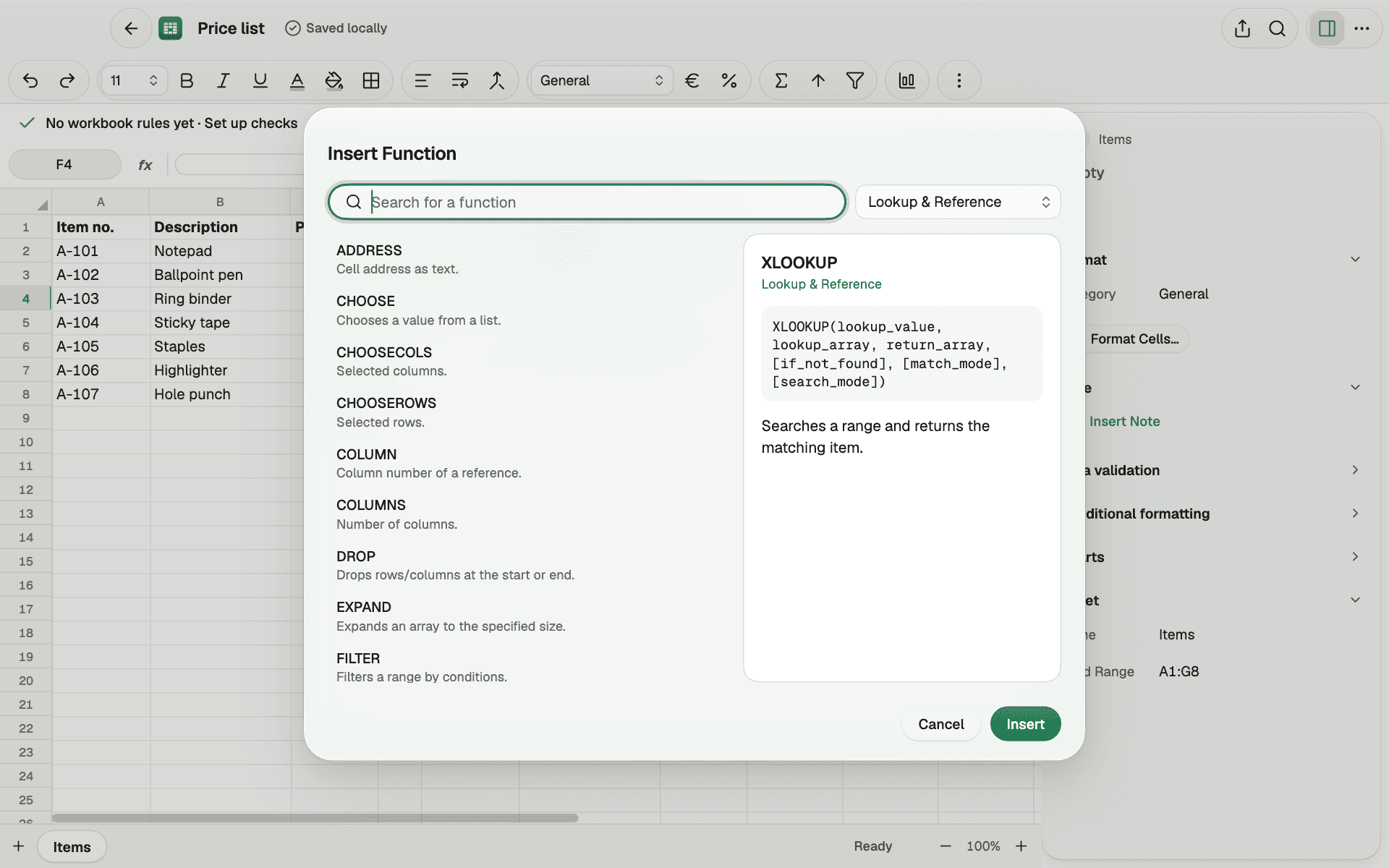
Using the catalogue when you don’t know the name
Often you know the task but not the name. Insert Function… (fx in the formula bar or Shift+F3) opens the catalogue. The category narrows it down, and the search finds German and English names as well as words from the description.
On the right you see the syntax and description of the selected function. Insert puts the name with a bracket into the cell, or at the cursor position of a formula you’re editing.
XLOOKUP instead of VLOOKUP, LAMBDA instead of helper columns
VLOOKUP only searches the first column of the table and returns a column by number. If someone inserts a column, the number is wrong. Without the fourth argument, VLOOKUP looks for an approximate match, which can return wrong results in unsorted lists; for an exact search, add FALSE (FALSCH in German).
XLOOKUP takes the lookup array and return array separately, searches for an exact match and has a value for “not found”. LET names intermediate results within one formula. Through Name Manager…, LAMBDA becomes a function of your own that you use like SUM; BYROW, REDUCE and SCAN apply it to whole ranges. Recursion works up to a depth of 1024.
LAMBDA parameters and LET names are kept when saving as XLSX, as are custom functions defined through names. According to Microsoft, XLOOKUP isn’t available in Excel 2016 and 2019; if you share files with people on those versions, VLOOKUP or INDEX with MATCH is the safer choice.
How it works
Choose the language
In Settings (⌘, / Ctrl+,), under Language for Functions and Numbers, choose Automatic, German or English. Automatic follows the app’s interface language.
Start a formula
Type an equals sign and the first letters. Pick a suggestion with ↑ and ↓; Tab or Enter accepts it.
Fill in the arguments
Follow the function help and insert references by clicking or dragging in the grid. The separator is the comma (English) or the semicolon (German).
Look up a function
Open the catalogue with Insert Function… (fx or Shift+F3), use a category or the search and choose Insert.
Create your own function
Under Name Manager…, create a name that refers to
=LAMBDA(…)and then call it from any cell.
At a glance
- Functions
- 343 in 10 categories
- Spelling
- German or English
- Stored as
- English (canonical)
- LAMBDA recursion
- up to depth 1024
Limits
What the feature can’t do yet, or what hasn’t been tested.
- A systematic formula test suite comparing results with Excel is still pending. Individual functions may calculate differently in edge cases.
- Function names used as values, such as SUM inside GROUPBY, are saved following Excel’s scheme; a check against a file created by Excel is missing.
- Regular expressions (REGEXTEST, REGEXEXTRACT, REGEXREPLACE) follow ECMAScript syntax; only some PCRE notations are translated.
- Only German and English are available as formula languages. Other language versions of Excel, such as French function names, aren’t recognised as input.
Frequently asked questions
What is VLOOKUP called in German?
SVERWEIS. XLOOKUP is XVERWEIS, HLOOKUP is WVERWEIS, MATCH is VERGLEICH. In Sheets you choose which names you write.
Why do German formulas use semicolons instead of commas?
Because German uses the comma as the decimal mark. =ROUND(2.5,0) is English, =RUNDEN(2,5;0) German. Sheets switches the decimal mark and separator along with the formula language.
Do I need to switch when I get a German file?
No. Formulas are always stored in English and shown in the language you’ve chosen. The setting doesn’t change the file.
Can I follow a German tutorial word for word?
Yes. Set Language for Functions and Numbers to German and type the formulas exactly as written. You can switch back afterwards, and the formulas then appear in English.
Are XLOOKUP and LAMBDA available?
Yes, both are among the 343 functions, as are LET, FILTER, SORT, UNIQUE, GROUPBY and PIVOTBY.
Does Sheets calculate exactly like Excel?
The functions follow Excel’s definitions, but a systematic comparison with Excel is still pending. Differences are possible in edge cases.
Balane Office is a long-running experiment: nine office apps, mostly built with AI. The apps are free and save to your own device. About the experiment →