Compare two Excel files, cell by cell
A workbook comes back to you and you want to know what changed. Sheets reads both versions and lists every changed cell with sheet, address, before and after. For your own workbook, cell history shows earlier states of a single cell.
What it does
- XLSX and .bsheet, mixed too
- Pick two files in either format. Both are only read and stay unchanged.
- Values, formulas, sheets
- The list shows added and missing sheets as well as changed values and formulas with sheet name and cell address. Formulas are compared by their text, not their result.
- Number formats if you want
- Before starting, Set up comparison asks whether stored number formats should be compared too. It’s off by default.
- Filter and jump there
- Difference type filters the list. “Go to left cell state” and “Go to right cell state” show the cell with its neighbours from that file.
- No false differences
- If the XLSX reader reports a warning while reading, the comparison stops. That way an import loss doesn’t show up as a cell change.
- Cell history
- For a cell in your own .bsheet workbook, Cell History… shows up to ten saved states from local backups. An earlier value can be restored after a preview.
When you need to compare two Excel files
A cost estimate goes to a colleague and comes back with edits. A budget sits in the folder in three versions. A price list has changed, but nobody knows where. In each case you want to see the differences without going through two windows row by row.
By hand, you can use a helper formula that compares cell by cell, such as =A1<>[Budget_v2.xlsx]Budget!A1, or conditional formatting. That shows different results, but not whether a formula was replaced by a fixed number, and it breaks as soon as rows have been inserted.
Microsoft offers Spreadsheet Compare for this, which according to Microsoft is only available with Office Professional Plus 2013, 2016 and 2019 or Microsoft 365 Apps for enterprise. It compares formulas, macros and cell formatting, among other things. Without those editions, you need another route.
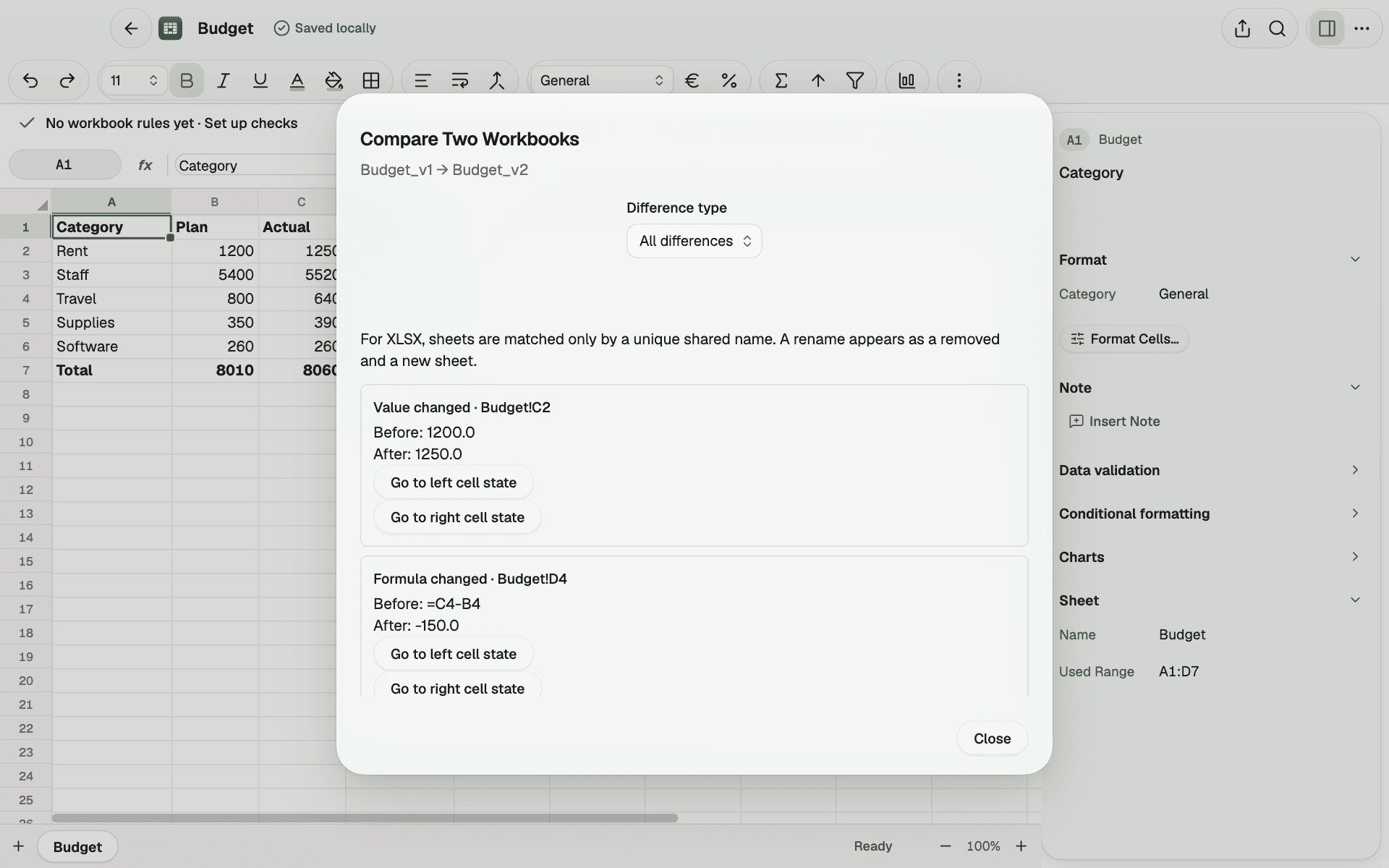
The list of differences
Once you pick two files, Sheets reads both and shows Compare Two Workbooks with the direction, “Budget_v1 → Budget_v2” in the picture. Each entry names the type, such as Value changed or Formula changed, plus sheet and cell and the content before and after.
In the example, rent was adjusted from 1200 to 1250 and supplies from 390 to 410. D4 now holds the fixed number −150 instead of the formula =C4-B4. The total in B7 suddenly misses a row because =SUM(B2:B6) became =SUM(B2:B5), and a Notes sheet was added. The two formula changes in particular are hard to spot just by looking.
For XLSX, a note above the list explains that sheets are matched only by exactly the same name. If a sheet was renamed, even just in capitalisation, it shows up as removed and added. Difference type lets you show, for instance, only formula changes.
Values, formulas and what isn’t compared
A different result can have two causes: someone typed over a number, or a formula was changed. That’s why Sheets compares formulas by their text. A result that changed only because an input cell changed doesn’t show up again for every dependent formula.
Styling such as fonts, colours and borders, as well as notes and links, isn’t part of the comparison. You can switch on number formats in Set up comparison with Compare number formats too; a changed format such as 0.00 instead of General then shows up as a difference too.
Numbers appear in the list as raw values, such as 1200.0, not in the cell’s number format, and formulas in the English spelling in which they are stored. That takes getting used to, but it shows unambiguously what is actually in the file.
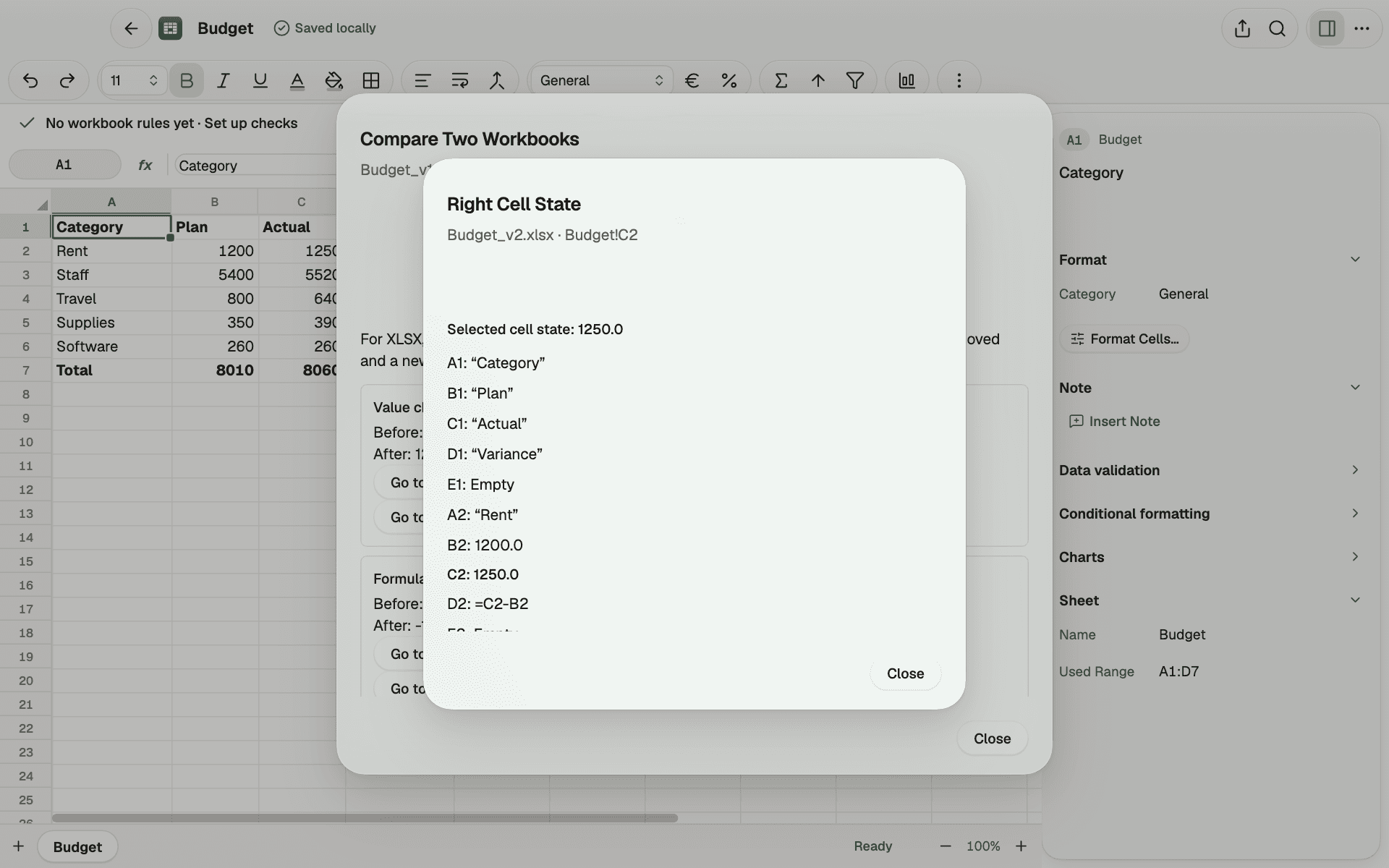
From a difference to its place in the file
Under each cell difference you find “Go to left cell state” and “Go to right cell state”. They open a view with file name, sheet and address, the selected cell state and the surrounding cells. That way you see which row a value belongs to without opening the file.
The view reads the file again and checks that it still matches the compared state. If it has changed since, the app asks for a new comparison instead of showing a different state. Nothing is written in the process.
Common mistakes when comparing
Inserted or deleted rows: the comparison matches cells by address. If someone inserted a row in version 2, all cells below shift and the list shows many individual changes. If you suspect this, compare the row counts of both versions first.
Renamed sheets: “Budget” becomes “Budget 2027”, and the whole sheet shows up as removed and added. If you compare versions regularly, keep sheet names unchanged.
Mixing up the direction: the older state should be on the left, the newer on the right. If the selection is swapped, Before and After don’t match the actual order. The dialog heading shows the direction, such as “Budget_v1 → Budget_v2”.
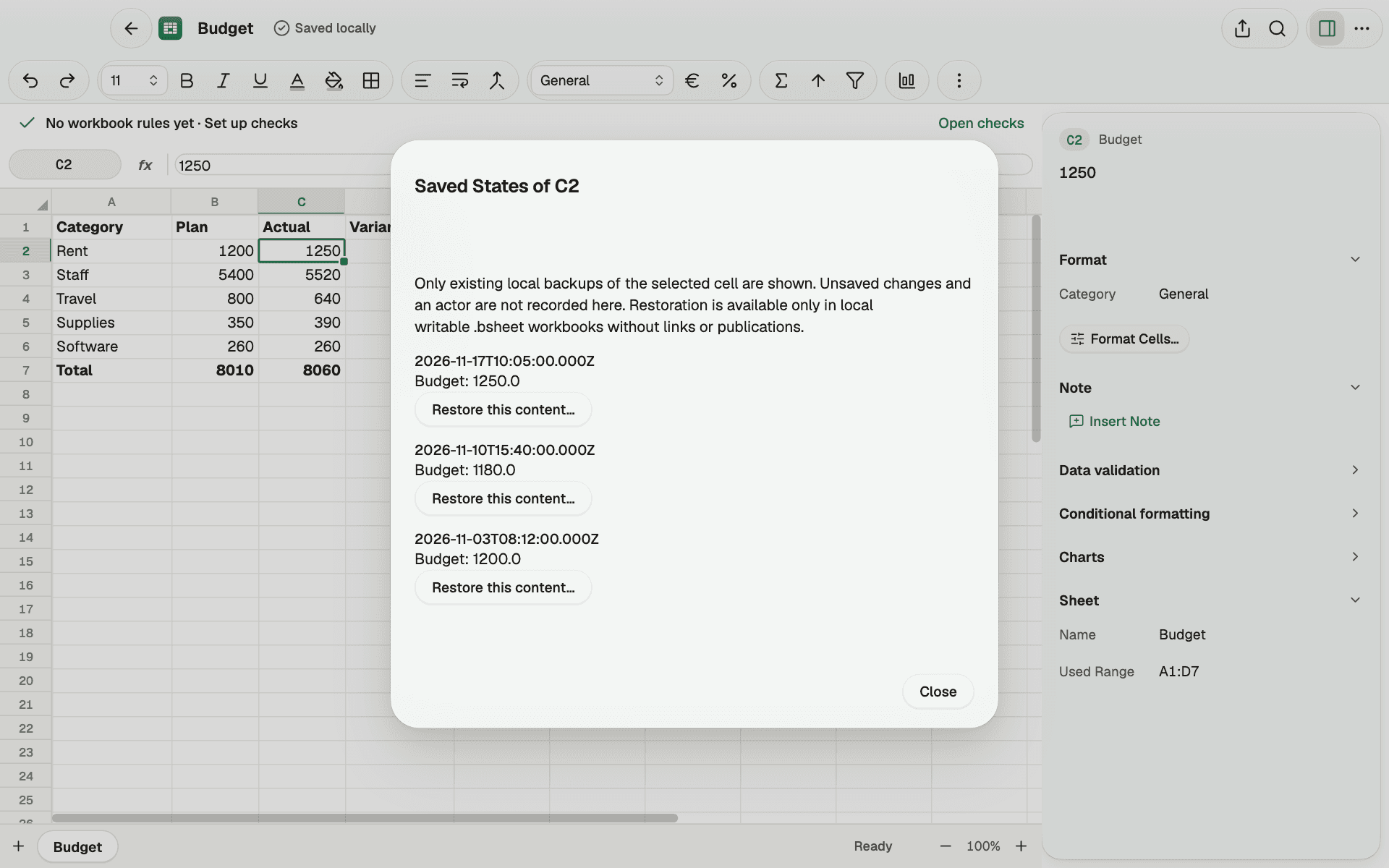
Cell history: earlier states of your own workbook
Sometimes it’s not about two files but one cell: what was in here last week? For .bsheet workbooks, Sheets keeps local backups when saving. Cell History… in the File menu shows up to ten of these states for the selected cell, with time and value.
“Restore this content…” first shows a preview with the current and saved content. After you confirm, only the value or formula is taken over, as a new step that undo reverts. The current cell’s format, note and link stay.
Cell history only shows what was actually backed up. Unsaved intermediate states and who changed something can’t be read from it. The time is currently shown as a UTC timestamp.
How it works
Start the comparison
Choose Compare Workbooks… from the Data menu or the command search (⌘K / Ctrl+K).
Pick two files
Select exactly two .xlsx or .bsheet files in the file picker. The first counts as the left state, the second as the right.
Set the scope
In Set up comparison, tick Compare number formats too if needed and choose Compare.
Go through the results
Filter with Difference type and open “Go to left cell state” or “Go to right cell state” where needed.
Trace a single cell
In your own .bsheet workbook, select the cell and open Cell History… from the File menu.
At a glance
- Formats
- .xlsx, .bsheet
- File size
- up to 8 MiB per file
- Scope
- 1,000 differences, 200,000 cells
- Cell history
- up to 10 backups
Limits
What the feature can’t do yet, or what hasn’t been tested.
- Built and tested, but not in a released version yet. The comparison isn’t available in the browser.
- Excel sheets are only matched when their names are exactly the same; a rename shows up as a removed and a new sheet. Inserted rows shift all following cells and show up as many individual changes.
- Styling other than number formats, notes and links isn’t compared. Macro-enabled workbooks (.xlsm) and XLSX files with read warnings are rejected.
- Files larger than 8 MiB can’t be compared yet; beyond 1,000 differences the list is capped, and the app says so.
- Values appear as raw values (e.g. 1200.0), formulas in English spelling and times in cell history as UTC timestamps.
Frequently asked questions
How do I compare two Excel files?
In Sheets, choose Compare Workbooks…, select both .xlsx files, confirm with Compare and go through the list of differences.
Does the comparison change my files?
No. Both files are only read. Jumping to a cell state doesn’t open them for writing either.
Does it spot a formula replaced by a number?
Yes. It shows up as Formula changed, with the old formula under Before and the fixed number under After.
Are colours and fonts compared?
No. Sheets, values, formulas and, if you want, number formats are compared. Other styling is left out.
Do I need an add-on for this?
No. The comparison is built into Sheets and needs neither Excel nor a particular Office edition.
When will the feature be available?
It’s built and tested and ships with the next released version of Sheets. There’s no fixed date yet.
Balane Office is a long-running experiment: nine office apps, mostly built with AI. The apps are free and save to your own device. About the experiment →